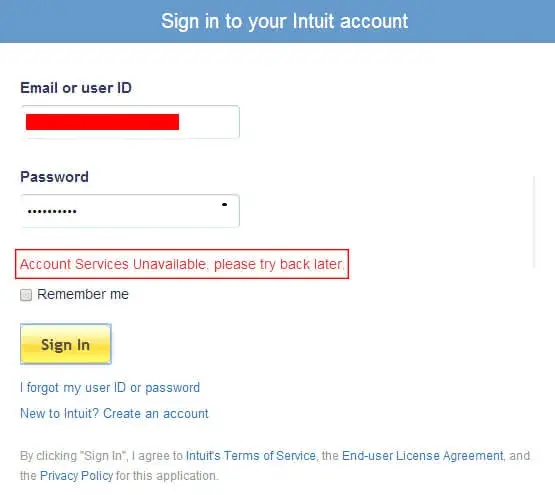
A QuickBooks Online login problem can prevent you from accessing your company file, especially when the sign-in page keeps loading, redirects repeatedly, shows a blank screen, or displays an error such as “Something went wrong.” This issue is caused by various reasons, such as incorrect credentials, outdated browser data, blocked cookies, browser extensions, network restrictions, and Intuit service interruptions.
In this guide, we explain the common causes of QuickBooks Online login problems and provide step-by-step troubleshooting methods to help you regain access to your account.
Before configuring your browser or account settings, visit the official QuickBooks status page. This page will show you the exact operational status of QuickBooks Online and other Intuit services. If the status page shows an active disruption affecting QuickBooks Online, the problem may be service-side rather than specific to your device. In that situation, wait for the service to recover before making extensive changes to your browser or account settings.
What Causes QuickBooks Online Login Problems?
QuickBooks Online problems can be caused by account-related issues or problems with your browser, network connectivity, or Intuit service. The following are the major factors that may trigger this issue.
A temporary service disruption can prevent you from signing in even if the credentials are correct.
Old browsing history, cache, cookies, or browsing data may interrupt the login process.
An expired or damaged session can repeatedly redirect you to the login page.
Multiple wrong password entries may trigger temporary security blocks.
Company administrators might have changed or restricted user roles or access permissions.
A stale or expired login session can sometimes cause repeated redirects and prevent the sign-in process from completing.
Antivirus software or a firewall may block outgoing requests to Intuit servers.
Sometimes, browser extensions might be blocking access.
How to Fix a QuickBooks Online Login Problem With Easy Steps
Now that you have understood the root causes behind QuickBooks Online login problems, follow the troubleshooting methods below to regain access to the account.
Step 1: Clear Your Browser’s Cache and Cookies
QuickBooks Online uses browser cache and cookies to run the software smoothly. But sometimes these browsing cache files or cookies block web pages from loading and cause login problems. So, to fix the issue, you need to clear your browsing cache or cookies.
Firefox Browser
First, tap the menu button and select Settings.
Choose the Privacy and Security panel.
Click on Clear browsing data from the Browsing data section.
Beside the drop-down for When, select Everything. Verify that only Temporary cached files and pages are selected.
Select the Clear button.
Now, close the Settings page.
Chrome Browser
Open the Chrome browser.
Click the three-dot menu > Delete Browsing Data.
After this, choose a time range, such as Last hour or All time.
Now, browse to Cookies and other site data.
Look for the other items that you wish to delete.
Finally, tap on the Delete Data option for confirmation.
Safari Browser
Open Safari on your Mac.
Click on History and then select the Clear History option.
After that, click the pop-up menu.
Now, select how far back you want to clear your browsing history.
Microsoft Edge Browser
At first, click on the three-dot menu (Settings and more) and select Settings.
Browse to the Privacy, search, and services option.
Go to the Clear Browsing data and tap the Choose what to clear option.
Now, select a time range by clicking the drop-down menu.
Pick the type of browsing data that you wish to clear.
Once done, click the Clear Now option.
Step 2: Try Incognito/Private Mode
Try opening QuickBooks Online in a private or incognito window. This can help you determine whether the problem is with your browser profile or cache data. Below, we have mentioned the shortcut keys used to open an incognito window in different web browsers.
Mozilla Firefox: CTRL + Shift + P
Microsoft Edge: CTRL + Shift + N
Google Chrome: CTRL + Shift + N
Safari: Command + Shift + N
Step 3: Use a Supported or Updated Web Browser
A problem that you might face while logging into your QuickBooks Online account is caused by using an out-of-date web browser. It is very important that you keep your web browser and the QuickBooks Online environment updated to avoid compatibility problems with the latest updates and changes. For further information on the latest updates and features of QuickBooks Online, refer to our guide on QuickBooks Online new features and updates.
Google Chrome
Version 78 or newer
Mozilla Firefox
Version 76 or newer.
Microsoft Edge
Version 79 or newer
Safari
Version 12 or newer (Mac only)
Opera
Version 68 or newer
Samsung
Version 10 or newer
Step 4: Disable Browser Extensions
Browser extensions can sometimes interfere with the scripts, cookies, or page content required for Intuit’s login process. Here’s how to uninstall a browser extension and then disable it until you sign in to the QuickBooks Online application.
Uninstall an extension
Launch the Chrome browser and click the More icon.
Choose More Tools and then click the Extensions tab.
Now, click Remove beside the extension that you want to delete.
Select Remove for confirmation.
Disable an extension
Launch the Chrome browser and click the More icon and choose More Tools.
Tap on the Extensions option.
Turn off the extension you want to disable.
Step 5: Sign In Directly, Not From a Bookmarked Link
If you use an old bookmark or saved QuickBooks company link, open the official QuickBooks sign-in page directly.
After this, type your email address, user ID, or phone number.
Then, follow the current sign-in prompts.
If you are still unable to log in to your QuickBooks Online account, then try another troubleshooting method.
Step 6: Reset Your Password
An incorrect QuickBooks Online login password may cause issues while signing in to your account. Therefore, to reset the password, perform the steps given below.
Initially, launch the QuickBooks Online login page.
After this, select I forgot my user ID or Password at the bottom.
Now, enter your phone number and click Continue.
Next, type the 6-digit code in the text field and select Continue.
Finally, perform the steps given on the screen to retrieve your password or reset it.
Step 7: Disable VPNs and Check Network Restrictions
If QuickBooks works on one network but not on another, your network configuration might be responsible for the issue. If QuickBooks Online continues to have connectivity issues, review our guide on QuickBooks not connecting to the server for additional troubleshooting steps.
To disable the VPN;
If you’re connected to a VPN, disconnect it temporarily and then try signing in to QuickBooks Online again.
Connect your device to a trusted network.
Reboot your router if your internet connectivity is unstable.
Now, test QuickBooks on another device or network.
If possible, try to sign in from another device connected to the same network. If the problem occurs on multiple devices, the network may be the source of the issue.
If QuickBooks Online is unavailable across different browsers, devices, and networks, check the official Intuit Status page before making further changes.
Step 8: Flush Your DNS Cache on Windows
If the QuickBooks Online problem still exists, try to flush your DNS (Domain Name System) cache. This might contain outdated data that’s causing issues while connecting QuickBooks to the internet. Perform the following steps to do so;
At first, open the Start menu and select All Programs.
Browse to Accessories and then open the Run window.
Now, type CMD into the search area and hit the OK tab.
Type “ipconfig/ flushdns” and hit the Enter key in the Command Prompt window.
Finally, reopen the browser and try sign in to QuickBooks Online again.
Step 9: Check Your Firewall or Security Software
Temporarily disable your firewall or web-security software only for testing.
Open QuickBooks Online and try signing in.
If the login works, re-enable the security software.
Check whether it is blocking your browser or Intuit-related web traffic.
Add the appropriate site to the software’s allowed/trusted list if supported.
If you’re on a managed business network, contact your IT administrator before changing firewall settings.
If your firewall is preventing QuickBooks Online from connecting properly, see our guide on Windows firewall blocking QuickBooks for additional troubleshooting steps.
How to Fix QuickBooks Online Login Problems on Google Chrome
If you are struggling with QuickBooks Online login problems on Google Chrome, then perform the troubleshooting methods listed below.
Method 1: Try a Different Chrome Profile
Corrupted or incorrect Chrome profile settings can sometimes interfere with the QuickBooks Online application.
Open the Chrome browser and click on the Profile icon at the top-right corner.
Choose the Add or Add Chrome Profile option.
Now, create a new profile and follow the instructions given on the screen.
Launch QuickBooks Online in the new Chrome profile.
Try signing into QBO once again and see if the issue still exists.
Method 2: Clear QuickBooks/Intuit Site Data
Clearing cookies and site data for Intuit can fix issues caused by outdated or corrupted login information.
Launch the Google Chrome browser and select the three-dot menu in the top-right corner.
Choose the Settings icon and click Privacy and security.
Navigate to Third-party cookies and click See all site data and permissions.
Look for Intuit and delete the stored site data for the relevant Intuit domains.
Now, close and reopen the Chrome browser.
Finally, launch QuickBooks Online and try logging in once again.
How to Recover Your Intuit Account If You Can’t Sign In
Have you forgotten your user ID or password, or locked out of your Intuit account? In that case, you can recover your account using your verified phone number or email address. If you don’t have access to either verification method, you can also submit your account recovery form with proof of identity.
Option 1: Use your phone number or email
Your phone number or email address is one of the easiest and fastest methods to recover your account if you have access to the contact information on file.
Visit the Intuit sign-in page and click I forgot my user ID or Password.
Enter your registered phone number or email address and click Continue.
Now, choose how you want to receive your verification code (text or email).
Look for the verification code in your text messages or email.
Tip:Open your email in a new browser tab. Make sure not to close the tab with the sign-in page.
Now, enter the code on the sign-in page, then click Continue.
Finally, reset your password by following the on-screen prompts.
Option 2: Use the account recovery form
If you fail to access your registered phone or email, verify your identity by submitting a photo of a valid ID.
After this, upload a high-quality photo of one of the accepted documents.
Finally, submit the form to complete the process.
What happens next?
Business hours for processing are Monday to Friday, between 8 AM and 5 PM Pacific.
If you entered a user ID instead:
Choose either Forgot password? or Text a code to [your number].
After this, do as per the instructions given on the screen to reset your password. Otherwise, you can skip this step.
Note: It is suggested not to close the tab containing the code entry form. Otherwise, you will have to start from the scratch.
Troubleshooting verification codes
If you are struggling to receive or use the verification code, perform the following steps.
Issue: I didn’t receive a code.
It might take a few minutes for the code to arrive.
Step 1: If you used email
Look in your spam or junk folder.
After this, check all the email addresses you have signed up with.
Finally, add “do_not_reply@intuit.com” to your approved sender list.
Step 2: If you used text
Verify that your phone number is not blocking numbers 88811 or 97962.
Make sure that your text message is sent via your carrier’s website if you don’t have your phone. If you cannot verify those details from current Intuit documentation, remove them.
Step 3: Retry
To send a new code, choose either I didn’t get any email, or I didn’t get a text message on the sign-in page to send a new code.
Issue: My code isn’t working
Only the latest code sent to you will work.
If you have requested multiple codes, then wait for the newest one to arrive and enter that specific code.
Issue: Sign-in issues after a password reset
If you reset your password but still fail to sign in;
Clear your browser’s cache files and cookies.
Close and then reopen your web browser.
Try to sign in again using a new password.
If repeated sign-in attempts continue to fail, stop retrying and use Intuit’s account-recovery process. Repeated unsuccessful attempts can make troubleshooting more difficult and may trigger additional security verification.
QuickBooks Online Login Problem on Android
If you can’t log in to QuickBooks Online on your Android device, do the steps given below.
Update the QuickBooks Online app: Open the Google Play Store and search for QuickBooks. Then, install the latest version available for QuickBooks Online.
Clear the app cache and data: Choose the Settings option and click App. After this, go to QuickBooks > Storage and then clear the cache. If the issue persists, clear the app data and try to sign in again.
Check your internet connection: Verify your internet connection and make sure it is stable. If you are using a VPN, temporarily turn it off to rule out connection restrictions.
Use a mobile browser: If the QuickBooks app fails to load or sign in, open QuickBooks Online in your mobile browser. Then, try to log in there.
Restart your device: By performing a simple restart, you can fix temporary app or connection issues.
When to Get Professional Help?
If you have tried the troubleshooting steps above and still fail to access the QuickBooks Online account, get professional assistance that can help you identify account or access issues that browser and connection fixes can’t resolve. You can get help for the following issues;
If login failures keep happening
When you suspect an account or access-setting issue
Account recovery isn’t working
When you have an important tax deadline
Final Thoughts
Encountering a QuickBooks Online login problem can be frustrating, especially when you need immediate access to your company data. Start with the basic fixes outlined in this guide, including checking your connection, clearing browser data, testing another browser, and reviewing your security settings.
If you still can’t sign in, BooksMerge QuickBooks professional assistance can help determine what’s preventing access and get you back to managing your QuickBooks Online account.
About The Author
Meghan McKenzie, CPA, is a senior accounting technology writer with over a decade of experience helping US small businesses streamline their financial operations. She specializes in resolving complex accounting software
errors, automating workflows, and translating technical tax and bookkeeping standards into practical advice.
FAQ's
QuickBooks Online login problem is caused by incorrect login credentials, an unsupported web browser, an outdated browser or cache, network restrictions, or account-related issues.
This message may appear when a browser or security settings interfere with the Intuit sign-in process, and service-side issues can also cause this issue. Browse to the QuickBooks Status page, then use an incognito window in a supported web browser to fix the issue.
First, visit the official QuickBooks Online sign-in page and enter your email address, user ID, or phone number. Depending on your login method and account, Intuit will ask to enter a password or verification code sent by email or phone.
You might face issues while loading the QBO page because of outdated browser data, blocked cookies, browser extensions, network restrictions, or other browser-related issues.
No. QuickBooks Online uses an Intuit Account for sign-in and account management. Your Intuit credentials can also be used across certain other Intuit products and services, depending on the account and product.
Instant QuickBooks diagnostics, then a certified
ProAdvisor takes over live.
qb-diagnostic.sh
> Scanning Error signature...
> Match Found: quickbooks-online-login-problem
> routing to certified ProAdvisor▌
98%
first-call fix
<15s
match time
24/7
live coverage
Ready to Get Your Books in Order?
Whether you need monthly bookkeeping, outsourced payroll, or a bookkeeping cleanup before tax season, BooksMerge is ready to take bookkeeping off your plate. Schedule a free consultation, and we'll walk through your current books, your goals, and the right service package for your business.