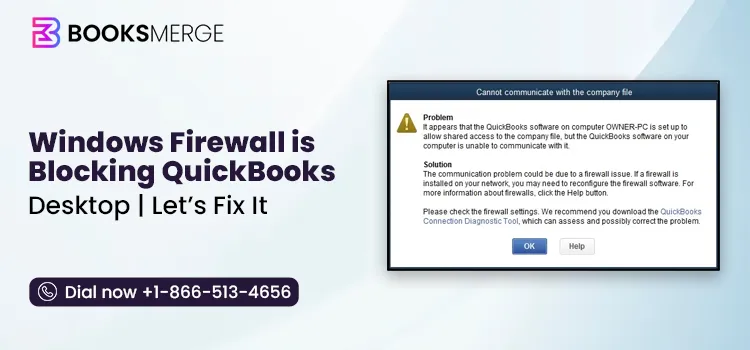
For security reasons, Windows Firewall may block QuickBooks Desktop from running all operations, either due to incorrect settings or because the software is flagged as a threat.
When Windows Firewall blocks QuickBooks Desktop, users may experience issues such as an inability to access company files in multi-user mode, disrupted network connectivity, or errors when updating payroll and other services. These interruptions can significantly affect your workflow, especially in business environments that rely on seamless accounting operations.
Understanding why this happens and how to configure your firewall settings properly is essential to ensure QuickBooks runs smoothly without compromising your system’s security.
Windows Firewall is a built-in security feature of the Microsoft Windows operating system that helps protect your computer from unauthorized access, malicious software, and cyber threats. It acts as a barrier between your device and external networks, such as the internet or local networks, and monitors incoming and outgoing traffic according to predefined security rules.
By filtering data packets, Windows Firewall ensures that only safe and trusted communications are allowed while blocking suspicious or potentially harmful connections. It is an essential component of a system’s overall security strategy, working alongside antivirus software and other protective tools to safeguard sensitive data and maintain system integrity.
Windows Firewall analyses network traffic and applies rules to determine whether to allow or block specific data transmissions. These rules can be automatically configured by the system or customized by users and administrators based on their security needs.
When data attempts to enter or leave your computer, the firewall examines key details such as the source, destination, port number, and protocol. If the traffic matches an approved rule, it is allowed through. If not, the firewall blocks it to prevent potential threats.
Windows Firewall operates using two primary filtering methods:
Additionally, Windows Firewall can work with different network profiles—such as public, private, and domain.
The following points outline the primary reasons behind this issue, providing a clear and slightly detailed overview for better understanding:
Below is a list of the most common errors and issues you may encounter when running the QuickBooks operations, such as opening your company file, updating QuickBooks Desktop, or hosting a company file over the network:
Configuring Windows Firewall correctly is essential for QuickBooks Desktop to communicate over your network—especially in multi-user mode. Here’s a clear, step-by-step guide to help you set it up:
a. Run QuickBooks File Doctor
Running the QuickBooks File Doctor (QBFD) before configuring Windows Firewall saves time by automatically repairing company file corruption or network damage that often masquerades as firewall issues. It quickly resolves errors such as H101, H202, H303, and H505.
The scan time usually depends on the size of your company file and may even take up to 10-15 minutes. It may even say the scan is unsuccessful even after fixing the issue. When done, proceed below to configure the Windows Firewall settings for QuickBooks.
b. Add Firewall port exception for QuickBooks
If you have multiple-year versions of QuickBooks Desktop on the same computer, perform the steps mentioned below for each version:
Important: QuickBooks Desktop 2019, 2020, and later versions rely on dynamically assigned firewall ports. Instead of using a range, a specific port is designated during installation, allowing QuickBooks Desktop to have dedicated access to that port.
To get the dynamic port:
You can update the assigned port by clicking “Renew.” After doing so, go to the Scan Folders tab and select “Scan Now” to refresh the firewall settings. Note that this option is only available for Desktop 2019 and newer versions—earlier versions do not support renewing ports.
Open QuickBooks Desktop and try updating the software again to verify internet connectivity and whether the error is fixed.
c. Create Windows Firewall exceptions for QuickBooks programs
QuickBooks relies on several executable files (.exe) to perform its various functions and processes smoothly. To ensure these files run without interruption—especially when security software such as antivirus or firewall programs is in place—you may need to create exceptions for them.
Follow the steps below to add exceptions for each executable file listed in the table, so QuickBooks can operate properly without being blocked or restricted:
|
Executable files |
Location |
| AutoBackupExe.exe | C:\Program Files\Intuit\QUICKBOOKS YEAR |
| Dbmlsync.exe | C:\Program Files\Intuit\QUICKBOOKS YEAR |
| DBManagerExe.exe | C:\Program Files\Intuit\QUICKBOOKS YEAR |
| FileManagement.exe | C:\Program Files\Intuit\QUICKBOOKS YEAR |
| FileMovementExe.exe | C:\Program Files\Intuit\QUICKBOOKS YEAR |
| QuickBooksMessaging.exe | C:\Program Files\Intuit\QUICKBOOKS YEAR |
| QBW32.exe | C:\Program Files\Intuit\QUICKBOOKS YEAR |
| QBDBMgrN.exe | C:\Program Files\Intuit\QUICKBOOKS YEAR |
| QBServerUtilityMgr.exe | C:\Program Files\Common Files\Intuit\QuickBooks |
| QBCFMonitorService.exe | C:\Program Files\Common Files\Intuit\QuickBooks |
| QBLaunch.exe | C:\Program Files\Common Files\Intuit\QuickBooks |
| QBUpdate.exe | C:\Program Files\Common Files\Intuit\QuickBooks\QBUpdate |
| IntuitSyncManager.exe | C:\Program Files\Common Files\Intuit\Sync |
| OnlineBackup.exe |
C:\Program Files\QuickBooks Online Backup |
Note: The presence of “Program Files (x86)” simply indicates that you’re running a 64-bit operating system.
Open QuickBooks Desktop and switch to Multi-User Mode. If the issue or any error messages persist, proceed to the next section and adjust your antivirus settings.
To avoid recurring firewall-related issues with QuickBooks Desktop and maintain a smooth accounting workflow, follow these practical tips:
While many firewall-related issues can be resolved with manual configuration, there are situations where professional assistance becomes necessary:
In such cases, reaching out to QuickBooks support or a certified ProAdvisor ensures accurate diagnosis and minimizes downtime, helping you get back to business quickly.
We’ve reached the end of this blog, where we covered everything about Windows Firewall—how it works, why Windows Firewall is blocking QuickBooks Desktop, and the steps you can take to configure the settings and restore smooth operation of the software.
If you need further assistance, we highly recommend you to speak with a Quickbooks payroll specialist, who are available to provide the best solutions. Simply call our toll-free number +1-866-513-4656 to connect with an expert.

To allow QuickBooks through the Windows Firewall, use the QuickBooks Tools Hub to run the QuickBooks File Doctor, which automatically configures settings. Alternatively, manually create inbound and outbound firewall rules for QuickBooks executable (.exe) files and assign specific TCP ports in Windows Firewall under “Advanced Settings“.
To stop Windows Firewall from blocking a program, allow it through the firewall by searching for “Allow an app through Windows Firewall” in the Windows Start menu, clicking “Change settings,” and checking the boxes for the program under both Private and Public networks. If the program isn’t listed, use the “Allow another app” button to find and add it.
Windows Firewall blocks QuickBooks when it misinterprets the software’s network activity as a threat, usually during multi-user setups or after updates. Common causes include improper port configuration (TCP/UDP), outdated QuickBooks versions, or restrictive security settings preventing access to company files.
QuickBooks Desktop uses specific TCP ports for multi-user access and database management, primarily 8019 and a version-specific dynamic port (e.g., 56726-56728). These firewall settings must be configured to allow communication between workstations and the server, with newer versions utilizing unique ports assigned during installation.
Yes, firewalls are a primary cause of QuickBooks multi-user errors (such as H202, H505, or H101). They often block the necessary network ports (8019, 56728) or executables needed for communication between workstations and the server hosting the company file.
To allow QuickBooks through Windows Firewall, you need to add QuickBooks and its required files as firewall exceptions. This allows QuickBooks Desktop to communicate with the internet, company files, and other computers on a network.
To turn off a firewall on Norton 360 for QuickBooks Desktop, open Norton 360 settings, locate the firewall or smart firewall option, and temporarily disable it. After testing QuickBooks connectivity, re-enable the firewall and add QuickBooks as an allowed application if needed.
QuickBooks Install Diagnostic Tool: How to Download, Run, and Fix Install Errors
Read More
AI-triaged.
Human-solved.
Instant QuickBooks diagnostics, then a certified ProAdvisor takes over live.
first-call fix
match time
live coverage