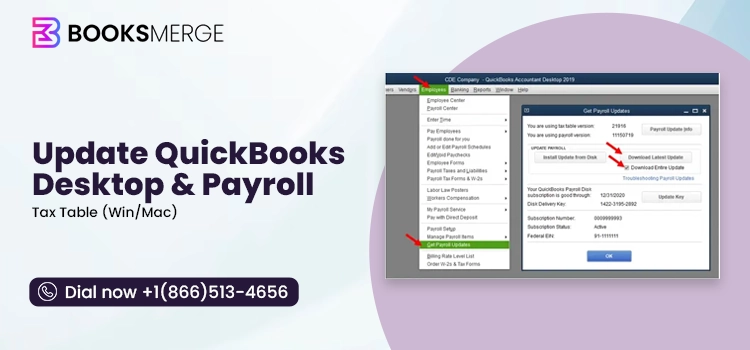
To update QuickBooks Desktop, open the Help menu, click Update QuickBooks Desktop, then select Update Now and Get Updates. The software restarts and installs the latest patch automatically. For payroll tax table updates, go to Employees, followed by Get Payroll Updates, which is a separate process from the software update.
However, it should be noted that an update is different from an upgrade. Moreover, there are multiple ways to update QuickBooks Desktop for Windows and Mac. Sometimes, you may run into errors when trying to update the program. We will go into detail on these topics in this blog. Moreover, we will also walk you through the exact steps to update the Payroll tax table in QB and how to update QBDT in multi-user mode.
If you wish to upgrade to QuickBooks Desktop 2024 from an older version for software enhancements and continued support, we will tell you how to do that. Alright then, let us get started.
Update and upgrade are different things in QuickBooks Desktop.
QuickBooks update is a maintenance release, a software patch applied to your current QuickBooks version. It delivers new features, critical security patches, and bug fixes without changing your base software version (e.g., updating from version 24.0 R15 to R16)
On the other hand, the QuickBooks upgrade is the process of switching from an older version of accounting software to a newer version (for example, 2022 to 2023). It needs you to get a new annual subscription license first. Then, you need to install the new software and update your company file to maintain compatibility.
The upgrade process includes three key actions:
Key Differences at a Glance
| Feature | Update (Patch) | Upgrade (Version Change) |
| Description | Applies minor fixes or new features within your current year’s version. | Moves you to a brand-new year version (e.g., 2025 to 2026). |
| Cost | Free | Paid (Requires an active annual subscription). |
| Data File | Leaves your company file untouched. | Requires you to convert your company file to the newer format. |
| Purpose | Fixes bugs, improves security, and updates tax tables. | Adds major new tools, UI changes, and OS compatibility. |
| Frequency | Released frequently throughout the year by Intuit. | Released annually (usually in the fall). |
For your convenience, we have listed all the major ways to update QuickBooks Desktop for Windows in this section. This helps if you find a problem with a certain method and want to try a different way.
However, if your query is for QuickBooks Desktop for Mac, scroll down to the next section.
Here are 4 common ways to update QuickBooks Desktop on Windows.
QuickBooks can download updates automatically in the background.
Here is how to turn on automatic updates in QuickBooks Desktop
QuickBooks will now check for and install updates automatically when available.
If you want to install updates immediately, here is how you can do so:
• Open QB Desktop as an administrator.
• Go to Help > Update QuickBooks Desktop.
• Select the Update Now tab.
• Check Reset Update (optional but useful if updates fail).
• Click Get Updates.
• Wait for the download to finish and then restart QuickBooks.
• When prompted to install the update, accept it.
After a restart, the latest release should install automatically.
This method works well if automatic updates fail.
• Close QuickBooks.
• Visit the official QuickBooks Desktop Updates page.
• Choose your Country, Product, and Version
• Click Search.
• Download the latest maintenance release patch.
• Run the downloaded file and follow the instructions.
Restart your computer.
To confirm whether your version is already up to date, check your version and release info in the Product Information window in QuickBooks.
Compare it with the latest release listed on the official Intuit QuickBooks site.
Here is how you can verify if the update has been installed.
However, if the release number didn’t change, you should retry the update.
Let us see how to check for the latest release and how to update QuickBooks Desktop on Mac.
Check for the Latest Release
Here is how to check for the latest release on QuickBooks Desktop for Mac.
If not, follow the steps to update QuickBooks Desktop on Mac. There are two major ways to do so, which we will list below.
Here is how you can update the QB application inside the product.
You can enable the automatic updates to receive updates automatically in the future. To do so, from the update window, choose the Automatically download and install updates in the future option.
If the in-product update doesn’t work for you or doesn’t change the release number, you can manually update QuickBooks Desktop for Mac.
However, if you face a problem in installing the update or the update doesn’t advance the release number:
In the last section, we listed some workarounds you can try if the update doesn’t work or the release number doesn’t advance.
Now, we will go through some common update issues you can come across in QuickBooks and tell you some quick hacks to address them. If that doesn’t help, you can go to the dedicated guide for the specific error and conduct a comprehensive troubleshooting.
QuickBooks Desktop update error 1328 can show up when there is a corrupt patch file, a mismatch in installation folders, or an issue with the Windows config.msi directory.
You might get an error message like this on your screen:
“Error 1328. Error updating file C:\Config.Msi\PTXXX.tmp.”
To resolve it, try these things:
A stuck or frozen QB update can result from antivirus interference, damaged update files, or network blocks.
To address it, here you can do the same.
If the update bar hasn’t moved for a while, force close the program:
Antivirus software (such as Windows Defender, McAfee, or Norton) often misidentifies update files as threats and blocks them.
Insufficient Windows permissions can cause installations to hang.
Clearing the update cache can resolve lingering update issues:
If the issue persists, Intuit provides a diagnostic utility to fix program lockups.
QuickBooks error 15106 can occur when an antivirus or security software or Windows permissions block QB from downloading, opening, or installing the update file.
Windows may be restricting QuickBooks from altering necessary system files.
Certain antivirus programs (like Webroot, Norton, and McAfee) can falsely flag the QuickBooks update component as a threat and block it.
Important: Remember to re-enable your antivirus protection immediately after the update finishes.
If the issue continues, you may need to add QuickBooks files to your antivirus’s exception or exclusion list.
High Windows security settings often interfere with background update installations.
If the error persists, you can use built-in repair tools to fix program installation conflicts.
If you face a problem in the update installation, it is very likely because of restrictions through Windows permissions, antivirus interference, or a corrupt installation.
You can follow the steps given above to troubleshoot it.
The same factors can also lead to QuickBooks Desktop crashes after the update installation. Thus, you can follow similar methods to address it.
In addition to QuickBooks Desktop software, you will also need to update the Payroll tax table. This ensures accurate employee withholdings, maintains legal compliance, and prevents costly penalties.
In this section, we will see how to update payroll in QuickBooks Desktop.
If you have a QuickBooks Payroll subscription, you can enable automatic updates. This makes sure payroll updates are automatically downloaded to your computer.
Here is how you can download the latest payroll tax table update:
Finally, restart your QB Desktop application.
For 2026 tax table updates, you will need to do this within the application. There will be no web patch available.
You can check the current version of your Payroll tax table in the following manner.
To download tax table updates, you will need to be either on QuickBooks Desktop 2024 or QuickBooks Desktop Enterprise 25.0.
A QuickBooks Desktop payroll update refreshes your software’s tax tables and system capabilities. Running these updates ensures your business avoids IRS penalties and underpayments by staying compliant with the latest legal requirements.
Here are the key components included in payroll tax table updates.
A QuickBooks Desktop payroll update refreshes your software’s tax tables and system capabilities. Running these updates ensures your business avoids IRS penalties and underpayments by staying compliant with the latest legal requirements.
Here are the key components included in payroll tax table updates.
Automatically adjusts calculations for federal, state, and local income taxes, as well as Social Security and Medicare.
Provides the latest versions of standard tax reporting documents (like Form 941 or state-specific employment forms).
Updates state unemployment insurance (SUI) limits, disability taxes, and local or county tax brackets.
Delivers the newest supported layouts for electronically filing forms and paying taxes directly through the software.
Includes bug fixes, improvements, and security patches for QuickBooks’ built-in payroll module.
If the QB Payroll tax table update doesn’t work, or if the TD1 amounts are not updated after installing the latest tax table updates, try these hacks.
While updating QB Desktop in a multi-user environment might not seem much different, there are a few things that make it tricky.
Let us see how to update QuickBooks Desktop in multi-user mode in a step-by-step manner. Moreover, the order is critical. Thus, follow the steps in the order they are given.
You should always begin with the server. Before updating, you will need to make sure no one else is in the system:
Next, update the server.
The system will ask you to install the update.
Wait for the update to complete before moving on to the next section.
You need to update QuickBooks on all workstations that you use to access your company file.
To update the QuickBooks Database Server Manager (QBDBSM) after a network or software update, you need to update the QuickBooks Desktop version on your server.
The Database Server Manager updates automatically when the core QB Desktop software on the server is updated. Thus, follow the steps given in earlier sections to update the QBDT installed on the host computer.
QuickBooks Desktop 2023 has been discontinued on May 31, 2026. Thus, it will no longer receive security updates, and payroll support and payment processing will not work anymore. This also applies to the older versions.
You will need to switch to QuickBooks Desktop for an uninterrupted bookkeeping experience and payroll operations.
We cover this in detail in our dedicated guide on how to switch or survive after QuickBooks Desktop 2023 discontinuation and how to upgrade QuickBooks Desktop 2023 to 2024. We evaluate all the available options (for instance, QBO, QBDT Enterprise, Xero, FreshBooks, Wave), assess the upgrade or switch costs, and walk you through the exact steps.
An update brings crucial enhancements, security patches, and bug fixes and helps keep you from running into compatibility issues. The above article should help you update QuickBooks Desktop for Windows and Mac, as well as the Payroll tax table. The troubleshooting methods provided will help you address common issues you may encounter during such updates. However, if you need real-time assistance, you can connect with a BooksMerge expert.

Open QB Desktop, then go to Help > Update QuickBooks Desktop > Update Now. Click Get Updates. Restart QB to install the latest release updates and security patches.
Regular maintenance updates and security patches for your current QB version are free. But upgrading to a newer version, such as 2024, may need you to get a paid subscription or a new license.
To update payroll tax tables, open QuickBooks Desktop, go to Employees > Get Payroll Updates, select Download Entire Update, and click Update to install the latest payroll tax rates and forms.
QuickBooks Desktop error 1328 is an installation or update error, usually caused by corrupted update files, damaged Windows Installer components, or interrupted QuickBooks installations.
You can enable automatic updates by going to Help > Update QuickBooks Desktop > Options and selecting Yes for Automatic Updates so QuickBooks downloads updates automatically.
Yes, all computers and the server in a QuickBooks Desktop multi-user environment should be updated to the same release version to prevent compatibility and company file access issues.
Press F2 or Ctrl + 1 inside QuickBooks Desktop to open the Product Information window, then compare your release version with the latest release available from Intuit.
To upgrade from QuickBooks Desktop 2023 to 2024, you need to first back up your company file. Then, install QuickBooks 2024, and open the company file in the new version. Moreover, allow QuickBooks to update the file format automatically.
QuickBooks Install Diagnostic Tool: How to Download, Run, and Fix Install Errors
Read More
AI-triaged.
Human-solved.
Instant QuickBooks diagnostics, then a certified ProAdvisor takes over live.
first-call fix
match time
live coverage