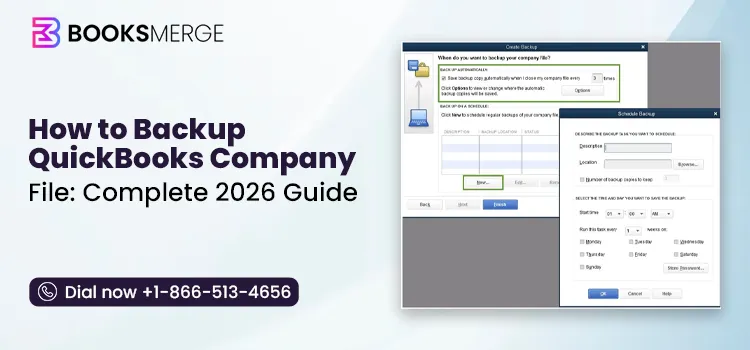
Creating a backup QuickBooks company file makes a secure copy of your accounting data, like customers, vendors, transactions, or reports. QuickBooks Desktop stores backups as .qbb files that can be restored when the original files get corrupted. For better protection, create regular backups, store them on external devices or cloud storage, and follow the 3-2-1 backup rule to ensure quick recovery from unexpected data loss.
Backing up your QuickBooks company file is essential to protect your financial data from accidental deletion, hardware failure, malware attacks, and file corruption. A backup QuickBooks company file creates a secure copy of important records, including customer details, invoices, payroll data, tax information, and transactions, allowing you to restore data when needed.
Without a proper backup, unexpected issues can disrupt your business operations. In this guide, we will explain how to backup QuickBooks company files for Desktop and Online versions, store backups on OneDrive, and follow best practices to keep your accounting data safe.
A QuickBooks company file is the primary file that contains all your sensitive accounting data such as bank transactions, invoices, payroll, customers, vendors, etc. In QuickBooks Desktop, it is saved with the .qbw file extension and acts as a primary file to accomplish daily business tasks.
Backing up the QuickBooks company file is important to secure your sensitive business data from technical failures and accidental deletion that can hamper business tasks. So, creating a data backup regularly helps ensure your financial data is secured and can be recovered.
The following are the benefits that you can get by creating a company file backup.
QuickBooks uses different file types, each offering a different purpose. However, understanding what these files do can help you select the appropriate one for backups, data transfer, and recovery.
| File Type | What It is |
| .QBW | It is a primary QuickBooks company file that stores your accounting data and is used for daily work. |
| .QBB | A backup of your company file, consisting of logos, templates, letters, and preferences. It also contains financial transactions and lists required to restore the company file. |
| .QBM | It’s a portable company file and is used for sharing or moving data. But it isn’t a replacement for a full backup. |
| .TLG | The Transaction Log (.TLG) file records changes made after the last successful backup and helps QuickBooks recover data in certain situations. |
| .ND | A Network data file that enables QuickBooks company files to be accessed in multi-user mode over a network. |
QuickBooks backup files are usually stored in the location you select while creating the backup. By default, many users save the file in the Documents or Public Documents folder. But you can also keep it on an external storage hard drive, network drive, or cloud storage.
The following are some of the default backup locations;
The ideal frequency of creating backups depends on how often you update your accounting data. But it’s suggested to back up your company file at least once a day if you use it regularly. Apart from this, also create a manual backup before making any changes, like payroll processing or importing huge amounts of data.
| Business Activity | Backup Frequency |
| Daily Bookkeeping | Every business day |
| Payroll Processing | Before each payroll run |
| Before QuickBooks updates | Always create a backup |
| Before importing/exporting data | Everytime |
| Multi-user environment | Daily or after making significant changes |
It’s essential to perform the following practices before creating a backup company file for a successful and reliable backup.
Creating a manual backup of your QuickBooks Desktop company file protects your accounting data and creates a duplicate copy that can be restored when needed. The backup includes company data, templates, letters, logos, images, and related files like QuickBooks Statement Writer, Cash Flow Projector, Business Planner, and Loan Manager. However, it does not include payroll forms.
Note: You don’t have to set the reminder on your calendar. You can set backup reminders by using options in the Online and Local Backup section.
QuickBooks will create a single backup company file. Once the backup is completed successfully, you’ll receive a confirmation message.
Scheduling the automatic QuickBooks backups helps save time invested in creating the backup manually every time. Perform these steps for setting up automatic backups in QuickBooks Desktop.


QuickBooks will then create a backup and schedule future backups simultaneously. After completing the backup, you will get a confirmation message.
QuickBooks won’t back up the payroll forms automatically. However, to protect these forms, you can print and save copies to your hard drive. Otherwise, if you are using QuickBooks Enhanced Payroll, you can also save them as PDF files. If your accountant wants to edit the payroll forms, share the folder containing your saved payroll forms.
By adjusting the backup settings of the file, you can see when you last backed up your company file. For that, move to the File menu > Back Up Company. You will see the date and time at the top of the menu.

To change your backup preferences, use these steps;

Creating a backup of QuickBooks Online Advanced company data is essential to keep a copy of your financial records. This will keep your accounting data safe and protected from data loss or damage.
| Data That Can Be Backed Up | Data That Can’t Be Backed Up | Data That You Can’t Restore |
|
QuickBooks Payments for Online info | Budgets |
|
Customer types and price rules | Inventory |
|
Delayed credits and charges (although associated invoices are backed up) | Tax rates using expense accounts |
| Recurring transactions | ||
| Bank feeds and their links to transactions and bank rules | Data backed up using the personal cloud archive feature | |
| Reconciliation reports | ||
| Account-based billable expenses | ||
| Item-based billable expenses with markup | ||
| Custom reports | ||
| Custom form templates | ||
| Audit log entries | ||
| Reconciliation reports do not move/back up | ||
| Reconciled transactions do not remain reconciled |
Your data will be automatically backed up when you turn on the online backup and restore app in QuickBooks Online Advanced. Once the backup is complete, it will track changes to your company data, and you can later restore it.
If you get stuck in the middle of any important project and you need to save everything, then you can enable the manual backup anytime. Perform the following steps to run a manual backup in QuickBooks Online Advanced.
In QuickBooks Online Advanced, you can save your backups to Google Drive and then export them. For that, you need to connect your account to it. Here are the step-by-step instructions to connect and then export to Google Drive.
a. your GConnect oogle Drive account
b. Export your backup
Note: It may take up to 10 minutes or more to view the file in Google Drive. Throughout this process, you can’t use Online Backup and Restore to save the data in the Personal cloud drive.
Backing up the QuickBooks data is only effective when you keep those backups securely. However, the 3-2-1 rule is known to be one of the best practices to safeguard your financial data from any loss, accidental deletion, and hardware failure.
The 3-2-1 backup rule means that you must keep,
Here is an example that businesses can adopt for daily, monthly, or weekly backup implementation.
| Frequency | Action | Storage Location |
| Daily | Create a QuickBooks backup at the end of each workday. | Save the backup to your local computer and automatically copy it to an external drive. |
| Weekly | Upload the latest backup to a cloud storage service. | Cloud platforms like Microsoft OneDrive, Google Drive, Dropbox, or a dedicated backup service. |
| Monthly | Archive a full backup and verify that it can be restored successfully. | Store the archive on an encrypted external drive kept at another office or a secure location. |
Cloud storage devices such as OneDrive, Google Drive, or Dropbox play a crucial role in keeping the QuickBooks company file backed up. But there’s a slight difference between uploading a completed backup file and storing your live QuickBooks company file in a cloud-sync folder. So, first, you need to understand the difference between the two to protect your data.
One of the safest methods to use cloud storage with QuickBooks Desktop is to create a local backup file and then copy or upload it to your cloud storage device. It provides an off-site copy and supports the 3-2-1 rule.
Perform these steps to export a backup to cloud storage.
You must avoid placing your active .QBW company file in a cloud-sync folder. Although QuickBooks updates the file constantly while it’s open, real-time syncing can cause file conflicts, data corruption, or access errors. So, it’s suggested that you keep the live .QBW file on your local computer or server and use cloud storage for completed .QBB backup files.
When you restore, QuickBooks accesses the backup company file (.qbb) to create a new company file (.qbw).
Note: If you have saved your backup company file to an external device such as a USB or a hosting service, you have to move it back to your hard drive.
Perform the following stepwise instructions to restore a backup company file.
Note: If you open the backup in your company file folder, you may overwrite your data.
In QuickBooks Online Advanced, you can restore your backup company file either through the Restore tab or the Backups tab. Here, we have provided the stepwise instructions using both methods.
You can use the Restore tab to restore data from a specific date and time.
Using the Backups tab, you can restore the backup without manually changing the date and time.
If you are unable to find your backup files in QuickBooks, then you can find them using the Find a company file option within the application.


Before moving a QuickBooks company file to a new version, it is essential to create a backup to protect your company data. Use the following steps to move files to a new computer.
Even after creating regular backups, you may encounter some issues while creating or restoring a QuickBooks backup. Here, we have provided some common issues and solutions to fix them.
This error mainly signifies that your company file contains either damaged or corrupted data.
How to Fix It
This error message appears while restoring a backup created in a newer QuickBooks version using an older version of the software.
Here’s how to fix it
Note: Update QuickBooks Desktop & Payroll Tax Table (Win/Mac)
This issue may occur when the backup is either too large or smaller than usual, which indicates missing data, attachments, or file corruption.
Here’s how to fix it
Scheduled backup may fail if your computer is turned off, QuickBooks isn’t configured accurately, or the backup destination is unavailable.
Here’s how to fix it
QuickBooks requires sufficient storage space for restoring a company file.
Here’s how to fix it
With the help of the following backup habits, you can safeguard your company data. Also, it makes the recovery process easier if something goes wrong.
A proper backup QuickBooks company file process ensures that your financial records remain accessible whenever you need them. From choosing the right backup location to scheduling regular backups and verifying files, these practices help reduce downtime and make data recovery easier. By maintaining reliable backups, you can manage your QuickBooks data with greater confidence and security.
If you still need any help creating a company file backup, you can contact our BooksMerge experts by dialing +1-866-513-46456.

You must create the backup of your company file daily or whenever you make some necessary changes. It’s necessary to create a backup before updates, payroll processing, or major data changes.
A .QBB file is a full backup file that is used for recovery, and .QBM is a portable company file used for transferring data.
Yes, QuickBooks Online Advanced provides automatic backups, but you can also create manual backups before making any important changes.
Yes, you can upload QuickBooks backup files to Onedrive, Google Drive or other cloud storage. Make sure not to store the active .QBW file in sync folders.
QuickBooks recommends switching to Single-User mode before backup to avoid errors and ensure data consistency.
No QuickBooks backup doesn’t involve payroll forms. You need to save payroll forms separately or export them as PDF for future use.
AI-triaged.
Human-solved.
Instant QuickBooks diagnostics, then a certified ProAdvisor takes over live.
first-call fix
match time
live coverage

