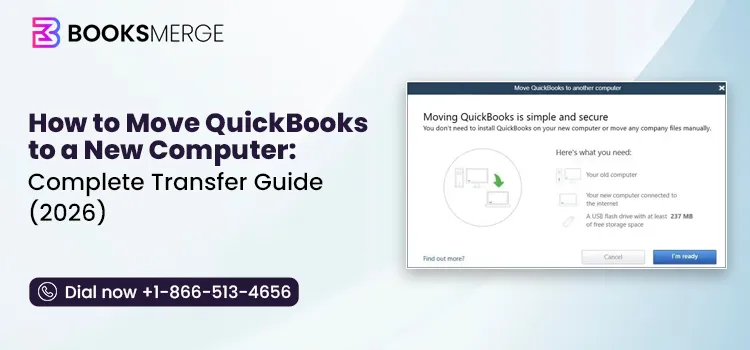
To move QuickBooks to a new computer, back up your company file on the old one, deactivate the QuickBooks license, install QuickBooks on the new computer, activate it using your existing license information, and restore your company file. When done correctly, your financial data, customer records, payroll history, and reports move with you intact.
Whether you’re upgrading aging hardware, replacing a failed computer, setting up a new office workstation, or moving to a faster machine, this guide will walk you through every step. You’ll learn how to transfer QuickBooks using the Migrator Tool, move it manually, transfer QuickBooks Desktop for Mac, handle multi-user environments, verify your data after the move, and fix common transfer issues.
Many QuickBooks transfers fail before they even begin, not because of a technical issue, but because users discover halfway through the process that they’re missing a license number, installer file, or account login.
Before you learn how to move QuickBooks to a new computer, spend a few minutes gathering everything you’ll need. This preparation step can save hours of troubleshooting later.
Let us first go through everything you need to have handy before you transfer QuickBooks to new computer.
The first thing you’ll need is your QuickBooks License Number and Product Number.
You can usually find these in:
If you don’t have this information available when installing QuickBooks on the new machine, you might experience activation delays.
You’ll also need the QuickBooks installer. You can find this in:

Many users assume QuickBooks automatically downloads itself again. It doesn’t. Make sure you have access to the correct installation version before starting.
If you’re using the manual transfer method, prepare a USB drive or external hard drive with at least 2GB of free space.
You’ll need it to transfer:
If you’re planning to use the QuickBooks Migrator Tool, you’ll still need a USB drive for the transfer process.
Keep your Intuit credentials nearby. You will need them to:
A forgotten password is one of the most common causes of transfer delays.
Before installing QuickBooks on another machine, verify how many installations your license allows.
Most QuickBooks Desktop licenses allow installation on multiple devices for the licensed user, while Enterprise licenses support significantly more users depending on the plan.
If you’re replacing a computer, you generally won’t need an additional license.
If you’re adding another workstation without removing the old one, verify your available seats under the Help menu. Here is how you can navigate to the same in QuickBooks:

Checking this first can prevent activation errors later.
If you’re currently running QuickBooks Desktop 2022 or 2023, this is an important moment to evaluate your setup.
QuickBooks Desktop 2022 was discontinued in 2025. QuickBooks Desktop 2023 reached discontinuation in May 2026. That means services like these no longer function:
Read More: QuickBooks Desktop Discontinued: Your Guide to Switch/Survive
If you’re already planning to move to a new computer, it makes more sense to upgrade to a supported QuickBooks version instead of installing discontinued software on brand-new hardware.
One of the biggest fears you can have when moving QuickBooks is losing financial data. The good news? Your accounting records don’t disappear simply because you’re switching computers.
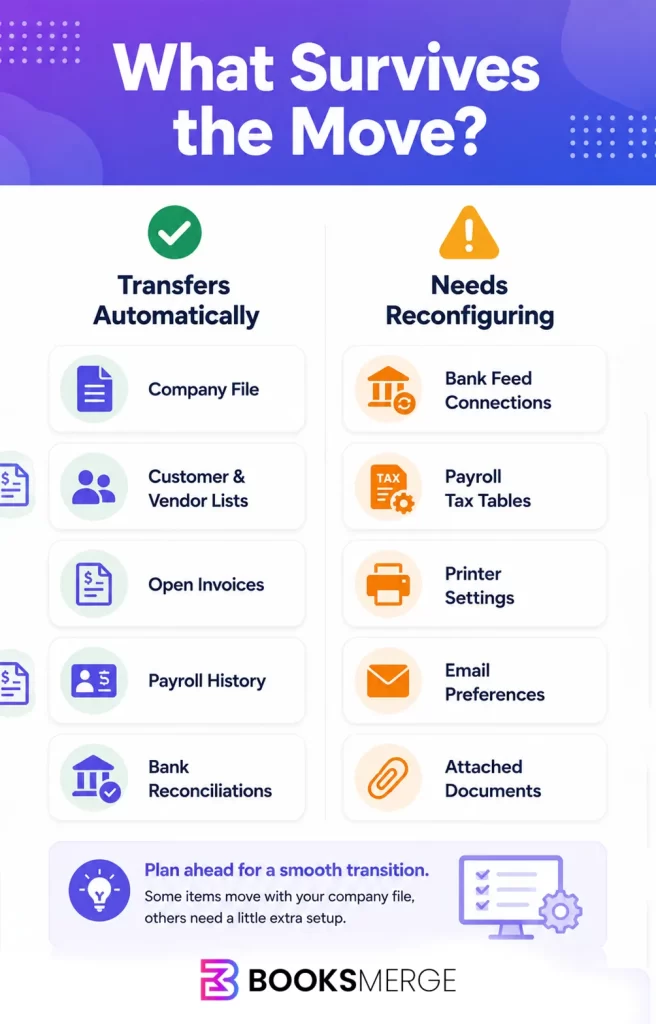
When you properly transfer or restore your company file, your business data comes with it. There is no need to re-enter invoices, recreate customers, or rebuild reports from scratch.
Let’s look at exactly what moves and what requires additional setup.
Here is everything that transfers to another computer when you migrate your QuickBooks data.
This means that your core accounting data remains intact.
Certain items are tied to the computer itself rather than your company file. These usually require reconfiguration after installation.
Attached receipts, PDFs, and supporting documents are not stored inside the company file. QuickBooks stores attachments in a separate folder.
That means your invoices may transfer correctly while the attached receipts remain behind on the old computer.
Before retiring your previous machine, verify that all attachment folders have been copied as well.
This single step prevents one of the most common post-migration support calls.
If you’re preparing to move QuickBooks to a new computer, your financial data is generally safe. The company file contains the information that matters most. What usually needs attention after the move are connections, preferences, integrations, and activation settings.
Understanding that distinction makes the entire process far less stressful.
If both your old and new computers are Windows machines, the QuickBooks Migrator Tool is usually the fastest way to complete the transfer.
Instead of manually moving files, restoring backups, and locating folders, the tool automates it for you. This is the simplest way to move QuickBooks to a new computer.
The QuickBooks Migrator Tool is a built-in utility designed to move QuickBooks software and related company data from one Windows computer to another.
Use the Migrator Tool if:
The Migrator Tool is ideal for straightforward transfers where you’re replacing one computer with another.
The Migrator Tool isn’t always the best choice.
Consider using the manual method instead if:
Knowing when not to use a tool is just as important as knowing how to use it.
Here are the steps you need to perform on your old computer:


Depending on file size, this process might take anywhere from 5 to 15 minutes.
Here are the steps you need to perform on the new computer:
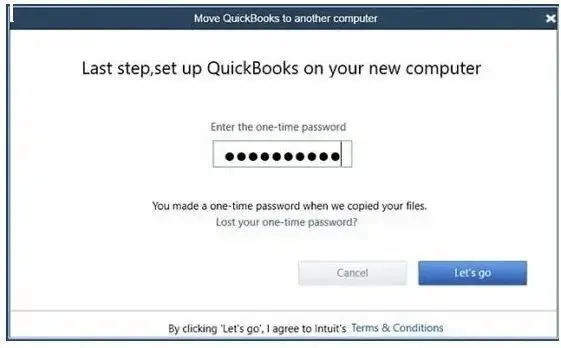
At this stage, QuickBooks should work on the new machine.
Before celebrating, however, there is one critical step that you shouldn’t overlook.
One of the most common activation problems occurs because QuickBooks remains activated on the old computer.
Once you’ve confirmed everything works correctly on the new machine:
This releases the license seat and helps prevent future activation conflicts.
Skipping this step can lead to errors when you reinstall QuickBooks again in the future or attempt to activate another device.
Quick Tip: Do not deactivate QuickBooks right after the transfer. You should wait until you have:
Once done, you can safely deactivate the old installation.
The manual backup-and-restore method takes a little longer than the Migrator Tool, but it’s often the most reliable approach.
Many accounting professionals actually prefer this method because it gives them complete control over every step of the transfer.
If you’re wondering how to move QuickBooks Desktop to a new computer when the Migrator Tool isn’t available, this is the method to use.
We recommend that you use the manual method to move QuickBooks to new computer when:
Although it requires a few extra steps, it produces more predictable results.
The backup file is your safety net. If anything goes wrong during the move, you’ll still have a complete copy of your accounting data.

After QuickBooks finishes creating the backup, verify that the file appears on your storage device.
Important Note: Many users confuse these two file types:
QBW = Live company file
.QBB = Backup file
For this transfer process, you’ll restore the .QBB backup file on the new computer.
Understanding this distinction keeps you from committing one of the most common migration mistakes.
With your backup secured, the next thing you need to do is installing QuickBooks on the new machine.
Important 2026 Upgrade Reminder
If you’re still using QuickBooks Desktop 2022 or 2023, this is the ideal time to move to the latest version instead of reinstalling discontinued software.
Resist the urge to open QuickBooks immediately. Restore your company file first so that your accounting data appears correctly from the beginning.
Now it’s time to bring your accounting data onto the new machine.


Once restoration finishes, QuickBooks should automatically open the company file.
Before moving on, check:
Everything should match what you see on the old computer.
The final stage is activation.
In most cases, activation is done within minutes.
You might see an error such as “This product has been opened too many times.”
This usually means the old computer still has an active QuickBooks license. To resolve it:
This is one of the most common issues users encounter after moving QuickBooks data.
You can safely deactivate QBDT on the old computer after you’ve confirmed that:

Moving QuickBooks Desktop Mac Plus to a new Apple computer is still straightforward once you know the correct steps. However, the steps are different from those of Windows, and that is why we need to be careful.
Before you start, keep these key differences in mind:
Before moving forward, make sure you have:
Having everything ready upfront makes the move significantly smoother.
Before moving anything, create a fresh QuickBooks backup.
You can also use:
QuickBooks will create a .QBB backup file.
Do not rely solely on Apple Time Machine backups when moving QuickBooks.
While Time Machine is excellent for general file recovery, it is not designed specifically for QuickBooks company file restoration.
Always create a QuickBooks-generated backup before moving to a new Mac.
This single step can prevent data restoration issues later.
There are two ways to install QuickBooks Desktop Mac on your new system.
Before installation, verify that the new Mac is running macOS 13 Ventura or later.
However, if that is not the case, here is what you need to do:
Do not skip compatibility, as it can lead to installation problems later.
With QuickBooks installed, it’s time to restore your company file.
A QuickBooks folder is usually the best storage location.
Next, activate QuickBooks following the steps below:
Before disconnecting the old computer, you need to confirm that:
As with Windows users, you’ll also need to reconnect bank feeds and download payroll updates in QB for Mac after moving to a new computer. We will discuss that further in the next section.
Moving QuickBooks in a multi-user environment requires a few additional steps compared to a standard workstation transfer.
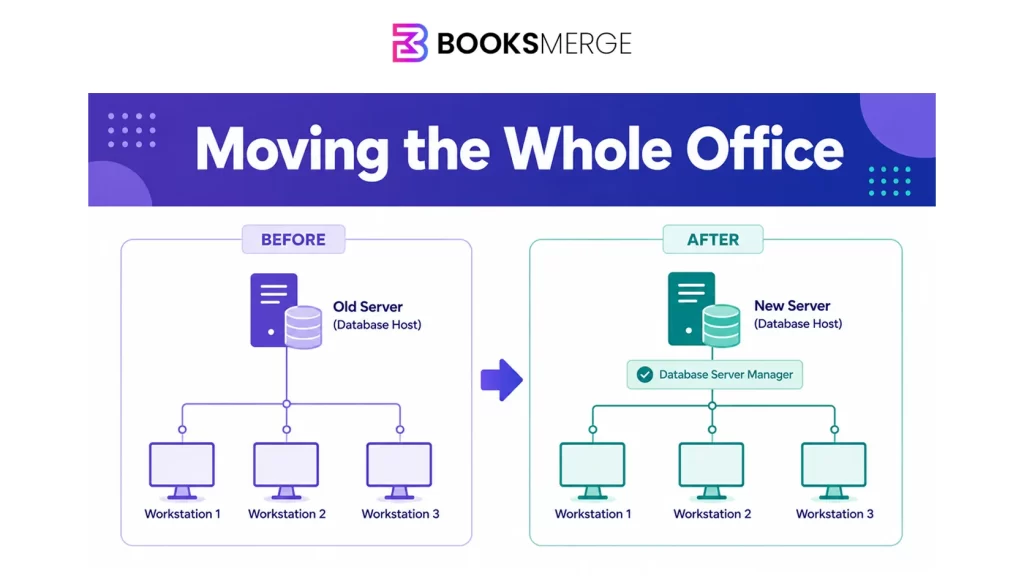
In a multi-user setup, the company file is usually stored on a dedicated server or host computer while employees access it from their individual workstations. Because multiple users rely on the same company file, it’s important to move the server correctly before reconnecting workstations.
If you’re wondering how to move QuickBooks to a new computer when multiple users access the file daily, follow the steps below to avoid connection issues and unexpected downtime.
Before you begin, make sure all users have finished their work and closed QuickBooks. Moving a company file while users are connected can cause access and synchronization problems later.
Once these steps are complete, the company file is ready to accept workstation connections.
After confirming the company file opens correctly on the new server, each workstation must reconnect to the new file location.
If a workstation cannot locate the file, verify that the company file folder is shared properly on the new server and that users have the required permissions to access it.
Many multi-user connection problems occur because this final step gets overlooked.
After all workstations have been connected:
A quick way to verify this is by checking the File menu. If you see Switch to Single-User Mode, QuickBooks is already running in multi-user mode.
Taking a minute to restart the service now can help prevent intermittent connection errors later.
Once QuickBooks is installed and your company file opens successfully, it’s worth spending a few minutes verifying that everything transferred correctly.
Missing data does not cause most post-move issues. They’re usually related to settings, connections, or services that need to be reconfigured on the new computer.
Use this quick checklist before retiring the old computer:

If all five items look correct, your company data has been transferred successfully.
Bank feeds will stop updating after a move. In reality, bank feed connections do not transfer automatically. To reconnect your accounts, you need to follow the steps below:
This will sync your bank or credit card transactions to QuickBooks.
You will need to download Payroll tax tables updates after installing QuickBooks on a new machine.
If your payroll subscription cannot be activated, verify the subscription status in CAMPs before troubleshooting further.
For detailed instructions on updating payroll, see our Update QuickBooks Desktop guide.
Printer and email preferences are local and do not move with your company file. You will need to set these up on your new computers.
For email configuration, open Edit > Preferences > Send Forms. For printer setup, follow Edit > Preferences > Printing.
Even when the transfer process goes smoothly, you may run into a few issues when you first open QuickBooks on the new computer.
The good news is that most move-related errors are straightforward to resolve once you identify the cause.
You may see messages such as:
“This product has been opened too many times”
“Invalid Product Number“
This usually happens when the QuickBooks license is still active on the previous computer.
If the old computer is no longer available, you may need to contact Intuit and request a license reset.
Sometimes QuickBooks opens successfully but cannot locate the company file.
In most cases, the company file was restored to a different folder than expected.
Once the correct file is located, open it and confirm that your company data appears as expected.
If transaction counts look lower than expected or recent activity is missing, don’t assume the data has been deleted.
In many cases, an older backup file was restored instead of the most recent backup.
The company file itself is usually intact. The issue is often that the wrong backup version was restored.
You may receive a message stating that the company file is currently in use.
This usually means QuickBooks is still running somewhere else on the network or the file remains locked by another session.
Once the file lock is released, QuickBooks should open normally.
It can be overwhelming to move QuickBooks to a new computer as it involves your years of accounting data. However, with the right approach, the job becomes easier and more secure data-wise. The above article should help you migrate your data, activate and set up QuickBooks, and resume accounting operations. If you stumble upon common errors during the same, it will help you fix them as well. And if you need any help along the way, feel free to connect with BooksMerge’s QuickBooks experts for quick, reliable assistance.
The easiest way is to use the QuickBooks Migrator Tool. Navigate to Help > Move QuickBooks to Another Computer, follow the on-screen instructions, and use a USB drive to transfer the required files. If the Migrator Tool isn’t available or you’re moving a large company file, you can back up your company file, install QuickBooks on the new computer, and manually restore the backup.
Your company file contains your accounting data, including transactions, customers, vendors, payroll history, and reports. All of that transfers when the file is moved correctly. However, you will need to reconnect bank feeds, update payroll tax tables, and reconfigure local settings after the move.
No. In most cases, you can activate QuickBooks on the new computer using your existing license information. If you’re replacing an old machine, simply deactivate QuickBooks on the previous computer once you’ve confirmed everything is working on the new one.
To begin with, install QuickBooks on the new computer using the same version you’re currently using. During activation, enter your existing License Number and Product Number. If QuickBooks is still activated on the old computer, you may need to deactivate that installation first to avoid activation errors.
You can still install and move QuickBooks 2022 or 2023 to another computer. However, both versions have reached discontinuation, which means services such as payroll updates, bank feeds, security updates, and live support are no longer available. If you’re already moving to a new computer, it’s worth considering an upgrade to a supported version.
For most users, the process takes between 20 and 60 minutes. The exact time depends on the size of your company file, your internet speed, and whether you’re using the Migrator Tool or the manual backup-and-restore method. Larger company files can take longer to transfer and restore.
You don’t need the original installation disc. If you have access to your Intuit account, you can download the QuickBooks installer for your version and reinstall it on the new computer. Once done, restore your company file backup and activate QuickBooks with your license information.
In a multi-user environment, move the host or server computer first. After restoring the company file and setting up QuickBooks Database Server Manager on the new server, update each workstation so it connects to the new company file location. Once all users can access the file, verify that multi-user mode is working correctly across the network.
AI-triaged.
Human-solved.
Instant QuickBooks diagnostics, then a certified ProAdvisor takes over live.
first-call fix
match time
live coverage
