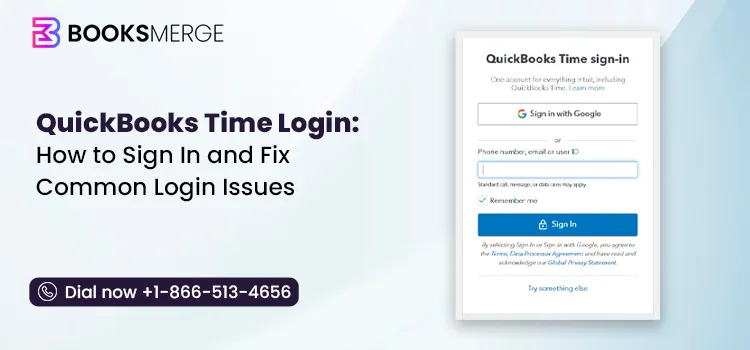
QuickBooks Time Login
Written by BooksMerge | Published: July 28, 2026

QuickBooks Time helps businesses track employee hours, manage schedules, and simplify payroll. Whether you’re an administrator managing your workforce or an employee clocking in for the day, you’ll need to sign in to access your account.

The QuickBooks Time login process is simple, but issues such as incorrect passwords, browser problems, or verification errors can sometimes prevent you from signing in. In this guide, we’ll walk you through the QuickBooks Time login steps for both desktop and mobile devices, explain how to recover your account, and share solutions to common login problems so you can get back to work quickly.

What is QuickBooks Time?

QuickBooks Time is a cloud-based time tracking and workforce management solution developed by Intuit. It helps businesses track employee hours, create schedules, manage timesheets, and simplify payroll processing. The software works with both QuickBooks Online and QuickBooks Desktop, allowing businesses to sync employee time data with their accounting records.

Employees and administrators can access QuickBooks Time through a web browser or the QuickBooks Workforce mobile app.

QuickBooks Time Login Requirements

Before you sign in to QuickBooks Time, make sure you have the following:

  • Make sure you have an active QuickBooks Time subscription.
  • Use the email address or User ID linked with your QuickBooks Time account.
  • Enter the correct password. If you’ve forgotten it, you can sign in using a one-time verification code or reset your password.
  • You may be asked to verify your identity by entering a code sent to your registered email address or mobile number.
  • You can sign in through a supported web browser on your computer or the QuickBooks Workforce mobile app on Android or iOS. Make sure
  • your device is connected to a stable internet connection.
  • For the best experience, use the latest version of your web browser or keep the QuickBooks Workforce app updated.

QuickBooks Time Login: Step-by-Step Sign-In Guide

Signing in to QuickBooks Time is a simple process, whether you’re using a web browser or the QuickBooks Workforce mobile app. Follow the steps below to access your account and start tracking time, managing schedules, or reviewing timesheets:

Three ways to sign in to QuickBooks Time showing web browser login, QuickBooks Online single sign-on, and QuickBooks Workforce mobile app login

Method 1: Log In through the Web Browser

If you’re using QuickBooks Time on your computer, follow these steps:

  • Open your preferred web browser and visit the QuickBooks Time sign-in page.
  • Enter your email address or User ID.
  • Enter your password.
  • Click Sign In.
    • If prompted, complete the verification process using the code sent to your registered email address or phone number.

Important Note: If you’ve forgotten your password, select Sign in a different way or Text a code to access your account using a one-time verification code.

Method 2: Log In through QuickBooks Online

If you’re accessing QuickBooks Time from your computer, here’s how to sign in:

quickbooks login dashboard

  • Enter your email address or User ID.
  • Type your password.
  • Select Sign In.
  • If requested, enter the verification code sent to your registered email address or phone number.

Important Note: If you don’t remember your password, choose Sign in a different way or Text a code to receive a one-time verification code and access your account.

Method 3: Log In Using the Mobile App

Employees and administrators can also sign in to QuickBooks Time using the QuickBooks Workforce mobile app.

  • Download and install the QuickBooks Workforce app from the App Store or Google Play Store.
  • Launch the app and tap Sign In.
  • Enter your email address or User ID.
  • Enter your password and tap Sign In again.
  • If prompted, enter the one-time verification code sent to your registered email address or phone number.

Tip: Make sure you’re using the latest version of the app to enjoy a smoother login experience and access the newest features.

What to Do If You Can’t Sign In to QuickBooks Time

If you can’t remember your password, we can send a code to the phone number or email we have on file for you to sign in that way.

1. Sign in using a one-time code

If you’ve forgotten your password, you can sign in using a one-time verification code sent to the email address or phone number linked to your account.

On a computer

  • Open the QuickBooks Time sign-in page.
  • Type the email address or User ID linked to your account and continue.
  • Instead of entering your password, select the option to receive a one-time verification code. You can choose to get the code by text message or
  • email, depending on the contact information associated with your account.
  • Enter the verification code to complete the sign-in process.

On a mobile device

  • Launch the QuickBooks Workforce app and tap Sign In.
  • Enter the email address or User ID associated with your account.
  • Select Sign in a different way to use an alternate login method.
  • Choose whether you’d like to receive a one-time verification code by email or text message.
  • Enter the code you receive to access your QuickBooks Time account.

2. Update your password when signed in

If you’re already logged in and need to update your sign-in details, such as your password or other login information, follow the steps below.

On a computer

  • Sign in to QuickBooks Time and click your Profile menu.
  • Select Profile, then choose Manage User ID / Password.
  • Open the Sign in & Security section.
  • Select the login detail you want to update, such as your User ID, email address, password, or phone number.
  • Enter the new information and save your changes.

On a mobile device

  • Open the QuickBooks Workforce app and sign in to your account.
  • Go to your Profile, then select your name and choose Manage your Intuit Account.
  • If prompted, verify your identity using your password or a one-time verification code.
  • Open the Sign in & Security section.
  • Select the account detail you want to update, such as your User ID, email address, password, or phone number.
  • Save your changes once you’ve finished updating your information.

3. Recover your account

If you’re unsure which email address or phone number is linked to your QuickBooks Time account, you’ll need to complete the account recovery process to regain access.

Use your phone number or email

If you can still access the email address or phone number linked to your account, this is the quickest way to recover your QuickBooks Time login.

  • Visit the Intuit sign-in page and select I forgot my user ID or Password.
  • Enter the email address or phone number associated with your account, then select Continue.
  • Choose whether you’d like to receive the verification code by text message or email.
  • Retrieve the code from your inbox or text messages.

Note: If you’re using email, open it in a separate browser tab and keep the sign-in page open.

  • Enter the verification code on the sign-in screen and select Continue.
  • Follow the on-screen instructions to reset your password or regain access to your account.

Use the account recovery form

If you no longer have access to the phone number or email address linked to your account, you’ll need to verify your identity by uploading a photo of a valid government-issued ID.

Accepted documents:

  • Driver’s license
  • State ID
  • Passport
  • Notarized document

Steps to submit:

  • Open the account recovery form.
  • Enter the required account details.
  • Upload a clear photo of an accepted government-issued ID.
  • Review the information and submit your request for verification.

What happens next?

Account recovery requests are typically processed during business hours, Monday through Friday, from 8:00 AM to 5:00 PM Pacific Time.

If you entered your User ID during the recovery process:

  • Select Forgot password? or choose Text a code to receive a one-time verification code on your registered phone number.
  • Follow the on-screen instructions to reset your password or continue signing in.

Note: Keep the verification page open while completing the process. Closing the tab will cancel the session, and you’ll need to start the account recovery process again.

Common QuickBooks Time Login Issues and How to Fix Them

Although the QuickBooks Time login process is usually straightforward, you may occasionally run into sign-in problems. Below are some of the most common QuickBooks Time login issues along with the steps you can take to resolve them.

QuickBooks Time login not working checklist showing five common sign-in problems including wrong password, browser cache, saved old password, page not loading, and expired verification code with a one-line fix for each

1. Can’t sign in even after resetting your password

If you’ve already reset your password but still can’t access your QuickBooks Time account, try the following steps:

  • Close the QuickBooks Time sign-in page and your web browser.
  • Clear your browser’s cache and cookies to remove any outdated login data.
  • Reopen your browser and visit the QuickBooks Time login page again.
  • Enter your updated password and try signing in.
  • If the issue continues, open the login page in a private/incognito window or use a different supported browser.

2. QuickBooks Time login page not loading

If the QuickBooks Time login page won’t open or keeps loading, follow these troubleshooting steps:

  • Check that your internet connection is stable.
  • Refresh the login page or restart your browser.
  • Clear your browser’s cache and cookies.

clear browsing data cache history

  • Open the sign-in page in an incognito/private browsing window.
  • If the problem persists, try accessing QuickBooks Time from another supported browser or device.

3. Browser is saving an old password

If your browser keeps filling in an outdated password, here’s how to fix it:

  • Open your browser’s password manager or saved passwords settings.
  • Locate the saved QuickBooks Time login credentials.
  • Delete the old saved password.
  • Return to the QuickBooks Time sign-in page and enter your current password manually.
  • When your browser asks whether to save the password, choose Save to update the stored login information.

Tips to Keep Your QuickBooks Time Account Secure

A few simple security practices can help protect your QuickBooks Time account and reduce the chances of login issues or unauthorized access.

  • Use a strong password: Create a unique password with a combination of letters, numbers, and special characters. Avoid using personal information or common words.
  • Don’t share your login credentials: Keep your User ID, password, and verification codes private. Only authorized users should have access to your account.
  • Keep your contact details updated: Make sure your registered email address and phone number are current. This makes it easier to recover your account if you can’t sign in.
  • Sign out after each session: If you’re using a shared or public computer, always log out once you’re done using QuickBooks Time.
    Keep your browser and app updated: Using the latest version of your browser or the QuickBooks Workforce app helps improve security and reduces login-related issues.

Summing Up

QuickBooks Time login lets you access your account from a web browser, QuickBooks Online, or the QuickBooks Workforce mobile app. If you’re unable to sign in, you can use Intuit’s account recovery options to reset your password, verify your identity, or regain access to your account.

If you can’t access your QuickBooks Time account and require professional assistance, connecting with QuickBooks professionals is recommended. Dial +1-866-513-4656 to connect with an expert now!

FAQ's

QuickBooks Time is a cloud-based time tracking and employee scheduling software designed to help businesses monitor worker hours, manage job sites, and streamline payroll. It integrates directly with QuickBooks Online and QuickBooks Desktop.

To log in to QuickBooks Time, visit the QuickBooks Time sign-in page and enter your Intuit account email or User ID and password. If your QuickBooks Time account is connected to QuickBooks Online, you can also access it directly from your QuickBooks Online company.

You may be unable to access your QuickBooks Time account due to an incorrect email address or password, an expired verification code, browser issues, or using an Intuit account that isn’t linked to your QuickBooks Time subscription. If you still can’t sign in, use the account recovery options or contact your account administrator.

After signing in, you can use QuickBooks Time to clock in and out, track employee hours, schedule shifts, approve timesheets, monitor job locations, and sync recorded hours with QuickBooks for payroll and job costing. Business owners and managers can also generate reports and manage their workforce from a single dashboard.

Yes, QuickBooks Time operates as a separate mobile and web application, though its mobile app for employees is officially named QuickBooks Workforce. It connects directly with core accounting systems like QuickBooks Online and QuickBooks Desktop.

There is no difference between QuickBooks Time and TSheets because QuickBooks Time is simply the new name for TSheets. Intuit rebranded the software after acquiring it to better fit the QuickBooks product family, keeping all features, pricing, and login functions the same.

Suggested Reading
QuickBooks

QuickBooks Time Login: How to Sign In and Fix Common Login Issues

Read More
QuickBooks

QuickBooks Time 2026: Features, Pricing, Setup & Complete User Guide

Read More
QuickBooks

QuickBooks File Doctor: Download, Fix Errors & Scan Results

Read More
QuickBooks

Zoho Books Vs QuickBooks: Which Is the Right Fit for Your Business?

Read More
QuickBooks

How To Fix the QuickBooks Payroll Update Not Working Issue (Proven Methods)

Read More
SYSTEM ONLINE

AI-triaged.
Human-solved.

Instant QuickBooks diagnostics, then a certified ProAdvisor takes over live.

qb-diagnostic.sh
> Scanning Error signature...
> Match Found: quickbooks-time-login
> routing to certified ProAdvisor▌

98%

first-call fix

<15s

match time

24/7

live coverage

Loading
Or call us now

+1-866-513-4656