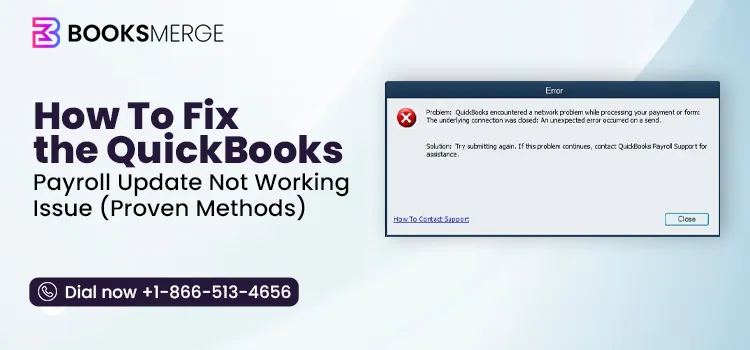
Keeping your QuickBooks Payroll updated is essential to get the latest payroll tax table, compliance information, and accurate employees’ tax calculations. However, while installing the latest QuickBooks Desktop or payroll updates, you may encounter the QuickBooks payroll update not working issue. This may happen due to an inactive payroll subscription, internet issues, damaged program files, or incorrect system settings.
In this detailed post, we have covered the main causes behind the QuickBooks Payroll update issue and effective troubleshooting methods to fix the problem. This will help you download the latest payroll tax table update without any issues.
Quick Fixes For QuickBooks Payroll Update Failed Issue
Before proceeding, try these quick troubleshooting steps to fix QuickBooks Payroll update failure. This will help restore update functionality and download the latest payroll tax table update.
Review your payroll subscription status.
Run QuickBooks Desktop as an administrator.
Ensure that you have the latest payroll tax table update.
Test the internet and firewall settings.
Make sure that you are using the updated version of QuickBooks Desktop.
Run the QuickBooks Tool Hub.
How to Detect That Your QuickBooks Payroll Update Is Stuck?
You may identify a stuck QuickBooks payroll update while downloading the latest payroll tax table update. By identifying these signs, you can easily find the right troubleshooting method to fix the issue.
Update process freezes without completion.
You may experience error codes during the payroll update process, like PS038, PS032, or 15276.
Payroll tax tables remain outdated.
QuickBooks repeatedly asks you to install the same update.
Payroll calculations show incorrect tax information.
Why Is QuickBooks Desktop Payroll Update Not Working?
Several factors can prevent QuickBooks Desktop Payroll from downloading or installing updates successfully. Below are the most common reasons behind this issue.
A faulty internet connection is one of the major causes of QuickBooks Payroll update errors.
An inactive payroll subscription also restricts you from downloading the payroll updates.
Using an incompatible QuickBooks Desktop version with your Windows operating system.
You may notice that the status of the payroll subscription in the QuickBooks Desktop screen displays “Invalid number or EIN”.
Incorrect Employer Identification Number (EIN) in the company file.
It may also appear while using multiple active payroll agreements with an inactive Direct Deposit agreement.
Misconfigured internet or firewall settings are affecting the payroll update process.
A damaged or corrupted QuickBooks installation could also be responsible for payroll update errors.
What are the Common QuickBooks Payroll Update Error Codes?
QuickBooks Payroll update errors can occur due to subscription problems, connectivity issues, damaged update files, or incorrect system permissions. The error code displayed by QuickBooks helps identify the specific cause and apply the right troubleshooting method to resolve the issue.
The table below lists common QuickBooks payroll update error codes and their causes.
Damaged payroll update files or incomplete installations
Things To Remember While Fixing QuickBooks Payroll Update Error
Before applying the troubleshooting methods, perform these best practices to ensure a smooth update process.
Create a backup of your company file.
Close all running QuickBooks processes.
Log in with administrator privileges.
Ensure your payroll subscription is active.
Use a stable internet connection.
Temporarily configure firewall settings.
Top Effective Solutions to Try When QuickBooks Payroll Won’t Update
After understanding the causes behind the QuickBooks payroll won’t update issue, perform the step-by-step troubleshooting methods to fix the issue.
Solution 1: Verify Your Payroll Service Subscription
An outdated payroll service subscription may cause issues while getting the latest QuickBooks payroll updates. Ensure that your payroll subscription is valid and updated.
Exit from all your company files and restart your computer.
After this, open QuickBooks, choose the Employees menu, and click My Payroll Service.
Select Manage Service Key.
Ensure that the Service Name and Status are correct and show as Active.
Click Edit and check that the service key number is correct. If not, then enter the right service key.
Select Next, and unmark the checkbox of the Open Payroll Setup box. Then, choose the Finish option.
This will start downloading the entire payroll update.
Solution 2: Download Payroll Updates as an Administrator
Proper administrative rights are essential for downloading the payroll updates smoothly. Otherwise, it might disturb the payroll update process and cause errors like QuickBooks payroll update not working. Therefore, it’s essential to download the payroll updates as an admin using the following steps.
Ensure that your company files and QuickBooks Desktop are closed.
Locate and right-click on the QuickBooks icon.
Click the Run as Administrator option.
When you see the prompt asking whether you want to give enough rights to the program to make changes, click Yes.
Now, download the latest QuickBooks Desktop updates.
Try to download the latest payroll tax table update again to see if the issue exists.
Solution 3: Repair the QuickBooks Desktop program
If QuickBooks program files are damaged or corrupted, repairing the installation can resolve payroll update issues. QuickBooks Tool Hub is an inbuilt utility that provides tools such as Quick Fix My Program and QuickBooks Install Diagnostic tool to fix the issues.
Note: Ensure that you have set up the latest version of QuickBooks Tool Hub.
a. Quick Fix My Program
Quick Fix My Program is a utility that forces background-running apps to close automatically, which prevents you from downloading the latest payroll updates.
Open the QuickBooks Tool Hub and click ProgramProblems.
Choose Quick Fix My Program.
Now, run QuickBooks Desktop and then open your company file.
If the issue continues, then move to the next solution.
b. Run Install Diagnostic Tool
Issues with the installation of the QuickBooks payroll updates can be fixed using the Install Diagnostic tool.
Launch the QuickBooks Tool Hub and click Installation Issues.
Choose the QuickBooks Install Diagnostic Tool.
Hold on for some time till the time the tool is diagnosing and repairing the issue.
When the repair is done, restart your computer, start QuickBooks, and then your company file.
Update your QuickBooks Desktop to the latest version so that you can access the recent fixes and security updates.
Make sure that your payroll service key is updated to download the payroll updates smoothly.
Click on the Employees menu in the QuickBooks Desktop.
Choose My Payroll Service and select Activate Service key.
Now, tap on the Edit menu from the Service Keys window.
Double-click on the Service key.
Lastly, select Next and then click Finish.
Solution 5: Install an updated version of the Digital Signature Certificate
QuickBooks needs a fresh version of a digital signature certificate to get the latest updates on Windows smoothly. Here’s how to install the latest digital signature certificate.
Launch File Explorer and move to the location where QuickBooks is stored.
Select Properties and then click Digital Signature.
Verify that Intuit is marked in the Signature list.
Select Details and then choose View Certificate from the Digital Signature Details window.
Browse to the Install Certificate and then click Next.
Select the Next option until the Finish option is displayed, and then click Finish.
Finally, restart your computer and try updating QuickBooks.
Solution 6: Enable QuickBooks File Copy Service
If the QuickBooks File Copy Service is disabled, then users may also face trouble getting the latest payroll tax table update. Perform the following steps to enable the QB File Copy Service.
Launch the Run window by pressing Windows + R keys.
In the search box, enter COMPMGMT.MSC and click OK.
From the Computer Management window, select Services and Applications.
Choose Services and scroll down to find the Intuit QuickBooks FCS. Double-click on it to open.
Click the Startup type drop-down arrow and choose the Manual option.
Lastly, select Apply and then click the OK option.
Installing the latest payroll tax table update is important to calculate the employee payroll accurately. If it’s not updated, then follow these steps to download the latest payroll tax table update.
a. Update Payroll Tax Tables
Launch QuickBooks Desktop on your desktop.
Click the Employees menu from the top menu bar.
Choose Get Payroll Updates by clicking the drop-down arrow.
When in the Update window, select Update to start downloading the latest tax table update.
Wait for some time to complete the update process and ensure that you get a confirmation message.
b. Rename the CPS Folder
Renaming the CPS folder enables QuickBooks to install a fresh version of the payroll update files. Also, it helps fix issues that occur due to damaged payroll files.
Launch the File Explorer by pressing the Windows + E keys.
Click on This PC and select Local Disk C.
Choose Run Program Files (x86) and click the Intuit folder.
Open your QuickBooks Desktop folder that matches the version you are using.
Select the Components and then click Payroll Folder.
Right-click on the CPS folder and select Rename. Then, mention a new folder name and hit the Enter key to rename it.
Solution 8: Register & Update QuickBooks Desktop
Launch the Product Information window by pressing F2 or Ctrl + 1.
Look next to the license number and confirm that it displays “Activated“.
Note: If the status does not display “Activated,” you need to register your QuickBooks Desktop.
To register QuickBooks Desktop, follow these steps:
Open QuickBooks Desktop and click the Help menu.
Select Activate QuickBooks Desktop.
Lastly, use the on-screen instructions to verify your product details. Once the registration is complete, update QuickBooks and payroll to the latest version.
Solution 9: Verify & Correct the System Date & Time
An incorrect system date and time also interrupts the QuickBooks payroll update process. So, to fix the issue, verify and adjust your system’s date and time.
Initially, right-click on the system clock in the bottom right corner.
Choose Adjust Date/Time and click Change Date and Time.
After this, enter the correct date and time.
Select OK and OK again to apply the changes.
Exit and then restart QuickBooks.
Navigate to the Employees > Get Payroll Updates and then try updating the payroll again.
Solution 10: Run the Verify & Rebuild Data Utility
A damaged or corrupted company file may disrupt the payroll updates in QuickBooks Desktop. Consider repairing the damaged company file data by running the Verify & Rebuild data utility. Use the following steps to run this tool and continue downloading the payroll updates.
a. Verify the company file
Move to Windows and click Close All.
Browse to the File menu, select Utilities, and then Verify Data.
You will see the message;
QuickBooks detected no problems with your data: It states no further action is required. There may be an article regarding a certain error message. For further instructions, look for the error message on the QuickBooks Desktop help page.
Your data has lost integrity: This shows that the file contains damaged data. To resolve the issue, move further to rebuilding your company file.
b. Rebuild the company file data
Click on the File menu, select Utilities, and then Rebuild Data.
Now, QuickBooks will prompt you to create a backup before rebuilding your company file.
Click OK and pick the location to save the backup file. Then, again, select OK.
Now, enter the new name into the File name column and choose Save.
When you see the message “Rebuild has completed”, tap on OK.
Solution 11: Update Windows Permissions
A user must have enough Windows permissions to access the QuickBooks file folder. Otherwise, it may create issues while trying to get the latest payroll updates. So, to resolve the QuickBooks Payroll Update issues, you must update the Windows permissions.
Open File Explorer from the Start menu and go to the installation folders.
Browse to the QuickBooks installation folder;
For a 32-bit operating system- C:\ Program Files \ Intuit \ QuickBooks (Year).
For a 64-bit operating system- C: \ Program Files (x86)\ Intuit \ QuickBooks (Year).
Look for the QBW32.exe file, right-click on it, and select Properties.
Navigate to the Security tab and tap on the Edit menu.
Choose Add, type Everyone, and click OK.
Select the checkbox of Full Control and then hit OK.
Select the Add option again, type Users, and then OK.
Tick the checkbox of Full Control under the Users group and click OK.
Lastly, select Apply, then OK to save and close the settings.
Solution 12: Reset the Internet Explorer Settings & Add Intuit as a Trusted Site
a. Add Intuit as a trusted site
Adding Intuit as a trusted site may prevent your web browser from blocking the latest payroll tax table update. Follow these step-by-step instructions to add Intuit’s URL as a trusted site in your browser.
Open the Chrome browser and click the Customise and control Google Chrome icon.
Choose the Settings option.
Click Privacy and Security and then the Site Settings from the left pane.
Following this, click Third-Party cookies.
Now, select Add from the Allowed to use third-party cookies section.
Finally, enter “*.intuit.com”, and click Add to save the changes.
b. Reset the Internet Explorer Settings
Close the QuickBooks Desktop program.
Launch Internet Explorer and click the Tools icon in the right corner of the page.
Select Internet Options from the drop-down menu.
Browse to the Advanced section and select Reset or Restore Defaults.
Apply the changes made and click OK for confirmation.
Open the QuickBooks Desktop again, select Employees, and click Get Payroll Updates.
Ensure that the checkbox for Download Entire Update is selected. Then, choose the Download Latest Update option. Wait for some time to
finish the confirmation process.
Conclude the process by restarting your computer. Then, see if you are still facing the payroll update issue.
Solution 13: Run a Clean Installation on the QuickBooks Desktop Program
If you are still getting issues while downloading the latest QuickBooks payroll updates, then try using the clean installation tool. This will remove and rebuild damaged installation files and let you get the latest QuickBooks payroll updates.
Create a backup of the company file to safeguard your sensitive business data.
Press the Windows logo key and open the Start menu. Type Control Panel and click on Control Panel to open.
In the following window, select Programs and Features > Uninstall a Program.
Choose the QuickBooks Desktop version you wish to delete from the available options and select the Uninstall/Change option.
Now, follow the on-screen instructions to finish the uninstallation process and wait for some time.
Finally, try to download and then install the latest QuickBooks payroll tax table update.
How to Test That the QuickBooks Payroll Update Worked
After installing the payroll update, verify that the latest tax table has been applied by following these steps.
Launch QuickBooks Desktop and select Employees > Get Payroll Update.
Ensure that you get the message stating “You have successfully downloaded the payroll update.”
Now, write down the tax table version and match it with the latest payroll version available.
Next, create a test paycheck or review your next payroll before processing it.
Check that federal, state, and local tax withholdings, along with employee deductions, are computed accurately.
If you see that the tax amounts are correct and no more payroll errors appear, the update was installed successfully.
How To Prevent QuickBooks Payroll Update Issues in the Future?
Regular maintenance and timely updates can help you avoid payroll update errors. Follow these best practices to ensure QuickBooks and your payroll services are working accurately.
Renew your payroll subscription before it expires.
Avoid interrupting payroll updates once the download begins.
Ensure QuickBooks Desktop is updated to the latest version.
Install the latest Microsoft Windows updates and required components such as .NET Framework, MSXML, and C++.
Verify that multiple versions of QuickBooks Desktop are not running on the same computer.
Install the latest payroll updates as soon as they become available.
Check that your system’s date and time are correct.
In a Nutshell
QuickBooks Payroll update issues can occur for several reasons, including an inactive payroll subscription, damaged program files, incorrect system settings, or internet connectivity problems. By identifying the underlying cause and applying the appropriate troubleshooting method, you can restore payroll updates and download the latest tax table without interruption.
For advanced troubleshooting, we suggest that you connect with our highly-experienced QuickBooks experts at BooksMerge by dialing +1-866-513-4656. Connect with the right expert and resolve all your queries easily.
About The Author
Meghan McKenzie, CPA, is a senior accounting technology writer with over a decade of experience helping US small businesses streamline their financial operations. She specializes in resolving complex accounting software
errors, automating workflows, and translating technical tax and bookkeeping standards into practical advice.
FAQ's
QuickBooks payroll won’t update due to an inactive payroll subscription, an outdated QuickBooks version, or incorrect system date and time. Also, this issue may be caused by damaged installation files.
To reset a stuck QuickBooks payroll update, run QuickBooks as an administrator and use the Reset update to clear corrupted downloads.
Yes, it’s essential to create a backup company file for data safety before fixing the QuickBooks payroll update not working issue.
This issue occurs due to an inactive payroll subscription, corrupted tax table files, or an outdated QuickBooks Desktop version.
QuickBooks Error PS038 mainly occurs when paychecks get stuck in an “Online to Send” status. This prevents you from running payroll, processing direct deposits, or downloading new tax tables.
Verify that QuickBooks displays the message “You have successfully downloaded the payroll update.” Then compare the installed payroll tax table version with the latest version available from Intuit.
Instant QuickBooks diagnostics, then a certified
ProAdvisor takes over live.
qb-diagnostic.sh
> Scanning Error signature...
> Match Found: quickbooks-payroll-update-not-working
> routing to certified ProAdvisor▌
98%
first-call fix
<15s
match time
24/7
live coverage
Ready to Get Your Books in Order?
Whether you need monthly bookkeeping, outsourced payroll, or a bookkeeping cleanup before tax season, BooksMerge is ready to take bookkeeping off your plate. Schedule a free consultation, and we'll walk through your current books, your goals, and the right service package for your business.