
Keeping your financial records accurate and up to date is essential for making the right business decisions. However, outdated transactions, unreconciled bank statements, incorrect account balances, and miscategorized transactions might turn QuickBooks Online into a source of confusion. It’s time to perform a QuickBooks Online cleanup to keep your books organized. Also, it helps to correct bookkeeping errors and improve the reliability of your financial reports.
This guide walks you through the cleanup process step by step, helping you understand what to fix, which mistakes to avoid, and how to keep your bookkeeping organized.
A QuickBooks Online cleanup is a process of checking, correcting, and organizing your accounting records to improve their accuracy. It involves identifying bookkeeping errors and reconciling bank and credit card accounts. This process also involves reviewing income and expense categories, fixing duplicate entries, and investigating incorrect account balances. Maintaining accurate books is also important for tax reporting and supporting business income and expenses. The IRS recordkeeping guidance explains what businesses should keep in their records and why complete financial records are important.
Before fixing your books of accounts, it’s important to know whether your QuickBooks Online actually needs a cleanup. The following are the common warning signs that indicate that your QuickBooks Online needs immediate attention.
If you find that your bank statement and QuickBooks balance differ, it shows that you have missing transactions, duplicate entries, incorrect opening balances, or transactions recorded in the wrong period.
Uncategorized transactions make it difficult to understand where your money comes from and where it goes. However, it may also hamper the accuracy of financial reports.
Accounts that have not been reconciled for several months can contain errors that become harder to trace over time.
Old invoices, unapplied customer payments, or duplicate invoices can make it look like you have owed more or less than you really are.
Duplicate bills, unapplied vendor credits, or bills that should have been closed can overstate your outstanding liabilities.
Negative asset balances, unexpected liabilities, unusually high expenses, or unexplained equity balances may show incorrect entries or incomplete bookkeeping.
If your profit and loss statement or balance sheet does not show what you know about the business, a structured review can help find the underlying problems.
If your accountant needs to fix reconciliations, reclassify transactions, or investigate unusual balances, it mainly indicates that the books need a more thorough analysis.
Before making any changes, establish a clear picture of your current books. Cleanup may hamper historical reports, reconciliations, tax records, and linked transactions, so preparation is important.
First, you need to collect your records required to verify transactions and balances, including;
You need to find out the last point in your bookkeeping history that you can trust. This is basically the last filed tax return or the most recent month in which all relevant accounts were properly reconciled.
QuickBooks Online does not provide the same full local company file backup and restore workflow as QuickBooks Desktop. So, before making any changes to your accounts, export your Trial Balance, Balance Sheet, and Profit and Loss as of the cleanup start date. Therefore, it is important to save these reports securely with your supporting documents. Before making major changes to your books, you should also back up your QuickBooks company file and retain the original records securely.
Avoid previously closed accounting periods or records that hamper filed tax returns without consulting your accountant. You must document proposed adjustments and retain supporting evidence.
Fixing the issues within your existing QuickBooks Online file basically saves valuable transaction history, reconciliations, and reporting continuity.
A fresh start is important, especially when most of your historic data is incorrect, or the file contains data that is not related to your business.
Intuit has basically limited the Purge Company option to eligible new QuickBooks Online files with fewer than 60 days of data. So, you need to confirm the current eligibility rules with Intuit Support before publishing or acting on this guidance.
Before starting a new company file, you must make a proper plan to save your historical records, create accurate opening balances, and maintain tax reporting.
A successful QuickBooks Online cleanup process not only means correcting a few bookkeeping errors. It also needs a systematic review of your accounts, transactions, reconciliations, and financial records so that it shows your business activity clearly.
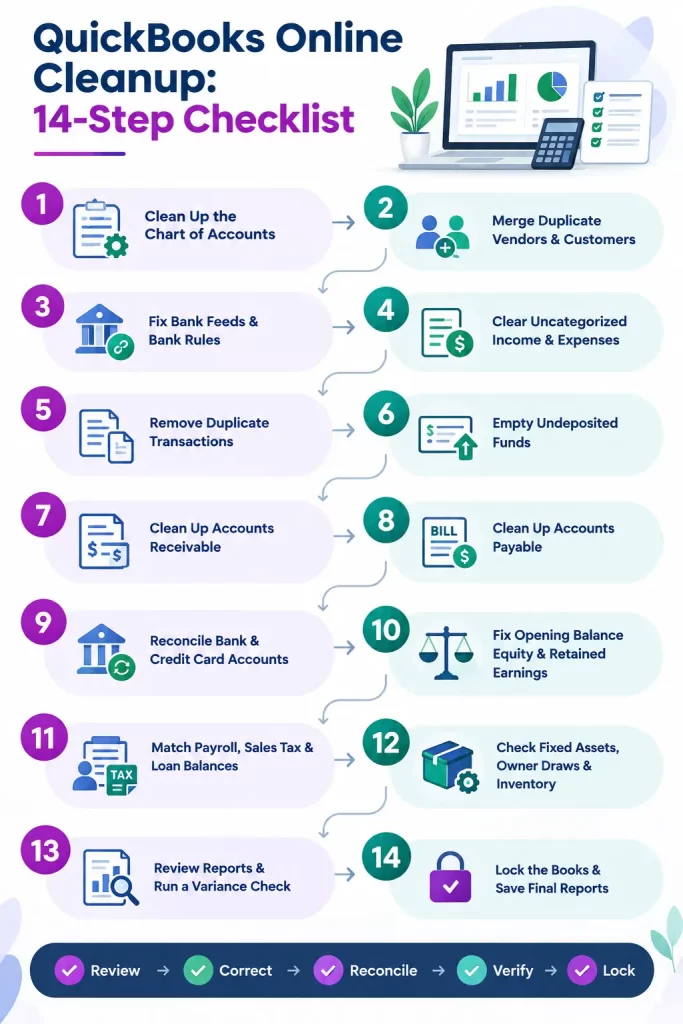
QuickBooks Online Cleanup: 14-Step Checklist
Here is the proper QuickBooks Online cleanup checklist to follow to keep your financial records accurate and fix messy books.
The first step in the process of cleanup is to check the Chart of Accounts to determine duplicate accounts, wrong account types, and unused categories. However, a properly organized chart will help ensure that income, expenses, assets, and liabilities are reflected accurately in your records.
Duplicate vendor and customer records can make it tough to track transactions, review expenses, and prepare accurate 1099 reports. By merging duplicate records, you can keep your books of account organized. This makes it easier to handle your financial information.
No, you cannot delete customers permanently in QuickBooks Online. Instead, you can make the customers inactive. Doing so will hide them from your active lists and drop-down menus while storing their transaction history for auditing & reporting purposes.
To make the customers inactive;
The bank feeds are used for importing data from associated financial institutions. The bank rules help automate categorization of expenses. Nevertheless, the error-prone connections might cause duplicates and incorrect categorizations of the transactions.
Uncategorized accounts basically consist of the transactions that require proper classification or need additional clarification. Fixing these entries will help improve financial reporting and eliminate the risk of carrying incorrect classifications into tax preparation.
Duplicate transactions can make your income, expenses, deposits, and debts look higher than they actually are. This issue triggers when the transactions are entered manually and imported via bank feeds. It could also appear when a reconnected feed imports overlapping history.
To remove the duplicate transactions;
Undeposited funds temporarily hold customer payments before they are grouped into bank deposits. However, reviewing this account will help spot payments that were not deposited correctly, duplicated deposits, or customer payments recorded twice.
To clean up accounts receivable in QuickBooks Online, you need to run an Accounts Receivable Aging Summary Report. Then, match unapplied payments to open invoices and issue credit memos for overstatements. You can also write off uncollectible old balances using a journal entry.
Run an A/P Aging Detail report to clean up accounts payable and then categorize old bills into duplicates, unapplied credits, paid items, or legally released debts. Furthermore, clear them using the Pay Bills or Vendor Credit workflows instead of raw journal entries.
Reconciliation is the process of comparing QuickBooks Online transactions with your bank statements to spot missing entries, duplicates, and incorrect balances. However, working from the oldest unreconciled period to the newest will help avoid historical errors from hampering later reconciliation. Follow this link to reconcile your bank account in QuickBooks Online. During the reconciliation, ensure that each account is reconciled through its latest available statement without unexplained or forced adjustments.
Opening balance is an account used by QuickBooks as a temporary offset when opening balances are entered. However, an unexplained balance reflects incomplete setup or causes historical errors that need investigation.
Payroll, sales tax, and loan balances need independent verification because discrepancies can affect compliance, liabilities & financial reporting. If payroll-related discrepancies are connected to payroll tax calculations or updates, review our guide to QuickBooks payroll tax table update for additional troubleshooting steps. Comparing QuickBooks Online with external records helps in determining missing payments & incorrect classifications.
These checks mainly apply to those businesses that own long-term assets, have owner-related transactions, or track inventory. However, checking these areas will help you spot the classification errors that can hamper profitability and balance-sheet accuracy.
Financial reports can also tell you about the accounting issues that are found after reconciling the accounts. Comparing current results with previous periods will help identify whether your books are up to date and show a clear picture of your business.
Closing your books of accounts will help prevent accidental changes to finalized accounting periods. Saving final reports & documenting adjustments helps with future reviews and tax preparations.
QuickBooks Online Cleanup needs more than fixing balances. A minor mistake can lead to inaccurate financial reports, duplicate transactions, and reconciliation issues. By avoiding these common errors, you can keep your books accurate and get a clear insight into your company’s financial position.
| Mistake | Why it hurts | Better Approach |
| Forcing a reconciliation | Hiding discrepancies can leave balances inaccurate and unresolved differences in your books. | Look for missing transactions, duplicates, bank fees, and timing differences before reconciling. |
| Deleting transactions too fast | Deleting valid entries can hamper income, expenses, and historical records. | Check out transaction details, confirm duplicates, and use corrections or reversals when appropriate. |
| Editing closed records | Changes can hamper previously reviewed financial statements, tax filings, and reported balances. | Confirm the impact on your accountant and follow established closed procedures before making changes. |
| Plugging Opening Balance Equity or Retained Earnings with a journal entry | Unsupported adjustments can hide errors. | Look for the original entries and correct the underlying issue before posting adjustments. |
| Reconnecting a feed with too much history | Downloading excessive history can introduce duplicate transactions and complicate transactions. | Set a correct download date and review imported transactions before adding them to your books. |
| Mixing personal and business spending | It becomes harder to track business expenses & prepare taxes. | Keep personal and business expenses separate and record owner’s transactions properly. |
| Skipping the final report review | Unnoticed discrepancies can remain in financial statements after cleanup. | Check the Balance Sheet, Profit & Loss, General Ledger, and reconciliation reports before finalizing. |
QuickBooks Online offers many built-in tools to resolve common bookkeeping errors without starting from scratch. However, understanding what each tool offers will make the cleanup process easier. This avoids changes that may cause new challenges for users.
You don’t need to hire someone to clean up your QuickBooks Online account. For instance, if you are only a few months behind, manage one or two accounts, and have your bank statements ready, you can handle the cleanup yourself. It’s also easier when you don’t have payroll or inventory to manage.
There are certain scenarios when you need professional help to clean up your QuickBooks Online account. If the cleanup involves several years of records, multiple accounts, or recurring reconciliation problems, outsourced bookkeeping services can provide ongoing support instead of a one-time correction. Consider hiring a cleanup service if;
Before hiring a provider, you need to ask for certain things, including:
Also, you need to find out who will review the work, how corrections will be documented, and what support facilities are available after the cleanup.
It is not necessary to select a provider on the basis of reviews alone. You also need to ask for a sample deliverable with confidential details removed.
The pricing of QuickBooks Online cleanup depends on how much work is required to get your books back in order. A business that is only a few months old needs to pay less than one with several years of missing, duplicate entries, unreconciled accounts, and incorrect balances.
| Cleanup Type | Pricing charged |
| Light cleanup (1–3 months behind) | $500 to $1,500 |
| Multi-year cleanup | $2,000 to $13,000 or more (Xenett cleanup cost guide). |
| Flat-fee projects from one CPA firm | $750 to $3,500 |
| Hourly pricing (one published guide) | $50 to $150 per hour |
| Hourly pricing (another published guide) | $40 to $80 per hour |
The process of cleanup may take around 1 to 8 weeks depending on the backlog, complexity, and how quickly you provide the required documents. Businesses that need ongoing help after a cleanup can explore our bookkeeping pricing plans to find an ongoing service option that fits their needs.
Once you clean up QuickBooks Online records, a few simple habits can help you prevent the same problems in the future.
If you are preparing your books for tax filing, see our guide on QuickBooks cleanup before tax season for a more focused tax-preparation checklist.
Keeping your books of accounts accurate and free from errors isn’t such a difficult task as it seems. A regular QuickBooks Online Cleanup helps you detect errors, fix incorrect transactions, and keep your financial records accurate. If your records are a little behind, then you can handle it yourself. But if you are dealing with records of several years with errors, unreconciled accounts, or missing records, consulting a professional can save your precious time.
If you are still encountering issues while performing a QuickBooks cleanup, connect with your BooksMerge QuickBooks Bookkeeping professionals for instant guidance.

The cleanup process takes around 1 to 8 weeks depending on the number of accounts, incomplete records, and errors that require fixing. Whereas a small cleanup may take a few days, a multi-year cleanup takes several weeks.
Yes, you can perform the cleanup in QuickBooks Online yourself if the issue is not too complex and you have the necessary bank statements and receipts. If your books have forced reconciliations, payroll errors, or incorrect opening balances, consider getting professional help.
Begin the cleanup process by reviewing your records & collecting necessary bank statements. Then, reconcile accounts, correct transaction categories, & check unpaid bills. Rectify balance sheet errors & check your financial reports.
Yes! Keeping your financial records up to date before filing taxes is mandatory. If you have previously filed a return with incorrect numbers, ask your tax professional before changing records.
QuickBooks cleanup can cost around $500 to $1,500 for light cleanup, while complex, multi-year projects can cost $2,000 to $13,000 or more. Check out the QuickBooks cleanup cost section described above in this post for pricing ranges.
Yes! QuickBooks Online includes features for reviewing transactions, reconciling accounts, and correcting records. But there is no single tool that automatically fixes every bookkeeping problem.
Select a provider that explains the scope, pricing, & expected results before starting. Thoroughly check the latest reviews, ask for sample reports with confidential data removed & cross-verify your QuickBooks ProAdvisor credentials.
Opening Balance Equity is a temporary account QuickBooks uses when opening balances are entered during setup. It should be reviewed to make sure the original balances were entered correctly.
QuickBooks Install Diagnostic Tool: How to Download, Run, and Fix Install Errors
Read More
AI-triaged.
Human-solved.
Instant QuickBooks diagnostics, then a certified ProAdvisor takes over live.
first-call fix
match time
live coverage

