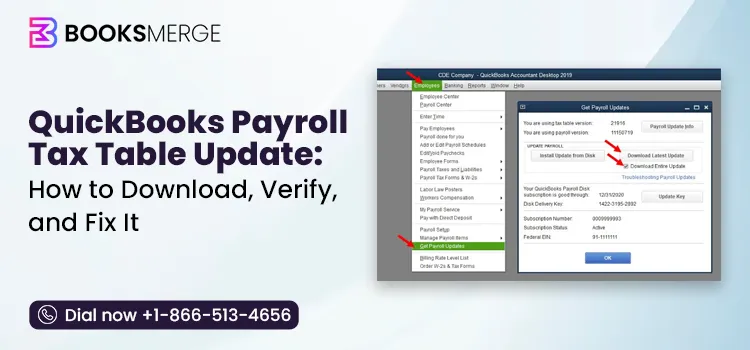
Everyone who uses QuickBooks Desktop should know that in order to make sure the amounts to be withheld at the federal and state levels are calculated accurately every time you pay out a paycheck, it is necessary to carry out a QuickBooks payroll tax table update; otherwise QuickBooks would have no way of knowing that a state has raised its unemployment insurance rate, that a federal tax bracket has changed, or that a new payroll form has been issued.
The guide will tell you what the update actually does, explain how to check the version that is currently installed on your system, describe how to download and verify a new one, and most important of all, advise you on what to do if the update appears to have completed successfully but your withholding amounts are still wrong. It also provides a quick-reference table that lists the most common error codes associated with updates and answers the questions that QuickBooks users ask most often about this process.
The summary given in the table below relates to the content of this article regarding the update to the QuickBooks Payroll tax table.
| What does it update? | Federal and state tax withholding rates, payroll tax forms, and e-file/e-pay options |
| Who needs to do this manually? | QuickBooks Desktop Payroll subscribers only |
| Who is exempt? | QuickBooks Online Payroll users — updates happen automatically |
| How often should you update? | Every time you run payroll, or at least once before each pay period |
| Where do you check your version? | Employees > My Payroll Service > Tax Table Information |
| Where do you download it? | Employees > Get Payroll Updates > Download Entire Update |
| What if it doesn’t update? | See the dedicated troubleshooting section below |
| Where do you confirm the current release? | Intuit’s official payroll news and updates page |
Intuit periodically releases an updated version of its payroll tax table, which includes the federal and state tax withholding rates that are built into QuickBooks Desktop Payroll, along with the payroll tax forms and e-file/e-pay features used by the software when calculating and sending in payroll taxes. People who have an active subscription to QuickBooks Desktop Payroll can obtain this update, and it is thanks to this update that the software can correctly calculate the appropriate amount of tax to withhold from each paycheck you pay, rather than having to rely on outdated rates that were accurate when the program was initially installed.
Intuit regularly releases these updates throughout the year rather than on a set monthly or quarterly schedule, so the version number that you see in your own QuickBooks file will depend on when you last carried out an update and on how frequently new legislation or rate changes cause a new release. Rather than mentioning a specific ‘current’ version number here, which would become obsolete in a matter of weeks, this guide describes how you can compare your version with Intuit’s latest update page, making sure that the information stays accurate no matter when you read it.
This update has new withholding tables, revised forms, and changes to state unemployment insurance limits:
Release Date: July 16, 2026
Georgia: New withholding tables effective 7/1/2026.
E-File and Pay: There are no E-File & Pay Updates in this payroll update.
Forms Updates
Michigan: Form UI QTD Report, Report to Complete Employer’s Contribution and Payroll Report, has been updated.
These are the earlier Payroll updates Intuit released prior to the July 16, 2026 update.
| Payroll Update Number | Date Released |
| 22612 | 6/18/2026 |
| 22610 | 5/25/2026 |
| 22608 | 3/31/2026 |
| 22604 | 1/22/2026 |
| 22601 | 12/18/2025 |
Before you search for an update button, you should first check which product you are actually using, since the two versions of QuickBooks Payroll deal with tax tables in a different way. When you use QuickBooks Online Payroll, your tax tables are updated automatically in the background, and no action is needed on your side. This is because Intuit handles it from central headquarters since the software operates on their servers, not on your own computer.
All of the content in this guide, including the instructions for manually downloading the updates, the method for checking the version, and the troubleshooting section, is applicable only to QuickBooks Desktop Payroll, since in this version updates are downloaded to your local copy rather than being pushed automatically. If you use QBO and have ended up here because your tax withholdings appear to be wrong, the solution is very likely not connected with updates to the tax tables; you should instead verify your employee’s tax settings or get in touch with QuickBooks support directly.
It’s a good idea before downloading anything new to check what version you currently have installed, as this will let you know whether or not an update is really needed. This information can be found in either of two places in QuickBooks Desktop.
The version number is a sequential identifier and shows the order in which Intuit launched that specific update, not the date on which it was released; therefore, a higher number just indicates that the update is more recent and does not tell you anything about the date it was published. In order to determine whether the version you have installed is up to date, you should compare the number you see with the figure on Intuit’s official “latest payroll news and updates” page, which Intuit continuously updates with the most recent release information. The only reliable method of finding out whether you are behind is to check against that live page rather than relying on a number given in any static article.
A few prerequisites must be fulfilled before you try to download a new tax table, and checking that they are satisfied in advance will prevent you from encountering an error partway through the process.
The update is a feature available only to subscribers, and the download will be blocked if the subscription is expired or inactive, even though all the other settings on your system are correct.
The payroll updates are designed to be compatible with the latest product releases, and using an outdated version of QuickBooks is one of the main reasons why the updates fail.
The data for the download is retrieved directly from Intuit’s servers, and a broken connection at some point during the process is a common cause of update errors.
It is suggested that you download the tax table updates at least 45 days before they are due to come into effect, or else update them each time you run your payroll so that you are not using outdated rates.
After you have checked the prerequisites listed above, the process of downloading the update is quick.
You can also turn on automatic updates so this entire process happens in the background going forward, without requiring you to manually check for and download each new release. This option is available from the same Get Payroll Updates window and is worth enabling if you’d rather not think about this step every pay period.
It’s worth noting that QuickBooks previously supported installing tax table updates from a CD, a delivery method Intuit has largely phased out in favor of the online download process described above. If you’re still working from installation media rather than downloading updates directly, it’s worth switching to the standard online method, since CD-based updates are no longer the primary supported path.
For most users on a reasonably stable connection, downloading and installing a tax table update takes only a few minutes, since the file itself is small compared to a full QuickBooks Desktop product update. The bigger question isn’t how long it takes, but when you should be running it.
The best approach is to check for updates right before carrying out the payroll rather than following a different and unrelated timetable. In that way, you won’t have to rely on a tax table that could be several weeks or even months out of date when the actual paycheques are issued. Where a business pays its employees weekly or biweekly, it means that updates should be checked in every pay period, which is precisely the reason why it’s worth the minor amount of time needed to set up automatic updates as explained above.
For companies that carry out payroll less often, it is particularly important not to assume that the tax table which was current when you last opened QuickBooks is still correct, since tax rates can and do change during the periods between infrequent payroll runs.
It is also advisable to carry out the update as part of your procedures at the end of the year and at the beginning of a new calendar year, since federal and state tax brackets tend to change at the start of a new tax year and payroll forms are usually reissued at the same time; carrying out an update in the first few days of January, in addition to your usual pre-payroll routine, is a sensible extra precaution that many QuickBooks Desktop users include in their process.
Downloading an update and then getting it to take effect are two separate things, so it’s a good idea to take a moment to make sure the installation has worked before proceeding. To do this, reopen Employees > Get Payroll Updates and check if the tax table version number has changed from the one you noted earlier. There should also be a confirmation message indicating that a new tax table has been installed, which appears automatically as soon as the download is completed successfully.
If the version number hasn’t changed after you’ve gone through the download steps, that’s a clear sign the update didn’t actually apply, even if QuickBooks didn’t show you an outright error. That situation is common enough, and confusing enough, that it deserves its own section, which is exactly what comes next.
This is the scenario that trips up the most QuickBooks Desktop Payroll users, and it’s also the one that gets the least attention in most guides on this topic: you run the update, QuickBooks tells you everything is fine, and yet your withholding calculations still look like they’re using old rates. Below are the five most common reasons this happens and what to do about each one.
The update displays “up to date” even though the version number remains the same. In the case where QuickBooks states that your tax table is current but you have reason to think that it isn’t, for instance, if Intuit’s live update page indicates a more recent release, the solution is to force a clean re-download rather than using the standard update button.
This clears out any partial or cached update data and pulls the full tax table fresh, which resolves the majority of cases where QuickBooks incorrectly reports itself as current.
It’s not a fault but rather normal for a new tax table to be installed today even though the rate changes it contains won’t come into effect until a later date. Intuit often releases updates before the new rates become effective, which is why the version number can change right away while your next paycheck still uses the old rates until the effective date arrives and you run payroll once more.
Should you or your accountant have previously changed a particular tax rate directly within QuickBooks, a situation that occasionally arises when dealing with a known error before an official correction, a new tax table update will not automatically restore the manual adjustment you made. You’ll have to manually reset the rate to its default value after the update has been installed; otherwise, the override will keep on applying indefinitely.
The updates to the payroll tax table are designed to be installed on top of an existing release of QuickBooks Desktop, and using an older version of the product may cause the tax table update to fail silently or for only part of it to be applied. In most cases, this problem can be solved by updating QuickBooks Desktop first and then running the payroll update again.
It’s important to make this point clearly since it is the most frequent cause of the “I updated, but nothing changed” confusion: the State Unemployment Insurance rates are not part of the standard payroll tax table update. Each state issues its own SUI rates and, whenever your state informs you of a rate change, you have to enter the new rate into QuickBooks manually. If, after carrying out the update, the amounts you are withholding at the federal and other state levels appear to be correct, but your SUI rate still seems to be wrong, then the issue is not with the tax table update; instead, you need to update that rate manually through your payroll tax setup.
A related but distinct issue some users run into right after updating is a paycheck where a tax field that should be calculated shows as blank or zero. This usually isn’t related to the tax table itself and instead comes down to one of a few employee-specific settings.
With taxes such as Social Security or state unemployment insurance, the amount withheld stops when the employee’s wages for the year so far reach a certain limit, which is why a blank space just means that limit has been attained.
It is possible to make this error when setting up the system, and as a result, QuickBooks will ignore that tax even if your tax table is up to date.
In some rare instances, a paycheck that is unusually small does not produce a sufficient amount of taxable wages for a given deduction to be calculated.
Looking at the three areas on the employee’s profile and the particular paycheck in question will make it faster to resolve a blank tax field than it will to troubleshoot the update process.
If the update process fails completely rather than failing silently and not applying at all, you’ll generally come across one of a small number of well-documented error codes. The table below groups them in the way that Intuit itself does so, together with the general meaning of each group.
| Error Group | What It Usually Means |
| PS032, PS077, PS034 | A damaged tax table or payroll file, or incorrect billing information on your payroll subscription |
| PS038 | QuickBooks has unsent payroll data that’s blocking the update from completing |
| 15XXX series (15240, 15270, 15271, 17337, etc.) | Internet Explorer settings, SSL configuration, or an incorrect system date/time interrupting the download |
| 12XXX series (12002, 12007, 12009, 12029) | QuickBooks can’t reach Intuit’s update servers; usually a connectivity or firewall issue |
| UEXP | An unexpected error interrupted the update process partway through |
If you come across error codes PS032, PS077, or PS034, it’s worth reading our complete walkthrough for fixing QuickBooks error PS032, as that error is directly related to the same tax table update procedure discussed here and the solution usually applies to all three of those codes.
From 1 January 2025, Intuit started automatically drawing the payroll taxes out of your account every time you run your payroll or whenever your tax rates change, rather than only withdrawing the funds when you file your taxes as it had done before. The reason for this change was to lower the risk of underpayment penalties by keeping the tax money set aside continuously rather than in a single lump sum. However, if you want to handle your payroll tax payments yourself, you can switch this feature off in Payroll Settings > Taxes and Forms.
It should be pointed out, however, that even if you choose not to have automatic withdrawals, this has no effect on the process of updating the tax table; it is still necessary to keep your tax table up to date in either case, since it is what determines the amounts being calculated for withholding, regardless of when the actual payment is made.
A failure to update or a silent malfunction of the tax table isn’t merely an inconvenience; if the problem is not dealt with, it might result in incorrect withholding from your actual paychecks, in matched year-end totals, or in missed filing deadlines. If you’ve carried out the steps mentioned above and your payroll tax table still won’t update, or your withholding figures still seem wrong, it could be a good idea to have someone check the arrangement directly instead of keeping on trying to sort out the issue yourself.
BooksMerge’s QuickBooks bookkeeping team will be able to look over your payroll setup, check that your tax table and rates are correct, and make all the necessary adjustments before your next pay run. You can call +1-866-513-4656 or ask for a free consultation.

Intuit releases updates on an ongoing basis throughout the year rather than on a fixed schedule. Because of this, it’s best to check for updates every time you run payroll, or at minimum once before each pay period, rather than assuming a set release cadence.
Yes, downloading and installing tax table updates requires an active QuickBooks Desktop Payroll subscription. An expired or inactive subscription will prevent the update from downloading even if your software itself is current.
State Unemployment Insurance rates aren’t included in the standard payroll tax table update and must be entered manually whenever your state notifies you of a change. This is one of the most common sources of confusion after an otherwise successful update.
No, QuickBooks Online Payroll updates its tax tables automatically in the background with no action required from you. The manual download process described in this guide applies only to QuickBooks Desktop Payroll.
Your paychecks will continue to calculate withholding using outdated federal and state rates, which can lead to incorrect deductions, inaccurate payroll tax filings, and potential compliance issues. Keeping the tax table current is necessary for accurate payroll, regardless of how often you actually run payroll.
From the Get Payroll Updates window, you can enable the option to automatically download future updates rather than checking each time manually. Once enabled, QuickBooks will retrieve new tax tables in the background without requiring you to repeat the manual steps.
AI-triaged.
Human-solved.
Instant QuickBooks diagnostics, then a certified ProAdvisor takes over live.
first-call fix
match time
live coverage

