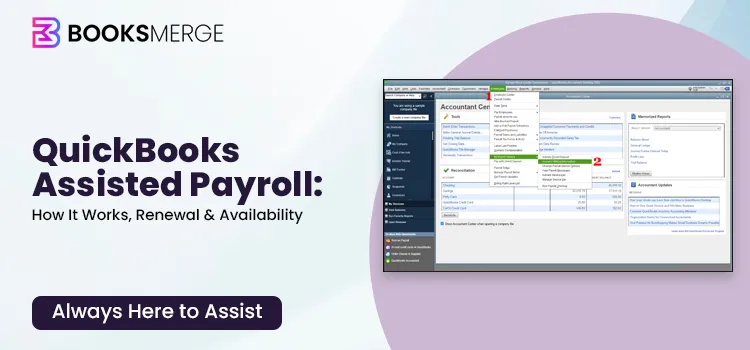
QuickBooks Assisted Payroll is the more hands-off payroll service offered by Intuit for businesses that want the software to handle payroll tax calculations, payments, and filings. It will be included with QuickBooks Desktop Enterprise Diamond for eligible customers in 2026. Except for purchases bundled with QuickBooks Enterprise Diamond, Intuit has stopped selling QuickBooks Desktop Assisted Payroll as of June 1, 2022.
The range of options available to existing QuickBooks Desktop Payroll customers depends on the specific QuickBooks product they use, the version they are on, and their subscription status. Hence, businesses currently considering Assisted Payroll should first determine whether they are eligible for QuickBooks Enterprise Diamond or whether QuickBooks Online Payroll would be more appropriate.
The guide explains the functions of QuickBooks payroll assisted, its cost, who is eligible to use it, its main features and limitations, and what current QuickBooks users should be aware of before deciding to renew or alter their payroll arrangement.
QuickBooks Desktop Assisted Payroll is a payroll service intended for businesses that want Intuit to handle most payroll tax administration. After payroll is processed, the service automatically handles payments and filings for federal and state payroll taxes.
Assisted Payroll is directly integrated with QuickBooks Desktop Enterprise, so there is no need to re-enter payroll data into a separate payroll system manually.
QuickBooks Desktop offers different types of payroll services depending on your business size and payroll needs:
Keep in mind that these standalone subscriptions are no longer available for new customers and are only accessible to existing users. New users typically access payroll through QuickBooks Payroll, which offers Enhanced or Assisted payroll options depending on the chosen subscription.
Depending on eligibility and setup, Assisted Payroll can help businesses:
Assisted Payroll is currently included with QuickBooks Desktop Enterprise Diamond for new customers. Intuit has stated that Assisted Payroll is not available in Indiana or Wyoming, and extra charges may apply when making payments to 1099 contractors.
QuickBooks Desktop payroll options differ mainly in how much responsibility the business retains for payroll tax administration.
| Feature | Enhanced Payroll | Assisted Payroll |
| Payroll calculations | QuickBooks calculates payroll | QuickBooks calculates payroll |
| Tax calculations | Yes | Yes |
| Payroll tax payments | Business manages them | Intuit manages them |
| Payroll tax filings | Business manages them | Intuit manages them |
| Direct deposit | Available | Next-day direct deposit available when eligible |
| Best for | Businesses that want more control | Businesses that want payroll tax administration handled for them |
| Current availability | Existing eligible Desktop customers | Included with Enterprise Diamond |
Enhanced Payroll is intended for companies that want QuickBooks to handle payroll calculations but remain in charge of filing and paying their payroll taxes.
The Assisted Payroll option is more hands-off, as Intuit handles the business’s payroll tax payments and filings.
Important Note:
QuickBooks Desktop product availability has changed. Intuit no longer sells new QuickBooks Desktop Pro Plus, Premier Plus, Mac Plus, or Enhanced Payroll subscriptions, while QuickBooks Desktop Enterprise remains available to new customers.
Before you use QuickBooks Desktop Assisted Payroll, businesses should make sure that they satisfy Intuit’s current eligibility and technical requirements. The following are the key requirements:
QuickBooks Desktop Assisted Payroll is not available in Indiana or Wyoming, and Intuit also notes that additional fees may apply to payments to 1099 contractors.
When carrying out direct deposit, businesses should finish their bank verification and submit their payroll by the relevant processing cutoff. Currently, Intuit states that eligible Assisted Payroll users can submit their payroll by 5:00 PM PT on the day before payment is due so that a direct deposit can be made on the following business day, provided they meet the eligibility requirements and other conditions.
QuickBooks Assisted Payroll is one of the best and most comprehensive payroll services for large businesses; below, we have listed the benefits you get with the payroll subscription, as well as its limitations.
Benefits
Limitations to Consider
The administration of payroll can be both time-consuming and complicated, particularly when it comes to tax calculations and having to meet compliance requirements. QuickBooks Payroll Assisted offers businesses a way of dealing with these difficulties by means of a variety of effective tools and services. The following are the main features that make it an effective payroll solution.
1. Automated payroll tax payments and filings
Assisted Payroll is designed to take payroll tax administration off the employer’s plate. Intuit manages eligible federal and state payroll tax payments and filings after payroll is processed.
2. U.S.-Based Onboarding Support
QuickBooks Assisted Payroll offers U.S.-based experts who help you set up your account easily. We assist with moving your data, setting up taxes, and adding employees. QuickBooks Payroll Support is available by phone +1-866-513-4656 or chat (Mon–Fri, 6 AM–6 PM PT). Our team helps you switch smoothly and provides custom, full-service tax filing with no penalties.
3. Integrated payroll and accounting
Because Assisted Payroll works within QuickBooks Desktop Enterprise, payroll transactions are integrated with the company’s accounting records. This reduces the need to manually transfer payroll information between separate systems.
4. Next-day direct deposit
Eligible businesses can use next-day direct deposit when payroll is processed by the applicable cutoff time, and direct deposit and bank verification requirements are satisfied. Intuit currently states that payroll submitted before 5:00 PM PT the day before payday can arrive the next business day, excluding weekends and holidays.
5. Employee access through QuickBooks Workforce
Employees can use QuickBooks Workforce to view digital pay stubs, W-2s, PTO balances, and other available payroll information.
6. Payroll setup assistance
With QuickBooks Assisted Payroll, most payroll tasks are automated, reducing manual work and saving time. The service handles calculations, tax filings, and payments while providing 24/7 customer support, ensuring help is available whenever you need it, and keeping your payroll process running smoothly.
7. Employee perks
Enhance the overall employee experience by offering useful features that make payroll simple and transparent.
With options like direct deposit and timely notifications, employees receive their payments quickly and reliably. These conveniences build trust, reduce payroll-related confusion, and create a more positive workplace experience for your team.
8. QuickBooks Time integration
The integration with QuickBooks Time allows businesses to track employee hours accurately and automatically sync them with payroll.
Employees can clock in and out from their mobile devices or computers, while managers can review, approve, and manage timesheets in real time. This integration reduces manual data entry, minimizes errors, and ensures employees are paid correctly for the hours they work.
QuickBooks Desktop Enterprise Diamond includes QuickBooks Time Elite. Time tracking can help businesses capture employee hours and connect time data with payroll workflows. Additional per-employee fees may apply.
Need fast support? Get in touch and allow our specialists to guide you through a simple and seamless renewal process. Dial our +1-866-513-4656 now!
9. Payroll tax accuracy and penalty protection
Intuit states that Assisted Payroll automatically manages eligible payroll tax payments and filings and provides a guarantee related to timely and accurate filing. The exact terms and exclusions should be reviewed before relying on the guarantee.
On June 1, 2022, the standalone version of QuickBooks Payroll Assisted was discontinued for new customers, and Intuit stopped offering it as a separate purchase. This means new users can no longer buy the service on its own.
However, existing subscribers can still continue using QuickBooks Assisted Payroll without interruption. Current users retain access to all payroll features, customer support, and tax filing services. They can also renew their subscriptions to keep using the service as long as their plan remains active.
For new users who want similar functionality, QuickBooks Assisted Payroll is now available as part of the QuickBooks Enterprise Diamond bundle. This package includes advanced payroll features along with enterprise-level accounting tools.
Alternatively, businesses that prefer a cloud-based solution can choose QuickBooks Online Payroll, which offers automated payroll processing, tax calculations, and compliance features depending on the selected plan. This option is designed for businesses that want easier access, automatic updates, and integration with other online tools.
Looking for quick help? Reach out to BooksMerge and let our experts assist you with an easy and hassle-free renewal. Call the QuickBooks payroll phone number +1-866-513-4656 right away and speak directly with a knowledgeable QuickBooks payroll specialist.
QuickBooks Desktop Payroll software comes fully integrated with Enhanced or Assisted, with no additional subscription fees.
Thus, QuickBooks Assisted Payroll pricing should be understood as part of the QuickBooks Desktop Enterprise pricing structure rather than as a standalone Assisted Payroll subscription.
This payroll service is only available with the QuickBooks Desktop Diamond plan. Let’s get a detailed overview of the availability of the types of QuickBooks Desktop Payroll Enhanced or Assisted:
|
Gold $2210/ yr Annual Subscription** |
Platinum $2717/ yr Annual Subscription** |
Diamond $5364/ yr Monthly Subscription** |
| QuickBooks Desktop Enterprise software | QuickBooks Desktop Enterprise software | QuickBooks Desktop Enterprise software |
| Up to 30 users with custom roles and permissions | Up to 30 users with custom roles and permissions | Up to 40 users with custom roles and permissions |
| Advanced Reporting | Advanced Reporting | Advanced Reporting |
| QuickBooks Priority Circle | QuickBooks Priority Circle | QuickBooks Priority Circle |
| Multi-company management | Multi-company management | Multi-company management |
| QuickBooks Desktop Enhanced Payroll (+ up to $3/employee per month)** | QuickBooks Desktop Enhanced Payroll (+ up to $3/employee per month)** | QuickBooks Desktop Assisted Payroll (+$2.50/employee per pay period)** |
| Advanced Inventory | Advanced Inventory | |
| Advanced Pricing | Advanced Pricing | |
| Bill & PO workflow approvals | Bill & PO workflow approvals | |
| Intercompany transactions | Intercompany transactions | |
| QuickBooks Time Elite (+$10 $5/employee per month)** |
Overall, QuickBooks payroll options are designed to support businesses of all sizes. Whether you choose Enhanced Payroll for full control or Assisted Payroll for a more automated experience, each plan provides reliable tools to simplify payroll management and ensure compliance.
Although QBDT Assisted Payroll is an excellent choice, it is not a one-size-fits-all solution and thus isn’t necessarily the best option for everyone.
QuickBooks Assisted Payroll might be a good fit for businesses that:
However, it might not be the best fit for your business if you:
If you already use QuickBooks Desktop Payroll, check your current subscription status before attempting to renew or reactivate the service.
The best and simplest way to renew the QuickBooks subscription is through the web. Here’s how to do so:
You can also reactivate the payroll subscription via the web.
Note: It may take up to 24 hours for the reactivation of your subscription to fully complete.
You can also renew your QuickBooks Assisted Payroll subscription by linking up with a certified QuickBooks professional. Our experts help with renewing the subscription, making billing updates, and sorting out any technical problems so that your payroll services will not be interrupted.
Need quick assistance? Contact today and let our professionals guide you through a smooth renewal process. Dial toll-free-number +1-866-513-4656 now!!
If you’re experiencing payroll errors in QuickBooks Desktop, you don’t always need to contact the QuickBooks payroll phone number right away. Many common payroll issues can be resolved with a few troubleshooting steps, which we’ve covered below.
1. Subscription has lapsed error
One common issue users encounter in QuickBooks Assisted Payroll is the “Your payroll subscription has lapsed” error message, which usually appears when the software cannot verify an active payroll subscription.
Causes:
Fix it:
2. Payroll Service Server Error or Payroll Connection Error
Sometimes users see messages like “QuickBooks is unable to connect to the Payroll Service Server” or “Payroll Connection Error” when the software establishes a connection with payroll services.
Causes:
Fix it:
3. Direct Deposit Not Processing
Users may notice that employee payments are not sent and QuickBooks displays a direct deposit processing error or the deposit status remains pending.
Causes:
Fix it:
4. Tax Form Filing Issues
While filing payroll taxes, QuickBooks may display errors such as “Unable to generate or submit payroll tax forms” or problems creating forms like W-2 or 941.
Causes:
Fix it:
5. Incorrect Payroll Tax Calculations
Sometimes users notice that taxes are calculated incorrectly when running payroll in QuickBooks Assisted Payroll.
Causes:
Fix it:
QuickBooks Error PS038 | Resolve the Payroll Update Error
A Guide to Troubleshoot QuickBooks Error PS033 Easily
QuickBooks Tool Hub | Fix Common QuickBooks Errors & Issues
Windows Firewall is Blocking QuickBooks Desktop | Let’s Fix It
How to Fix QuickBooks Error PSXXX When Updating Payroll?
QuickBooks Error 15000: Overview, Causes & Troubleshooting Steps
How to Fix QuickBooks Error 12000 Series When Updating?
QuickBooks Desktop Discontinued: Your Guide to Switch/Survive
QuickBooks Screen Turned Black and White? Try These Fixes (2026)
How To Fix the QuickBooks Payroll Update Not Working Issue (Proven Methods)
QuickBooks Payroll Error PS058: Why It Happens and How to Resolve It
QuickBooks Error PS036: Common Causes and How to Fix It
Resolve QuickBooks Error PS032 When Updating Payroll
QuickBooks Error PS034: Causes, Fixes & Payroll Update Guide
Resolve QuickBooks Error PS077: Instant Troubleshooting Methods
This was everything essential to know about QuickBooks Assisted Payroll for both new and existing users. We discussed how existing users can reactivate their payroll subscription and how new users can subscribe to the service after the standalone version was discontinued.
For additional help with your payroll processes, reach out to the QuickBooks payroll phone number +1-866-513-4656 and speak directly with a knowledgeable payroll specialist.

QuickBooks Assisted Payroll is a full-service, “done-for-you” payroll solution, often integrated with QuickBooks Desktop Enterprise (Gold/Platinum/Diamond), that handles paycheck calculations, tax payments, and filing.
QuickBooks Desktop Assisted Payroll is a full-service, automated solution (included with Enterprise Diamond) where Intuit handles tax filings and payments.
Enhanced Payroll is a self-service, DIY option (included with Enterprise Gold/Platinum) where you calculate paychecks and manage tax payments/filings yourself using built-in tools.
Yes, QuickBooks Assisted Payroll prepares, files, and sends out W-2s for your employees. The system automatically files W-2s with the Social Security Administration and provides digital copies to employees via the QuickBooks Workforce portal, though you can also print and mail them if necessary.
Processing payroll in QuickBooks Desktop involves setting up company/employee info, entering hours, and running payroll via the “Employees” menu. Key steps include selecting “Pay Employees,” choosing scheduled/unscheduled payroll, reviewing data, and printing checks or using direct deposit.
To set up payroll in QuickBooks Desktop, purchase a payroll subscription, then navigate to Employees > Payroll Setup to launch the wizard. This tool guides you through adding employee information, taxes, and deductions. Ensure you have company, employee, and tax information ready, then follow the prompts to configure pay types, direct deposit, and liabilities.
To change your payroll bank account in QuickBooks Desktop, go to Employees > My Payroll Service > Accounts/Billing Information. Sign in, click Edit next to your bank account, enter your payroll PIN, and update with the new information. Allow up to 2 business days for verification.
To adjust payroll liabilities in QuickBooks Desktop, go to Employees > Payroll Taxes and Liabilities > Adjust Payroll Liabilities. Set the date, choose between employee or company-level adjustments, select the specific item, and enter the amount.
To activate QuickBooks Assisted Payroll, go to Settings > Subscriptions and billing under Company. Find your QuickBooks payroll service > Subscribe. Enter the payment information when prompted.
Yes, QuickBooks Desktop Enterprise Enhanced & Assisted Payroll are subscription-based services. To enjoy the benefits of Enhanced payroll services, choose the Gold or Platinum subscription plan.
For Assisted Payroll, opt for the Diamond subscription plan. Activate the respective subscription and your favorite payroll services.
QuickBooks Assisted Payroll is a comprehensive payroll solution and is considered better for businesses seeking automation, reduced tax liability risk, and full-service support. Meanwhile, Enhanced payroll is better for lower costs and for managing tax filings themselves.
To activate QuickBooks Desktop payroll, go to the Employees menu, select Payroll, then Enter Payroll Service Key. Enter the 16-digit service key provided in your subscription email, then click Next and Finish to activate.
Activating Assisted Payroll starts the payroll setup process. If you don’t have a payroll subscription, you’ll be prompted to purchase one. It does not automatically enroll or charge you unless you complete the subscription.
No, the QuickBooks Desktop Premier Plus annual subscription does not include Assisted Payroll. A separate QuickBooks Payroll subscription is required.
QuickBooks Desktop support hours vary by product and subscription. Check your support availability through your Intuit account or within QuickBooks for the most up-to-date hours.
Yes, QuickBooks Desktop Enterprise Diamond includes Assisted Payroll and QuickBooks Time Elite as part of the Diamond subscription, along with other advanced business management features.
AI-triaged.
Human-solved.
Instant QuickBooks diagnostics, then a certified ProAdvisor takes over live.
first-call fix
match time
live coverage