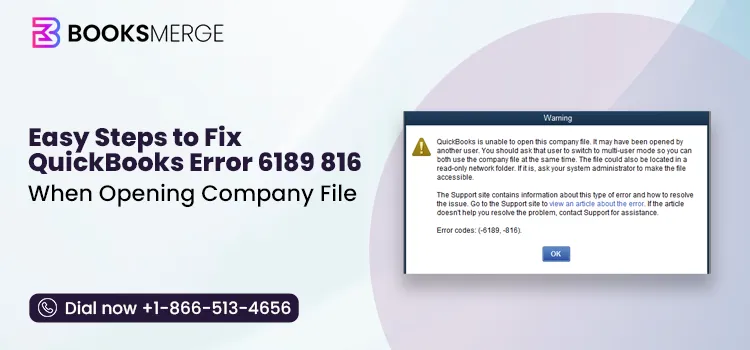
When trying to open a company file you may encounter QuickBooks error 6189, a warning message that hindrance your current operations, specifically related to your crucial data. The warning message may display as:
“An error occurred when QuickBooks tried to access the company file (6189, 816 or 6190, 816).”

This error usually points to a problem with how QuickBooks accesses or communicates with the company file, which can leave you unable to access your financial data when you need it.
In this guide, we’ll walk through the practical steps you can try to identify the cause and get your company file opening normally again.
QuickBooks error 6189, 816 is a 6000-series error that usually shows up when QuickBooks has trouble accessing a company file in a multi-user setup. You may also come across the related 6190, 816 error, which points to a similar issue with the company file connection.
These errors are generally linked to how QuickBooks communicates with the company file over the network, rather than simply indicating a damaged file. Knowing which error code appears on your screen can help narrow down the right fix. For another company-file access problem, see our guide to QuickBooks Error 6000-83.
Understanding the possible causes of QuickBooks error 6189 can help you identify the source of the problem and choose the right troubleshooting method.
In this section, we will walk you through detailed step-by-step troubleshooting solutions that will help you resolve QuickBooks error 6189 and ensure you can open your company file without any issues:
Quick Fix my Program closes the background processes QuickBooks uses. This runs a quick repair of your program. Here’s how to run the tool:
Important Note: Make sure to download and install QuickBooks Tool Hub in the most recent version available (1.6.0.8).

Updating QuickBooks Desktop to the latest release ensures that you have the latest security patches and up-to-date software features. This also helps prevent outdated features from interfering when you try to open a company file stored on the server, which can help resolve QuickBooks error 6189.
Restarting your computer can help refresh the system and QuickBooks processes, clear temporary issues, and re-establish the connection to the company file stored on the server. This may help resolve error 6189 when opening the company file data.
The QuickBooks Database Server Manager scans your company files and helps you share them over the network. It is included with QuickBooks Desktop, so you don’t need to download it separately. If it isn’t installed on your server computer, locate the QuickBooks Desktop installation file and run it. D
uring the installation, select the option to install the Database Server Manager. Once installed, open it from QuickBooks Tool Hub and scan the folder where your company files are stored.

Wait for the scan to complete. The Database Server Manager will scan the folder and configure the necessary network access for your QuickBooks company files.
After the scan completes, open QuickBooks and verify that workstations can access the company file. If QuickBooks still cannot access the company file, check our guide on QuickBooks not connecting to the server.
The .ND and .TLG files are QuickBooks configuration files used to access company files in network and multi-user setups.
If either file is corrupted, QuickBooks may display errors when opening the company file. Renaming them is safe because it does not remove your company data. QuickBooks will generate new files when you run the Database Server Manager or reopen the company file.

company_file.qbw.nd.OLD
company_file.qbw.tlg.OLD
If the company file is stored on a network drive, move it to a local drive on the server and try opening it again. Before moving or restoring the company file, learn how to back up your QuickBooks company file safely.
Learn how you can move your company file to a local drive:

Now, let’s restore the backup to a local drive:

After the restore is complete, QuickBooks will open the file directly from the local hard drive. To verify the location, press F2 in QuickBooks.
Make sure the QuickBooks Database Server Manager service is configured with the appropriate Windows settings and permissions.
Windows Firewall or antivirus settings can sometimes block QuickBooks from accessing company files over a network. Adjusting these settings to allow QuickBooks and its related services can help prevent connection issues and ensure smooth access to your company files.
Problems during QuickBooks installation can lead to issues when using the software. Use the QuickBooks Install Diagnostic Tool to troubleshoot common installation problems.

To resolve installation issues or start fresh, uninstall QuickBooks Desktop and then reinstall it on your computer. Follow the steps below to remove the existing installation and install a fresh copy to resolve error code 6189:

After you remove the previous installation, you can reinstall QuickBooks Desktop. During the reinstallation, QuickBooks will create fresh folders and automatically rename the existing ones.
Note: If you want to transfer or set up QuickBooks Desktop on a different computer, you can use the QuickBooks Migrator Tool to complete the process.
Before you begin, make sure your computer is connected to the internet.

If you get QuickBooks error 6189 on Windows 11, it usually means QuickBooks can’t access the company file properly. The issue can be related to network connectivity, file permissions, QuickBooks processes, or the Database Server Manager.
Try the troubleshooting methods mentioned above, starting with Quick Fix My Program, restarting your computer, and checking the company file location. If you are using QuickBooks in multi-user mode, also make sure the server and network settings are configured correctly. For related multi-user connection problems, see our guide on QuickBooks Error H202.
While working with QuickBooks Desktop, you may also come across other company file and network-related errors. Some related errors include QuickBooks error 6129, error 6190, and other QuickBooks 6000-series errors.
These errors can have different causes, but they are commonly related to problems accessing, opening, or connecting to the QuickBooks company file. Checking the file location, network connection, permissions, and QuickBooks configuration can help identify the cause.
QuickBooks error 6189 can prevent you from opening your company file, but it can usually be resolved by checking the QuickBooks program, network connection, file location, and related services. Start with the basic troubleshooting methods and move to the advanced solutions if the error continues.
If none of the above methods resolve the issue, try connecting with a certified team of QuickBooks professionals at +1-866-513-4656 right away.

QuickBooks error 6129 appears when you try to open a company file, usually because QuickBooks can’t access or create the company file properly. To fix the error, check your network connection, make sure you have permission to access the file, and restart QuickBooks.
To fix QuickBooks 6000-series error codes (such as -6000, -83, -77, or -301), run the QuickBooks Tool Hub and use the QuickBooks File Doctor tool.
Error 6000 is a group of company file issues. It means QuickBooks cannot open or access your company file (.qbw) due to network issues, damaged configuration files, or incorrect folder permissions.
You may encounter QuickBooks error 6190 when the company file and its transaction log file are out of sync. Close QuickBooks on all computers and try opening the file again. If the error remains, check the file location and run QuickBooks File Doctor.
Error code 6189 in QuickBooks means QuickBooks is having trouble accessing the company file. It’s commonly related to network problems, file permissions, or multi-user access.
Not necessarily; getting error code 6189 does not mean that the company file is damaged, although the error itself appears when you try to open a company file. This error can be triggered by incorrect multi-user network setup, missing permissions, improper file hosting, and other issues.
Not usually. Since error code 6189 is often related to file access or network settings, check those first. Reinstalling QuickBooks may help if the installation itself is causing the problem.
AI-triaged.
Human-solved.
Instant QuickBooks diagnostics, then a certified ProAdvisor takes over live.
first-call fix
match time
live coverage

