Keeping your payroll tax table up to date is essential for processing employee payroll accurately in QuickBooks Desktop.
However, if QuickBooks error PS034 appears while downloading payroll updates, it can interrupt the update process and prevent you from accessing the latest payroll tax table. The error is commonly caused by issues with your payroll subscription, damaged payroll update files, or an outdated QuickBooks installation.
In this guide, we’ll explain what the error means, why it occurs, and walk you through the most effective troubleshooting methods to get your payroll updates working again.
QuickBooks error PS034 is a payroll update error that occurs when QuickBooks Desktop is unable to verify your payroll subscription or read the files required to download the latest payroll tax table. It belongs to the PSXXX series of payroll errors, which are commonly associated with payroll update and subscription verification issues.
When the error occurs, you may see one of the following messages:
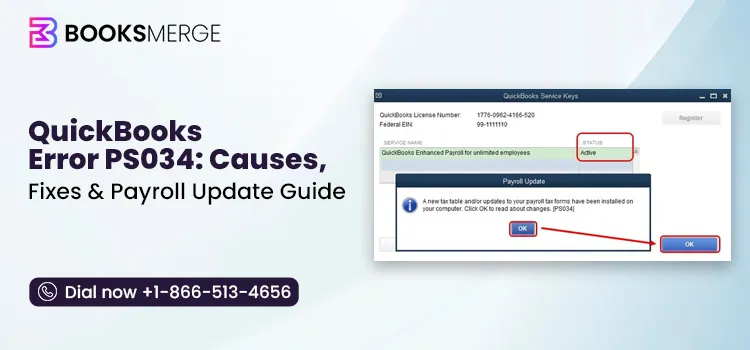
QuickBooks Error PS034: QuickBooks can’t read your payroll setup files.
[PS034] There is a problem with your payroll setup.
An error occurred while downloading the payroll update.
As a result, QuickBooks may fail to download payroll updates, preventing you from accessing the latest payroll tax table or processing payroll until the issue is resolved.
What are the Common Signs & Symptoms of QuickBooks Error Code PS034?
QuickBooks Error Code PS034 mainly arises when QuickBooks Desktop is having trouble completing a payroll update. Following are the signs and symptoms that will help you identify the appearance of this error.
Unable to complete the payroll or tax table update in QuickBooks.
QuickBooks may repeatedly ask you to download or install the latest payroll tax table update.
The error can be linked with damaged files used by QuickBooks for payroll updates.
QuickBooks may face difficulty while validating the payroll service or service key.
You may get an error message on the screen stating “The payroll update did not complete successfully.”
What Causes Payroll Update Error PS034 in QuickBooks?
Before you start troubleshooting, it’s important to understand what may be causing payroll update error PS034 in QuickBooks. Here are the most common reasons behind this payroll update error:
Your QuickBooks Payroll subscription is inactive or expired.
The payroll service key is incorrect or damaged.
The CPS folder contains corrupted payroll update files.
You’re using an outdated version of QuickBooks Desktop.
The latest payroll tax table update failed to install properly.
Windows Firewall or antivirus software is blocking QuickBooks.
The QuickBooks installation is damaged or incomplete.
User Account Control (UAC) is preventing QuickBooks from accessing required files.
Incorrect internet or Internet Explorer settings are interrupting the payroll update process.
There are multiple QuickBooks Desktop installations causing conflicts.
Things to Check Before Fixing QuickBooks Error PS034
Before you proceed with the troubleshooting steps, make sure you have the following:
An active QuickBooks Payroll subscription.
The latest version of QuickBooks Desktop installed.
The latest payroll tax table update available for your subscription.
Your payroll service key and QuickBooks license information, if required.
Top 10 Troubleshooting Methods for QuickBooks Error PS034 When Updating
Now that you’ve identified the possible cause, it’s time to troubleshoot the error. Follow the solutions below in the given order until QuickBooks error PS034 is resolved:
1. Check your payroll service subscription
An active payroll subscription is necessary to ensure you get the regular, up-to-date payroll tax table and can activate it when required. Here’s how you can verify and activate a payroll subscription:
Exit all of your company files and restart your computer.
Launch QuickBooks Desktop.
Navigate to Employees.
Select My Payroll Service, then select Manage Service Key.
Now, verify the Service Name and Status are correct, and the status shows as Active.
Click on Edit and verify the service key number. In case it’s not accurate, enter the correct service key.
Select Next and clear the checkbox for the Open Payroll Setup box. Then, click on Finish.
This will help you download the entire payroll update.
2. Register and update your QuickBooks Desktop
It is necessary that you use the latest software improvements and security patches. Let’s ensure that your software is registered to receive regular updates:
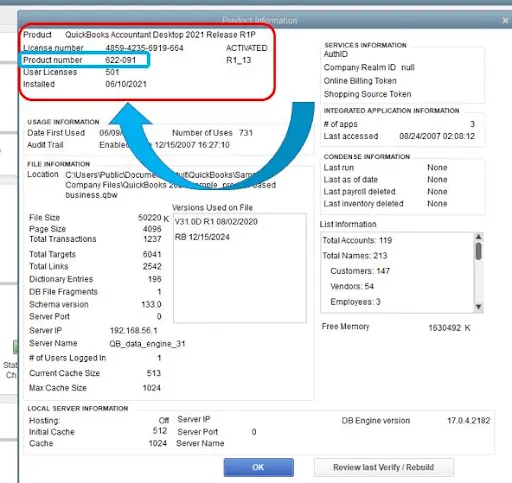
Press the F2 key on your keyboard to open the Product Information.
Now, make sure it says Activated beside the license number.
Note: If the status doesn’t say Activated, first register your QuickBooks Desktop.
Once you’re done with registering your software, update QuickBooks Desktop to the latest version available.
Also, make sure to download the latest payroll tax table update.
Here’s how you can update QuickBooks Desktop to the latest release:
Mark the checkbox for Reset Updates to clear the previous updates.
When done, select Get Updates.
Finally, restart your QB Desktop to apply the updates.
3. Add Defender exclusion
Intuit offers a utility hub to its users to allow them to repair the software or resolve general system issues. The QuickBooks Tool Hub has a feature that automatically adds QuickBooks files to the Microsoft Defender exclusion list. This prevents the antivirus from scanning specific QB files when installing payroll or software updates.
Prerequisites:
Make sure to sign in to Windows as an administrator.
Launch the QuickBooks Tool Hub application. If you don’t have the tool, download and install QuickBooks Tool Hub.
Choose Installation Issues in the left menu bar.
Click on Add Defender Exclusion. If you don’t see the option or it’s grayed out, try running the PC with proper administrator rights or ask the admin to perform these steps.
Now, restart your computer.
Finally, open QuickBooks and try to update the payroll services again.
4. Rename the CPS folder
Corrupted files in the CPS folder can prevent payroll updates from installing correctly. Renaming the folder forces QuickBooks to replace those files automatically:
Close QuickBooks Desktop.
On your keyboard, press Windows + R to open the Run window.
Type C:\ProgramData\Intuit and select OK.
Open the folder that matches your QuickBooks Desktop version, such as QuickBooks 2024, QuickBooks 2023, or QuickBooks 2022.
Open the Components folder.
Open the Payroll folder.
Right-click the CPS folder and select Rename.
Rename the folder to CPS.old and press Enter.
If prompted by User Account Control (UAC), select Yes to confirm the change.
Reopen QuickBooks Desktop.
Go to Employees, then select Get Payroll Updates.
Check the Download Entire Payroll Update option.
Select Download Latest Update.
Wait for the update to finish. QuickBooks will automatically create a new CPS folder with fresh payroll files.
Note: If you don’t see the ProgramData folder, open File Explorer, select View (or View > Show on Windows 11), and enable Hidden items before following the steps above.
5. Adjust User Account Control (UAC) settings
Windows User Account Control (UAC) is designed to protect your system, but it can occasionally block QuickBooks from completing payroll updates. Changing the UAC settings can help eliminate this restriction.
Press Windows + R on your keyboard to open the Run dialog box.
Type Control Panel and click OK.
Select User Accounts, then choose User Accounts again if you’re in Classic View.
Click Change User Account Control settings.
If the User Account Control (UAC) prompt appears, select Yes to continue.
Drag the slider to the desired level:
Select Never notify, then click OK to turn UAC off.
Select Always notify, then click OK to turn UAC on.
If prompted again, select Yes to confirm the change.
Restart your computer to apply the new UAC settings.
6. Check internet connection & browser settings
QuickBooks relies on your internet connection and Internet Explorer settings to verify your payroll subscription and download updates. If the connection is unstable or the browser settings are misconfigured, payroll updates may fail.
Close QuickBooks Desktop.
Open Internet Explorer on your computer.
Select Tools (the gear icon), then choose Internet Options.
Go to the General tab and select Delete under Browsing history.
Check Temporary Internet files and Cookies, then click Delete.
Select the Connections tab and click LAN settings.
Verify that Automatically detect settings are checked and that Use a proxy server for your LAN is unchecked (unless your network requires a proxy).
Select the Advanced tab and scroll down to the Security section.
Make sure Use TLS 1.2 is checked. If available, uncheck SSL 2.0 and SSL 3.0.
Click Apply, then OK to save the changes.
Restart your computer.
Reopen QuickBooks Desktop and try downloading the payroll update again.
7. Remove duplicate QuickBooks installations
If multiple versions or duplicate installations of QuickBooks Desktop are installed on your computer, they can interfere with payroll updates and other program functions. Removing the unnecessary installation can help eliminate version conflicts and resolve the issue. Here’s how to do so:
Open the Windows Start menu and search for the Control Panel.
Select Control Panel from the search results.
Click Programs and Features. If you’re in Category view, select Uninstall a program under Programs.
In the list of installed programs, locate the duplicate or older version of QuickBooks Desktop.
Select the program, then click Uninstall/Change.
Choose Remove when prompted and follow the on-screen instructions to complete the uninstallation.
Once the process is complete, restart your computer.
Open QuickBooks Desktop and check whether the payroll update issue has been resolved.
8. Configure Windows Firewall settings
Windows Firewall helps protect your computer by monitoring incoming and outgoing network traffic. In some cases, it may block QuickBooks Desktop from connecting to the internet or accessing the files required for payroll updates. Configuring Windows Firewall settings to allow QuickBooks can help restore the connection and resolve payroll update issues.
9. Repair QuickBooks Desktop
If QuickBooks Desktop isn’t functioning properly due to damaged program files, running the built-in Repair tool can help restore the installation without affecting your company data.
a. Run Quick Fix my Program
If QuickBooks program files are damaged or not working correctly, use the Quick Fix my Program tool in the QuickBooks Tool Hub. This tool closes any QuickBooks background processes and performs a quick repair of the program.
Open the QuickBooks Tool Hub on your computer.
Select Program Problems from the left-hand menu.
Click Quick Fix my Program.
Wait for the repair process to complete.
Once finished, open QuickBooks Desktop.
Open your company file and check whether the payroll update issue has been resolved.
b. Run the QuickBooks Install Diagnostic tool
If the QuickBooks installation is incomplete or damaged, the QuickBooks Install Diagnostic Tool can help identify and repair common installation issues that may be causing payroll update errors.
Open the QuickBooks Tool Hub on your computer.
Select Installation Issues from the left-hand menu.
Click QuickBooks Install Diagnostic Tool.
Allow the tool to scan and repair installation issues. The process may take up to 20 minutes.
Once the scan is complete, restart your computer.
Open QuickBooks Desktop and sign in to your company file.
Update QuickBooks Desktop to the latest release to ensure you have the most recent fixes, security patches, and payroll updates installed.
10. Reinstall QuickBooks Desktop
Reinstalling QuickBooks Desktop is recommended when the program files become corrupted, or other troubleshooting methods fail to resolve the issue.
Click the Windows Start menu and search for the Control Panel.
Open the Control Panel, then select Programs and Features. If you’re in Category view, click Uninstall a program under Programs.
Locate and select the QuickBooks Desktop version you want to uninstall from the list of installed programs.
Click Uninstall/Change, choose Remove, and then select Next to begin the uninstallation.
Follow the on-screen instructions to complete the process.
If the Remove option isn’t available, sign out of Windows and sign back in using an administrator account or an account with administrative privileges, then try again.
b. Install QuickBooks Desktop again
After uninstalling QuickBooks Desktop, reinstall the program to replace any missing or damaged installation files. During the installation, QuickBooks automatically creates new program folders and replaces the old ones as needed.
Follow these steps to reinstall QuickBooks Desktop:
Make sure your computer is connected to a stable internet connection.
Locate the QuickBooks.exe installation file and double-click it to launch the installer.
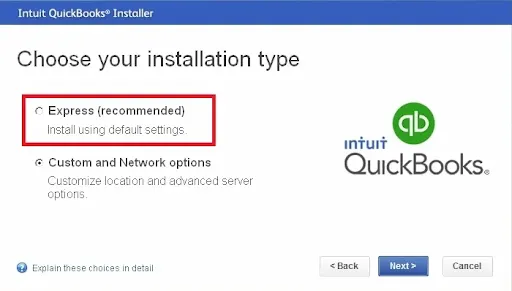
Select Express Install as the installation type.
Click Next to continue.
Select Install and wait for the installation to complete.
Once the installation is finished, click Open QuickBooks to launch the program.
Note: If you’re reinstalling QuickBooks on the same computer, these steps are sufficient. If you’re moving QuickBooks to a different computer, use the QuickBooks Migrator Tool to transfer your installation and company files.
How to Prevent QuickBooks Error PS034 in the Future
Although QuickBooks Error PS034 can be resolved with the right troubleshooting steps, following a few best practices can help reduce the chances of encountering it again.
Keep QuickBooks Desktop updated to ensure you have the latest bug fixes, security patches, and payroll improvements.
Download payroll updates regularly so your tax table stays current and payroll files remain up to date.
Maintain an active payroll subscription and verify that your billing information is accurate to avoid subscription verification issues.
Avoid interrupting payroll updates by closing QuickBooks or shutting down your computer while updates are being installed.
Review your firewall and antivirus settings to make sure they aren’t blocking QuickBooks from accessing payroll services.
Run the Verify and Rebuild Data utility periodically to identify and repair minor company file issues before they affect payroll.
Create regular backups of your company file so you can restore your data if unexpected issues occur.
Use the latest QuickBooks Tool Hub to quickly diagnose and fix common program and installation problems before they become more serious.
When to Contact a QuickBooks Expert
If you’ve tried all the troubleshooting methods in this guide and QuickBooks error PS034 still isn’t resolved, the issue may be related to your payroll subscription, company file, or QuickBooks installation. In such cases, it’s best to seek professional assistance to avoid further complications.
A QuickBooks expert can identify the underlying cause, perform advanced troubleshooting, and help restore your payroll updates without putting your company data at risk.
Summing Up
This brings us to the end of our guide on QuickBooks error PS034. While the error can interrupt payroll updates, it’s often resolved by verifying your payroll subscription, updating QuickBooks Desktop, or repairing damaged program files.
If the issue continues after trying the solutions discussed above, it’s best to contact a QuickBooks expert for further assistance. Dial +1-866-513-4656 to connect with a BooksMerge professional right away!
About The Author
Meghan McKenzie, CPA, is a senior accounting technology writer with over a decade of experience helping US small businesses streamline their financial operations. She specializes in resolving complex accounting software
errors, automating workflows, and translating technical tax and bookkeeping standards into practical advice.
FAQ's
QuickBooks error PS034 is a payroll update error that occurs when QuickBooks Desktop can’t read the files needed to verify your payroll subscription. It usually appears because of damaged payroll files, an inactive payroll subscription, or issues with the QuickBooks installation.
QuickBooks payroll error PS034 is caused by problems verifying or installing payroll updates, specifically due to inactive service keys, damaged tax table/CPS files, or incorrect billing information.
Yes, it is safe to rename the CPS folder in QuickBooks to fix payroll update errors like PS033 or PS038. Doing this forces QuickBooks to make a fresh folder and download clean update files.
No, you do not need a new service key every time you update payroll. Your service key stays the same for your active subscription and is only used to verify your account when downloading periodic tax table updates or renewing your yearly service.
No, you cannot permanently fix QuickBooks error PS034 while your payroll subscription is expired. The error happens when QuickBooks cannot verify or download your payroll tax table updates because an active subscription is required to receive those files.
Yes, in most cases, you can resolve the error PS034 by verifying your payroll subscription, updating QuickBooks Desktop, renaming the CPS folder, or repairing the program. Reinstalling QuickBooks is usually the last troubleshooting step.
Yes, QB payroll update error PS034 can prevent you from downloading payroll updates and the latest tax table, which may stop you from processing payroll accurately.
QuickBooks payroll update error PS034 can occur in supported versions of QuickBooks Desktop that use QuickBooks Payroll, including Pro, Premier, Enterprise, and Accountant editions.
No, although both are payroll update errors, they have different causes. PS034 is generally related to payroll setup or verification files, while PS032 is commonly associated with payroll update validation or subscription issues.
Keep QuickBooks Desktop updated, renew your payroll subscription on time, download payroll updates regularly, and avoid interrupting updates while they’re installing. These practices can help reduce the chances of encountering PS034 again.
Instant QuickBooks diagnostics, then a certified
ProAdvisor takes over live.
qb-diagnostic.sh
> Scanning Error signature...
> Match Found: quickbooks-error-ps034
> routing to certified ProAdvisor▌
98%
first-call fix
<15s
match time
24/7
live coverage
Ready to Get Your Books in Order?
Whether you need monthly bookkeeping, outsourced payroll, or a bookkeeping cleanup before tax season, BooksMerge is ready to take bookkeeping off your plate. Schedule a free consultation, and we'll walk through your current books, your goals, and the right service package for your business.