Written by Meghan McKenzie | Published: November 12, 2026
Are you seeing QuickBooks Event ID 4 when you open QuickBooks Enterprise? This error usually indicates a problem with Microsoft components (such as .NET Framework) or with QuickBooks Desktop installation files. Unfortunately, this issue may cause the software to freeze, crash, or display unexpected error messages.
This guide explains why the QuickBooks Event ID 4 error occurs and step-by-step troubleshooting methods to fix it.
What Do You Understand By QuickBooks Event ID 4 Error?
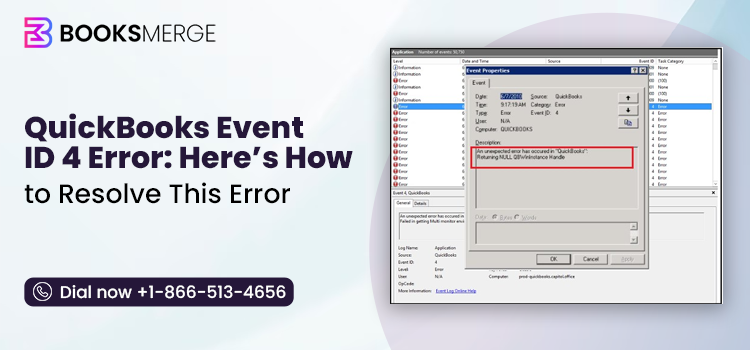
QuickBooks Event ID 4 error is basically an application-related error recorded in the Windows Event Viewer. It usually appears when QuickBooks Desktop encounters an unexpected problem while performing an operation. When the error occurs, you may receive any one of the following error messages stating;
- “Integration Manager could not connect to QuickBooks. Please make sure that it is open” is displayed to the user.”
- “QuickBooks Event ID 4 – An unexpected error has occurred in “QuickBooks”: Returning NULL QBWinInstance Handle.”
What Are the Root Causes Behind QuickBooks Event ID 4 Error?
The QuickBooks Event ID 4 error is an issue related to .NET Framework. However, you may also get this error due to the following root causes.
- An incomplete or corrupt QuickBooks installation might trigger this error.
- QuickBooks Desktop relies on Microsoft components to perform different functions.
- A damaged or corrupt Windows Registry can also lead to QuickBooks Event ID 4 in Windows 10.
- Firewall or antivirus restrictions may prevent QuickBooks processes from running properly or communicating with integrated applications.
- Incorrect Windows configurations, outdated updates or damaged system components may disrupt QuickBooks functionality.
If security settings are preventing QuickBooks from communicating with integrated applications, review our guide on Windows Firewall blocking QuickBooks for additional troubleshooting steps.
Signs & Symptoms You May See When QuickBooks Event ID 4 Error Code Occurs
These key indicators can help you identify whether you are affected by the QuickBooks Event ID 4 error code.
- Unexpected freezing or crashing of the QuickBooks Desktop application.
- Integration Manager fails to connect with QuickBooks.
- You may notice that QuickBooks becomes unresponsive when you open a company file.
- Windows runs sluggishly while you use QuickBooks.
- QuickBooks may take longer than usual.
- Windows Event Viewer repeatedly records application errors.
Checklist Before Troubleshooting QuickBooks Event ID 4
Before attempting any fixes, gather sufficient information to identify the root cause and avoid unnecessary or repeated troubleshooting steps.
- Create a backup of your QuickBooks company file before troubleshooting to protect your financial data. Follow our guide to learn how to back up QuickBooks company file safely.
- Check whether another Windows user experiences the same issue.
- Open Event Viewer and copy the full message from the General tab. Record the event source, log name, timestamp, and any additional information about the application or module.
- Make sure you are using the latest version of QuickBooks Desktop and Windows.
How to Troubleshoot QuickBooks Event ID 4 Error?
After identifying the possible causes and symptoms, explore the troubleshooting methods listed below to address the issue.
Method 1: Update QuickBooks Desktop
Using an older QuickBooks version may create compatibility issues that might lead to QuickBooks Event ID 4 error.
- Launch the QuickBooks Desktop application.
- After this, select Help from the top menu.
- Now, choose Update QuickBooks Desktop.
- Open the Update Now tab and click Get Updates.
- Wait for the update process to complete.
- Close and reopen QuickBooks.
- Follow the installation prompt if one appears.
Method 2: Run QuickBooks Install Diagnostic Tool
The QuickBooks Install Diagnostic Tool scans for installation issues and tries to fix them, including problems with Microsoft components QuickBooks requires.
- Open the QuickBooks Tool Hub on your device. Ensure that you have downloaded & installed the latest version of QB Tool Hub.
- Now, click Installation Issues > QuickBooks Install Diagnostic Tool.
- Wait while the tool runs. The time depends on the complexity and size of the company file.
- Restart your computer.
- Open QuickBooks and check whether the error appears again.
Method 3: Try Reinstalling. NET Framework on Windows
Microsoft .NET Framework supports multiple QuickBooks Desktop functions. However, issues with these components can cause application errors.
- Press the Windows + R keys to open the Run window.
- Type “appwiz.cpl” in the text field and hit the Enter key.
- After this, locate and click Microsoft .NET Framework below the Programs & Features list.
- Choose the Uninstall/Change option.
- Restart your computer after you finish the uninstallation.
- Select Programs and Features.
- Click Add/Remove Windows Features in the left-side panel.
- Now, tap on the Microsoft .NET Framework to expand the list of programs.
- Confirm that you have selected the first and second checkboxes, and then click the OK option.
- Then uninstall the MS Framework installation by following the on-screen instructions.
- Once you have deleted the previous installation, confirm to download & install the updated version of Microsoft .NET Framework 4.8.
- Finally, restart Windows & open the QuickBooks Integration Manager again.
Method 4: Repair or Reinstall .NET Framework on Windows
QuickBooks Desktop mainly uses Microsoft programs to run the web-based applications. One of them is Microsoft .NET Framework. However, if the .NET Framework has an issue, QuickBooks may not work properly.
Windows 10 & Newer
- Close all running applications on your computer.
- Open the Windows menu by clicking the Start button.
- Type Control Panel in the search bar and open it.
- Navigate to Programs and Features.
- Select Uninstall a Program. Don’t worry; you won’t be removing any programs.
- Click Turn Windows features on or off from the left panel.
- Locate .NET Framework in the list of available Windows features.
Check the settings for both .NET Framework 4.5 (or later) & .NET Framework 3.5 SP1 to ensure they are enabled.
Check and Enable .NET Framework 4.5 (or Later)
Follow the steps below based on the current checkbox status:
If the .NET Framework 4.5 (or later) checkbox is unchecked:
- Select the checkbox to enable .NET Framework 4.5 (or a later version).
- Click OK to save the changes.
- Restart your computer.
After Windows restarts, check whether QuickBooks works properly.
If the .NET Framework 4.5 (or later) checkbox is already checked:
- Uncheck the box to temporarily disable .NET Framework 4.5 (or later).
- Click OK to apply the changes.
- Restart your computer.
- Sign back in to Windows.
- Return to the Windows Features settings.
- Check the .NET Framework 4.5 (or later) checkbox again to re-enable it.
- Click OK and restart your computer if prompted.
This process refreshes the .NET Framework settings and may help resolve issues caused by damaged or incorrectly configured components.
Check and Enable .NET Framework 3.5 SP1
Follow the instructions below depending on the current status of the .NET Framework 3.5 SP1 checkbox.
If the .NET Framework 3.5 SP1 checkbox is unchecked:
- Select the checkbox to enable .NET Framework 3.5 SP1.
- Click OK to save the changes.
- Restart your computer.
- After Windows restarts, check whether the QuickBooks error is resolved.
If the .NET Framework 3.5 SP1 checkbox is already checked:
- Uncheck the box to temporarily disable .NET Framework 3.5 SP1.
- Click OK to apply the changes.
- Restart your computer.
- Sign back in to Windows.
- Return to the Windows Features settings.
- Select the checkbox again to re-enable .NET Framework 3.5 SP1.
- Click OK and restart your computer if prompted.
Note: If an error occurs while enabling or disabling .NET Framework 3.5 SP1, seek assistance from an IT professional or Microsoft Support. The issue may occur from Windows rather than QuickBooks Desktop.
Method 5: Reinstall QuickBooks Desktop
If the error still exists even after implementing the solutions above, try reinstalling QuickBooks Desktop. Reinstallation removes technical bugs in the older QB application and installs a fresh version. This helps fix QuickBooks Event ID 4.
Before reinstallation, perform the following steps;
- Make sure to create a backup copy of the company file.
- Confirm that you have the proper license number required at the time of installation.
Remove QuickBooks again.
- Open the Windows Start menu.
- After this, open File Explorer by typing File Explorer in the search bar.
- Navigate to the folder where QuickBooks Desktop program files are stored. You can usually find it in one of the following locations:
- C:\ProgramData\Intuit\QuickBooks (year)
- C:\Users\(current user)\AppData\Local\Intuit\QuickBooks (year)
- C:\Program Files\Intuit\QuickBooks (year)
- For some 64-bit installations: C:\Program Files (x86)\Intuit\QuickBooks (year)
- Right-click the QuickBooks folder and select Rename option.
- Add the word Old at the end of the folder name. This helps prevent the existing installation folder from interfering with the reinstallation process.
- Now, hit Enter key to save the new folder name.
- Reinstall QuickBooks Desktop using the appropriate installation file.
What to Do If You Receive an Access Error While Renaming the Folder
If Windows doesn’t allow you to rename the folder because QuickBooks processes are still running, follow these steps:
- Right-click the Windows taskbar and then choose Task Manager.
- Open the Processes tab.
- Click the Name column heading to arrange the processes alphabetically.
- Look for the following QuickBooks processes:
- QBDBMgrN.exe
- QBDBMgr.exe
- QBCFMonitorService.exe
- Qbw32.exe
- Select the relevant process and click End Task. Repeat this for each process that is running.
- If Windows displays a warning stating, “Terminating a process can cause undesired results,” review it and select End Process only if you have confirmed that the process belongs to QuickBooks and it is safe to stop.
- Once these processes have stopped, try renaming the QuickBooks installation folder again.
Method 6: Run QuickBooks File Doctor Tool
Damage to the QuickBooks company file can trigger error messages in the Windows Event Log. To repair the damaged company file, run the QuickBooks File Doctor tool to fix QuickBooks Event Log Error 4.
Method 7: Rectify the Registry Editor
Damaged or corrupt Windows Registry entries linked with QuickBooks may also trigger QuickBooks Event ID 4 log error. To repair the damaged Registry Editor, perform the steps below.
- Initially, launch the Run window on your device.
- After this, type regedit and hit the Enter key.
- This will open the Registry Editor window.
- Create a backup of QuickBooks-related registry entries.
- Then, correct the damaged or invalid registry values carefully.
Method 8: Use Windows System File Checker
Windows System File Checker is built into Windows and lets you scan and restore corrupted system files.
- Click the Windows Start menu and type Command.
- After this, press Ctrl + Shift and then press the Enter key.
- When the Permission Dialog box pops up, select Yes.
- This will open a black box with a blinking cursor. Herein, give the command “sfc /scannow.” Then, press the Enter key to execute it.
- Now, the System File Checker will start scanning for Error 4 & other system file problems.
- Complete the process by following the on-screen commands.
Method 9: Repair QuickBooks Desktop Installation
Repairing the QuickBooks installation may help fix issues, such as Event ID 4 errors.
- Open the Start menu & then search for Control Panel from the options.
- After that, select the Programs and Features option.
- Now, locate QuickBooks in the list of installed applications.
- Select Uninstall/Repair.
- Choose the Repair option. Then, follow the on-screen instructions.
- After the repair completes, restart your computer.
- Check if the QuickBooks Event ID 4 error is resolved.
How to Fix QuickBooks Event ID 4 Exception Saving the Cache?
Users may receive the QuickBooks Event ID 4 exception saving the cache error when QuickBooks Desktop encounters a problem while saving the cached information. However, users may face repeated error entries in Windows Event Viewer or the QuickBooks log, slow shutdowns, or delays when closing the application.
Check the Full Event Check the Full Event Message and Related Log Entries
To begin with, open the Event ID 4 entry in Windows Event Viewer. After this, search for;
- The complete exception message.
- The application or component name.
- Any file path or module mentioned.
- The event source.
- Related errors recorded at the same time.
Next, compare the timestamp with the action you performed in QuickBooks. This will help you determine whether the cache exception occurred during startup, synchronization, or another operation.
Determine Whether the Cache Message Is Blocking QuickBooks
Now, look at what happens after you record the event.
Does QuickBooks
- Close unexpectedly?
- Freeze during startup?
- Stop responding while opening a company file?
- Fail to complete an integration task?
- Continue working normally despite the event?
If the QuickBooks application works properly, avoid removing cache folders to delete the Event Viewer entry. First, determine whether the event indicates an actual application failure.
Repair the Component That Generates the Error
If the event identifies a QuickBooks program component, use the QuickBooks Tool Hub or installation repair process.
If the message occurs only at the time of a third-party integration, review the provider’s documentation and logs before changing QB application data.
Note: Avoid deleting files from QuickBooks program folders or Windows application directories manually unless an official troubleshooting procedure instructs you to do so.
How to Fix QuickBooks Event ID 4 MainFrame Must Be Already Created?
You may notice the following error message when QuickBooks Event ID 4 Main Frame occurs;
“MainFrame must be already created by now as this dll is demand-loaded.”
However, this message may be confusing because it doesn’t clarify what the user should do, since it relates to a Main Frame and a DLL. It suggests that a QuickBooks application component expected the main application Window or Main Frame to be initialized. But the message itself doesn’t identify the root cause. If QuickBooks also freezes during startup or fails to launch, see our troubleshooting guide on QuickBooks won’t open for additional solutions.
What Does MainFrame Must Be Already Created Mean?
“MainFrame Must Be Already Created” is an error message that states an application is trying to access or use its main window (MainFrame) before that window has been properly initialized or created.
This problem relates to the application’s user interface, program initialization, or communication between components.
The complete event description and related application errors are needed to investigate further.
Check the QuickBooks Application & Related Errors
Begin by performing the following checks;
- Launch the Windows Event Viewer and choose Windows Logs > Application.
- Search for the Event ID 4 entry including the MainFrame message.
- Record the timestamp and event source.
- Check for other application errors recorded at approximately the same time.
- Identify whether QuickBooks was starting, activating, or opening a company file when the message appeared.
If a separate application crash entry identifies a faulting module, you have to record that information.
Run the QuickBooks Tool Hub
If QuickBooks freezes or fails to open, try the program diagnostic tools.
- Close QuickBooks and open QuickBooks Tool Hub.
- Click Program Problems and select Run Quick Fix My Program.
- Restart QuickBooks and test the application.
- If the problem appears related to installation components, use the Installation Issues section. Then, run the Install Diagnostic Tool.
These tools fix the common program & installation problems. But they don’t guarantee fixes for every MainFrame message.
QuickBooks Event ID 4 and Integration Manager Errors
QuickBooks Integration Manager and other third-party integrations let external applications exchange information with QuickBooks Desktop. However, an integration problem might cause an application error, but the Integration Manager Error in QuickBooks isn’t the same as QuickBooks Event ID 4. You need to find out whether this error appears during an integration-related task.
What is Integration Manager in QuickBooks?
QuickBooks Integration Manager helps QuickBooks Desktop communicate and exchange data with third-party applications. It also lets you connect external software with QuickBooks to transfer information between the applications without entering the same details manually.
Reasons Why Integration Manager Causes Errors in QuickBooks
The QuickBooks Integration Manager error occurs due to the following causes;
- An outdated integration component.
- Incorrect connection or permission settings.
- A compatibility issue with the QuickBooks version.
- A failed synchronization request.
- A problem with the external application.
- A connection interruption during data exchange.
How to Resolve QuickBooks Integration Manager Errors
To fix the QuickBooks Integration Manager errors, perform the following troubleshooting steps;
- Initially, determine the integration that was running when the event appeared.
- Find out whether the error occurs every time the integration runs.
- Check out the integration provider’s logs.
- Next, check whether the provider supports your QuickBooks Desktop version.
- Install any supported QuickBooks updates.
- Test QuickBooks separately from the integration, if doing so is safe for your workflow.
QuickBooks Event ID 4 on Windows 10 and Windows 11
The QuickBooks Event ID error may appear in both Windows 10 & Windows 11 when QuickBooks Desktop encounters an unexpected application or system issue. Users may experience application crashes, unexpected shutdowns, Integration Manager connection failures, or errors recorded in Windows Event Viewer.
How to Fix QuickBooks Event ID 4 on Windows 10
If you are using Windows 10, first identify the full error message in Event Viewer. After this, perform the following steps;
- Confirm your QuickBooks Desktop version.
- Check whether the issue started after a QuickBooks or Windows update.
- Run the appropriate QuickBooks Tool Hub diagnostic.
- Check Windows components if the error details indicate a component-related problem.
- Test whether the event occurs with one company file or all company files.
- Investigate third-party integrations if the event appears during synchronization.
Note: Do not assume Windows 10 itself is causing this issue.
How to Fix QuickBooks Event ID 4 on Windows 11
On Windows 11, perform the same diagnostic steps.
- Open Event Viewer and capture the full Event ID 4 description.
- After that, ensure your QuickBooks release is supported on your Windows version.
- Make sure you have the latest versions of QuickBooks and Windows.
- Run Quick Fix My Program whenever QuickBooks stops responding or freezes.
- If the issue occurs due to a problem with installation, run the Install Diagnostic Tool.
- Verify the integration, network, or company-file conditions if the event occurs during a specific task.
Should You Use the Same Fixes on Both Windows Versions?
Yes! The troubleshooting methods work for the QuickBooks Event ID 4 error on both Windows 10 and 11. This is because the error involves QuickBooks program files, the Microsoft .NET Framework, company file issues, or application permissions, not the Windows version itself.
QuickBooks Event ID 4 vs. Windows Event ID 41: Comparison Between Two
QuickBooks Event ID 4 is an error recorded in Windows Event Viewer when QuickBooks Desktop encounters an unexpected application problem. This issue may also appear when you open QuickBooks, access a data file, or use Integration Manager.
Windows Event ID 4 usually occurs when Windows detects that the computer restarted without completing a proper shutdown.
The following are the key differences between QuickBooks Event ID 4 and Windows Event ID 41.
| Parameter |
QuickBooks Event ID 4 |
Windows Event ID 41 |
| Error Type |
It is an application-related error. |
It is a system shutdown error. |
| Event Source |
QuickBooks (in relevant logs) |
Microsoft Windows Kernel-Power. |
| Event Viewer Location |
Windows Logs > Application |
Windows Logs > System |
| Main Cause |
QuickBooks encounters an unexpected problem. |
Windows restarts without a clean shutdown |
| Common Symptoms |
QuickBooks errors, freezing, or unexpected closing |
Unexpected restart or shutdown |
| Main Troubleshooting |
QuickBooks repair and application checks. |
Windows, power, hardware, and crash investigation. |
How to Identify the Correct Event ID in Event Viewer
Perform the following checks to find the correct Event ID in Event Viewer;
- For QuickBooks application issues, open Windows Logs and select Application. Then, review the source and full description.
- For an unexpected Windows restart, open Windows Logs. Then, choose System and look for Kernel-Power, Event ID 41.
- Now, you must compare the timestamps to see whether the Windows restart occurred before or after QuickBooks stopped working.
What If QuickBooks Event ID 4 Error Keeps Appearing?
If the error continues after applying the solutions above, don’t keep repeating the same repairs.
Collect information that helps identify which component is failing.
- Check whether the Error affects one user or everyone.
If only one Windows user has the issue, compare that user’s permissions and application settings with a working user.
If all users face the same issue, check the shared QuickBooks installation, server, network, or a recent common update.
- Check Whether It Happens With One Company File
Try opening another company file or a sample company file, if available.
- If the issue occurs before any company file opens, focus on QuickBooks or Windows components.
- If it appears only with one company file, create a backup. Then, investigate the file separately.
- If it occurs only when accessing a shared file, check network access and hosting settings.
- Review Related Application Errors
Check for other errors in the Application log that occurred around the same time as Event ID 4.
Look for details such as:
- The name of the application that caused the error.
- The faulty file or program component.
- Any exception or error code.
- The location of the affected file.
- Any related application crash reports.
These details can help you understand what caused the QuickBooks error and choose the right troubleshooting method.
4.Prepare Information For QuickBooks Support
Before contacting QuickBooks Support, keep the following information ready:
- Your QuickBooks Desktop version, edition, and release year.
- The Windows version installed on your computer.
- How you access QuickBooks (locally, through a server, or using Remote Desktop).
- The complete Event ID 4 error message and its source.
- The date and time when the error occurred.
- Any other related errors appearing in Windows Event Viewer.
- The specific action you perform when the error appears.
- A list of troubleshooting methods you have already tried.
You can go through the support options via QuickBooks Desktop. For that, click on the Help menu and then open the Support or Contact section. However, the available options may depend on your product and subscription.
Preventive Tips To Avoid QuickBooks Event ID 4 Errors
You may not be able to prevent every error, but following these practices can reduce the chance of QuickBooks errors.
- Ensure that you have installed the supported QuickBooks Desktop version to get program fixes & improvements.
- Check that you have installed supported Windows updates and avoid making unnecessary changes to Microsoft .NET Framework or other Windows components.
- Verify that the connected application and integration tools support your QuickBooks Desktop release.
- Generate a backup of the company file to safeguard your company data.
- If your company file is hosted on a server, maintain stable network connectivity and appropriate folder permissions.
Final Thoughts
Fixing QuickBooks Event ID 4 error by identifying the underlying cause is easier than trying random fixes. Whether the error stems from damaged installation files, Windows components, firewall restrictions, or third-party integrations, choosing the right troubleshooting method matters. Follow the troubleshooting methods above and check whether you can run QuickBooks without disruptions.
If the error persists, consult with our BooksMerge QuickBooks experts to prevent further complications.
About The Author
Meghan McKenzie, CPA, is a senior accounting technology writer with over a decade of experience helping US small businesses streamline their financial operations. She specializes in resolving complex accounting software
errors, automating workflows, and translating technical tax and bookkeeping standards into practical advice.
FAQ's
QuickBooks Event ID 4 Error indicates that Windows has recorded an unexpected QuickBooks application event. Its underlying cause can vary, so check the complete event description to identify the problem.
This error can occur for several reasons, including damaged QuickBooks installation files, Microsoft .NET Framework issues, Windows compatibility problems, insufficient permissions, and damaged company files.
Yes. Users may encounter QuickBooks Event ID 4 on both Windows 10 & Windows 11. The troubleshooting approach depends on the QuickBooks version and the specific message recorded in Event Viewer.
It is a specific error phrase that needs to be read in its full context. Identify the component generating the message before clearing files or cache folders. Do not delete program data based only on the shortened phrase.
Not necessarily. An integration may trigger an application error, but Event ID 4 is not synonymous with Integration Manager. Check whether the event appears during a particular integration task & review the integration’s own logs.