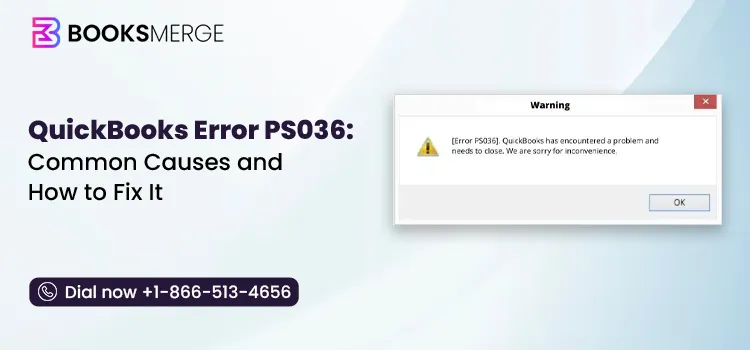
If you’re in the middle of processing your payroll and the QuickBooks error PS036 suddenly happens at that moment, you’ll already appreciate just how disruptive it is. The message states something to the effect of “QuickBooks is having trouble verifying your payroll subscription” and appears exactly when you’re attempting to download a payroll update or the most recent tax table. You can’t proceed until the problem has been solved, and if you’re facing a deadline, that’s precisely the kind of thing you don’t need.
You’re not the only one to encounter this problem. PS036 is one of the more frequent types of errors within the PSXXX payroll error group in QuickBooks Desktop and usually appears at the most inconvenient time. This occurs during the payroll process, when you’re attempting to retrieve the latest tax table so that the paychecks can be calculated accurately.
Since the fundamental problem is generally connected to how QuickBooks checks your subscription with Intuit’s servers, the solution is seldom due to your data being faulty. Instead, it’s more often the case that the subscription status, the service key, or the local file needs to be corrected or refreshed.
The good point is that PS036 is an error that is well understood and for which there is a known range of causes, so in most instances you can sort it out yourself in just a few minutes. The following guide shows you precisely what causes the error, the safety check you should carry out before making any changes, and ten methods.
The methods are listed in order from the quickest to the most involved, so you can go through them one by one until the error is gone. However, if you are using Direct Deposit, you should read the warning that appears below before carrying out any of the following actions, as a number of these solutions involve a real risk if your file has an active Direct Deposit agreement.
QuickBooks error PS036 appears when QuickBooks Desktop can’t verify that you have an active payroll subscription while it’s trying to download a payroll update or tax table. It’s most often tied to a subscription status issue, a billing mismatch, a damaged internal file, or an incorrect service key or EIN on your company file, and it stops your payroll update in its tracks until the underlying issue is fixed.
In the background, QuickBooks compares your subscription status with Intuit’s servers by using your company file’s EIN, your payroll service key, and a local file known as Paysub.ini. Suppose any of these components are out of sync. For example, if your service key doesn’t match the one on file with Intuit or if the Paysub.ini file has become corrupt. QuickBooks is unable to carry out the verification and therefore displays error PS036 instead of allowing the update to proceed. This is why the solutions listed below place such an emphasis on those particular items rather than general troubleshooting steps.
The table below provides a condensed overview of what we cover in this article.
| Error code | PS036 |
| Description | QuickBooks Desktop can’t verify an active payroll subscription while downloading a payroll update or tax table. |
| Common signs/user experience | Payroll update fails repeatedly even after retries; on-screen message that QuickBooks can’t verify the payroll subscription; paychecks calculating with incorrect/outdated tax amounts; QuickBooks running slow or unresponsive during payroll tasks; repeated prompts to activate or re-register the payroll service. |
| What causes it | Inactive/expired payroll subscription; multiple active payroll agreements on one company file (paired with an inactive Direct Deposit agreement); corrupt or damaged Paysub.ini file; outdated QuickBooks Desktop version; incorrect/invalid payroll service key; incorrect EIN on the company file; incorrect PSID; damaged/corrupted company file data; incompatible Windows version; firewall or antivirus blocking access to Intuit’s servers. |
| How to fix it | Verify payroll subscription status via CAMPs; update QuickBooks Desktop and reset/download the latest tax table; rename the Paysub.ini file so QuickBooks recreates it; Correct the payroll service key; correct the EIN in the company file; run “Quick Fix my Program” from the QuickBooks Tool Hub; verify and rebuild company file data; Check firewall/antivirus settings; delete EntitlementDataStore.ecml so it regenerates; clean install QuickBooks in Selective Startup mode (last resort). |
| Tools involved | CAMPs (Customer Account Maintenance Portal); Intuit Service Key Retrieval Tool; QuickBooks Tool Hub (Quick Fix my Program); QuickBooks Verify/Rebuild Data utility; Windows File Explorer (for Paysub.ini and EntitlementDataStore.ecml); firewall/antivirus settings; System Configuration utility (msconfig) for Selective Startup; Windows Control Panel (uninstall/clean install). |
You’ll usually notice more than one of these at the same time:
Certain of these signs may overlap with other performance problems, so it’s a good idea to make sure that you are actually examining PS036 in particular. The most obvious indication is the error code displayed on screen.
It can look something similar to this:
“[PS036] There is a problem verifying your payroll subscription”
If the dialog box that appears from QuickBooks specifically refers to ‘PS036’ or if the message clearly states that it is unable to verify your payroll subscription, then you’ve come to the right place. But if all you’re seeing is a stuck paycheck message or a corrupted tax table warning, you might in fact be encountering error codes PS038 or PS033; refer to the table of related error codes further on in this guide to confirm.
If what I’ve just said sounds familiar, then please continue reading, but first let me make one note which is more important than any of the remedies described below.
If there is an active Direct Deposit agreement on your company file, then you should not follow the self-service steps listed below on your own. Making changes to your service key or EIN on a file that has an active Direct Deposit can disrupt your payroll processing and, in certain cases, cause delays in the direct deposit payments to your employees. In such a situation, you should contact BooksMerge’s payroll specialists before carrying out any changes.
The PS036 error appears in QuickBooks when it is unable to verify that your payroll subscription is valid and active during an update; this verification can fail for several specific and identifiable reasons. The following is the complete list of the circumstances that usually cause the error:
Basically, PS036 is usually down to one of the first five entries on that list; this applies to a subscription, a billing issue, a service-key problem, or an issue with Paysub.ini. The other possibilities are less common but should be checked out if the more frequent solutions do not fix it.
There are a few cases that are worth looking at separately since they cause problems for users. The issue of ‘multiple active payroll agreements’ appears on company files that have previously changed their payroll provider or plan. This is because if an old agreement was never completely deactivated, QB becomes uncertain about which one it should check against, particularly when Direct Deposit is not active on the current agreement.
Furthermore, the reason relating to Windows compatibility is more significant than it may at first seem; if you are using an older version of QBDT on a more recent version of Windows (or the other way around), the entitlement and subscription-verification features can act unpredictably even though all the other aspects of your setup are correct.
PS036 is part of a group of errors relating to payroll subscriptions and updates that have similar causes and, in certain instances, similar solutions. If the steps listed below do not exactly match what you are seeing on the screen, you might in fact be encountering a related error code:
| Error Code | What It Means |
| PS032 | Payroll subscription not recognized, often right after a recent renewal |
| PS033 | Corrupt payroll tax table file blocking the update |
| PS034 | QuickBooks can’t verify the payroll subscription during a tax table download |
| PS038 | Stuck paycheck or outdated payroll data blocking the update |
| PS077 / PS107 | Damaged QuickBooks installation files affecting payroll downloads |
| PS058 | Error while downloading or installing a payroll update — a broader installation issue |
If you don’t know which error you’re looking at, compare the exact text of the error message you see on screen with the descriptions listed above. For a full explanation of how these errors are related to each other, refer to our complete guide to QuickBooks payroll update errors.
A few minutes of preparation will save you from having to backtrack partway through a fix:
Ensure that you are logged into Windows using an administrator account, since many of these fixes, just as with any modification of system files or Windows services, require admin privileges in order to be carried out.
Now that you’ve completed that initial work, you can proceed with carrying out the fixes.
To deal with QuickBooks error PS036, go through the solutions in the order given. The methods are listed starting with the most common and least invasive and progressing to the more complicated ones. In most cases, you won’t need to go beyond the first two or three remedies.
Begin with this step because the main reason for PS036 is having an inactive or lapsed subscription; it’s also the easiest one to check since it doesn’t require you to access any files on your computer.

If you’ve recently changed your credit card or renewed your subscription, wait a few minutes. The changes to your subscription may not appear in QuickBooks Desktop at once.
Sometimes the error can be cleared by waiting a short time and then trying to update again without having to take any further action. If your subscription is active but the error persists, proceed to Method 2.
An old QB release might give an incorrect subscription status to Intuit’s servers.

The Reset Update option is important because it removes any partial or corrupted update files from a previous unsuccessful attempt before downloading a new copy, rather than attempting to continue with what is already present. One of the most frequent reasons why this method fails to completely resolve the error on the first attempt is failing to tick that box.
The Paysub.ini file holds your payroll subscription data locally and is a common cause of this error when corrupted, particularly in the case of PS036; by renaming the file, QuickBooks will create a new copy.

It works since the Paysub.ini file doesn’t include any information that QuickBooks can’t recreate by itself; it’s merely a local copy of your subscription details and not the definitive source. By renaming the old file instead of deleting it, you also have a simple method of comparing the file sizes later on if you need to check that the new one has been downloaded correctly (a Paysub.ini that has just been generated and is 0 KB generally indicates that the download didn’t complete, and in that case it’s advisable to retry).
Whenever you use an incorrect or out-of-date service key, QuickBooks will fail to verify the subscription.

Try updating again after restarting QuickBooks.
When you enter the key by hand, make sure there are no extra spaces or characters that have been swapped. Since service keys are long strings of alphanumeric characters, verification will fail even if the key appears correct at first glance just because of a single digit in the wrong position.
If more than one company file is open for the same Intuit account, check that you are editing the service key associated with the correct file. Trying to enter the correct key for the wrong company file will result in the same payroll PS036 error.
Subscription verification will fail if the EIN on your company’s file does not match the one that is on file with Intuit, even if all the other settings have been correctly arranged.

The most common cause of this issue is a single-digit error in the EIN or the use of an outdated EIN that remained from a previous change in the business’s legal structure. If your business has at any time undergone a legal restructuring, a change in ownership, or has had its EIN reissued, it’s a good idea to check with your accountant or the IRS to make sure that the EIN stored in QuickBooks is the same as the one that is currently active, since an old but still technically valid EIN might go unnoticed during a quick inspection even if it doesn’t match the EIN that Intuit has on file for your subscription.
The Tool Hub offered by Intuit includes a number of diagnostic and repair tools, one of which is Quick Fix my Program, and this tool deals with various background problems that can affect subscription verification.

Quick Fix my Program stops any QuickBooks processes that are still running in the background, removes the temporary cache files, and then restarts the QuickBooks Database Server Manager. This is because all these actions can subtly cause problems with the way QuickBooks communicates with Intuit’s licensing and subscription servers, even if nothing appears to be wrong on your side.
The data corruption in your company file can affect the way that QuickBooks reads your subscription details.

It is worth taking this step seriously rather than going through it quickly, because damage to the data in a company file doesn’t always display obvious symptoms elsewhere. You could fail to notice any problems with your transactions or reports even though it is quietly affecting subscription verification in the background. The fact that Rebuild Data says it has fixed one or more issues is a positive indication that you’ve identified the real root cause rather than just working around it.
Subscription verification may fail even if your account is in good standing because your firewall or antivirus software is blocking QuickBooks from communicating with Intuit’s servers.

It is often third-party antivirus programmes that are to blame for QuickBooks error PS036, especially those which have aggressive real-time scanning or built-in firewalls that operate separately from Windows Defender; if you are managing QuickBooks on a shared office network it’s a good idea to involve the person who is in charge of your router or network firewall as well, since blocks can occur at that level even if all the settings on each computer appear to be correct.
The file contains QuickBooks’ license and entitlement information, and a corrupt version of it can lead to the same type of subscription-verification failure that is associated with PS036.

You can consider this file to be QuickBooks’ local ‘proof’ of your license and subscription. In the case of corruption, QB isn’t really looking at incorrect information so much as it is unable to read the file at all, which has the same effect as an invalid subscription causing a verification failure. By deleting it, you ensure that the entitlement data is downloaded fresh directly from Intuit rather than attempting to repair a file that might not be recoverable.
If the above remedies do not sort out the error, then carrying out a clean installation can eliminate the deeper installation-level corruption that is interfering with subscription verification. However, this is the most time-consuming solution and should therefore be regarded as a last resort.

Since the complete selective-startup and clean-install procedure consists of several exact steps, it is advisable to refer to our dedicated Clean Install Tool guide for the full step-by-step instructions rather than attempting to reconstruct it from memory.
Once you’ve resolved the error, a few habits will keep it from coming back:
None of these habits require more than a few minutes, since they target the precise causes in almost every QuickBooks error PS036 case; it might be that a subscription is about to expire, the service key no longer matches your account, or a company file that has been gradually building up small data problems. Incorporating a quarterly check into your bookkeeping routine by verifying the subscription status, running the Verify Data function, and updating QuickBooks will pick up most of these problems before they become errors that halt your payroll.
The majority of PS036 cases can be resolved using the methods mentioned above; however, there are a few instances in which it is worthwhile to stop and get help instead of carrying on with self-troubleshooting:
If you’re still getting the PS036 error after applying those fixes or after running Direct Deposit and don’t want to take that risk, BooksMerge’s payroll experts can check your subscription and arrange for the update themselves, ensuring that a blocked payroll never results in a missed paycheck. You can call +1-866-513-4656 or ask for a free consultation.
If you want to see how BooksMerge provides day-to-day support for QuickBooks Assisted Payroll, then have a look at our payroll support services. And if the problem you’re actually facing is a more general stalled update rather than an error specific to a subscription, our guide on QuickBooks Payroll Update Not Working looks at this in greater depth.
QuickBooks error PS036 is almost always due to a specific and remediable cause; it is generally caused by an expired subscription, a wrong service key, or a damaged Paysub.ini file. Begin by checking your subscription and updating it, since this deals with the majority of cases swiftly, and only proceed to the other options if necessary. When your company file is set up for Direct Deposit, delay carrying out the self-service steps that involve your service key or EIN and instead get a specialist to look after the matter. It would not be worth the risk to your payroll processing.
And if you are still having problems after trying out these solutions, BooksMerge’s payroll team can help to verify your subscription and carry out the update without any further delay.
If you run into any issues or need expert help, you can reach out to us on the QuickBooks Payroll phone number +1-866-513-4656 to get smooth and stress-free payroll assistance.
Error PS036 is most frequently caused by an inactive or expired payroll subscription, a damaged Paysub.ini file, the use of an incorrect service key, or a mismatched EIN. Less often, the problem is due to interference from a firewall, an outdated version of QuickBooks, or damaged data in the company file. In most cases, there is only one issue that can be corrected, rather than multiple problems occurring together.
Start by confirming your subscription status under Employees > My Payroll Service > Account/Billing Information. If that checks out, work through the remaining methods in order: updating QuickBooks, renaming Paysub.ini, and correcting your service key resolve the majority of cases without needing to go further down the list.
Renaming the Paysub.ini file to Paysub.old doesn’t delete any subscription data. It simply forces QuickBooks to generate a fresh copy the next time you download a payroll update. It’s one of the lower-risk fixes on this list, and you can always restore the old file if you need to.
You can, most of the time, continue running payroll using your existing tax tables. Still, you won’t be able to download updated tax rates or new payroll features until the error is fixed, and errors in tax calculations can build up the longer it’s left unresolved. If a payroll run is imminent and the error hasn’t cleared, it’s worth reaching out for help rather than waiting.
PS036 and PS034 are closely related but not the same. Both involve QuickBooks failing to verify your payroll subscription, but PS034 specifically occurs during a tax table download, while PS036 can appear during broader payroll update attempts. The causes and fixes overlap significantly, so if one guide doesn’t fully resolve your issue, it’s worth checking the other.
You can do it, but be careful. If Direct Deposit is active on your company file, avoid making changes to your service key or EIN on your own, since it can disrupt payroll processing and potentially delay payments to your employees. Contact a payroll specialist first to make sure any fix is applied safely, and your Direct Deposit setup stays intact.
QuickBooks Tool Hub 1.6.0.8: Download, Install & Fix Common Errors (2026 Guide)
Read More
AI-triaged.
Human-solved.
Instant QuickBooks diagnostics, then a certified ProAdvisor takes over live.
first-call fix
match time
live coverage

