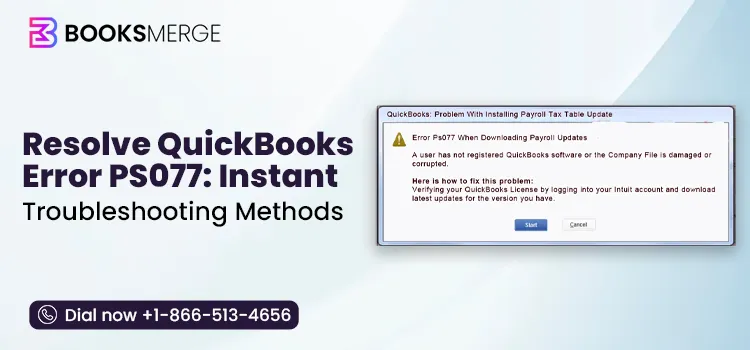
QuickBooks Error PS077 occurs when QuickBooks can’t verify your payroll service or install the payroll tax table updates. This payroll update error may also occur because of damaged update files, an inactive payroll subscription, outdated QuickBooks, or network connectivity issues.
QuickBooks Error PS077 is a payroll update error that usually occurs when QuickBooks Desktop fails to install the latest payroll tax table updates. It mainly occurs because QuickBooks cannot verify your payroll subscription, access required update files, or connect to the payroll service. As a result, payroll processing may be interrupted until the issue is resolved.
When this error triggers, QuickBooks displays the following message:
“Error PS077: QuickBooks is having trouble installing your payroll tax table updates.”
This guide explains the possible causes, symptoms, and effective troubleshooting methods to fix the error and restore payroll updates without any delays.
QuickBooks Error PS077 is a common payroll update issue that may occur when retrieving the latest tax table. It is a part of the QuickBooks PSXXX error series, which mainly appears when QuickBooks encounters issues while verifying payroll subscriptions or accessing payroll update files. Other factors that cause this issue include a corrupt tax table file, an inactive payroll subscription, or damaged company data.

QuickBooks Error PS077 belongs to the PSXXX series of errors that may occur while downloading the latest QuickBooks Desktop or payroll updates. Other errors that you may experience are described in this blog.
| Error Codes | Description |
| PS032 | QuickBooks is having trouble installing or verifying a payroll update. |
| PS033 | QuickBooks can’t read payroll setup files. |
| PS036 | Problem verifying the QuickBooks Desktop payroll subscription. |
| PS058 | Payroll Update download or install failure, often a company file or connectivity issue. |
| PS060 | Enhanced payroll service is currently unavailable. |
| PS034 | Payroll update did not complete successfully. |
QuickBooks Update Error PS077 mainly appears during the installation of the payroll update. This is caused by corrupted files, an inactive payroll subscription, invalid billing details, or incorrect UAC settings.
When QuickBooks Error PS077 occurs, users may experience issues downloading or installing payroll updates, including error messages or failed update attempts. These symptoms can prevent QuickBooks Payroll from receiving the latest tax tables and updates.
Here are some of the points you must keep in mind for smooth fixing of QuickBooks Error Code PS077.
Real-User Sentiment
Have gone through the discussions on Reddit and other platforms and found that users come across QuickBooks Error PS077 and related PSXXX errors right before their payroll deadlines. On the r/QuickBooks community platform, many users describe spending time fixing or contacting support after a payroll update fails or tax table updates are unavailable. Herein, the users expect a routine payroll update but instead find themselves unable to proceed when time is crucial.
Another recurring complaint involves the CPS folder workaround. Many users report that renaming or recreating the CPS folder may fix the issue, but the error often returns after a later payroll update. Others also mention that Windows or security software updates can reset firewall or antivirus exceptions, requiring QuickBooks Desktop to be re-added to the allow list before payroll downloads work again. Users frequently describe this issue as it occurs repeatedly because the fix doesn’t always remain permanent.
The solutions described below address the common causes of QuickBooks Payroll Update Error PS077, including payroll subscription issues, damaged update files, incorrect firewall settings, and outdated QuickBooks components.
Using an inactive or expired payroll subscription may interrupt the payroll update process. Thus, it’s essential to ensure that you are using the updated service subscription. Follow these steps to review the payroll subscription status.

If you haven’t registered or updated QuickBooks, you might come across the PS077 error in QuickBooks Desktop. Thus, it also prevents you from downloading the latest security and software improvements. So, to fix the issue, register and update QuickBooks using the steps given below.
Quick Fix My Program shuts down the background QuickBooks processes and repairs program-related issues that may interrupt the payroll update process. If QuickBooks Payroll Error PS077 is caused by damaged program files, running this tool may help restore normal payroll update functionality.

You may also receive error PS077 when downloading payroll updates due to a damaged CPS folder or folder components. Thus, you can fix the issue by renaming the folder by performing the steps instructed below.
UAC is a security feature that secures the system from any unauthorized access. So, if the user doesn’t have User Account Control Settings configured accurately, it may interrupt the payroll update process and cause QuickBooks Error Code PS077. Turning off these settings will let you restore payroll updates.


Incorrect or outdated billing details are also one of the prominent reasons that may prevent updating payroll and cause QuickBooks Update Error PS077. Thus, to fix the issue, update the billing details using the following steps.

Windows Firewall often blocks QuickBooks from updating the payroll due to security concerns, as it consider a threat to your system. Therefore, adding Windows Firewall as an exception will allow users to download the latest payroll updates. Thus, it helps you fix QuickBooks Error Code PS077.
QuickBooks Payroll Update Error PS077 may also occur due to a damaged or corrupt data file. Therefore, to fix the issue, you need to run Verify and Rebuild Data to diagnose and repair the damage. Follow these step-by-step instructions to run Verify & Rebuild Data.
Verify the Company Data

Results
Rebuild the Data
If any data damage is found using the Verify Data Tool, then run the Rebuild Data Utility to fix the damaged company file. Before running this tool, create a backup of the file.
Sometimes, the Error PS077 may arise due to issues with QBWUSER.INI and EntitlementDataStore.ecml files. Thus, you can fix the issue by renaming these files, and then you can update the QuickBooks payroll tax table.
Issues with the installation of QuickBooks Desktop are one of the possible reasons that trigger Error PS077 in QuickBooks. Therefore, to resolve the issue, you must reinstall the QuickBooks program by implementing the following steps.
The following are the key points you must consider to prevent the PS077 error in QuickBooks Desktop.
Even after applying the above troubleshooting methods, the QuickBooks Error PS077 persists, or if fixes like recreating the CPS folder or updating firewall settings stop working after some time, it seems like the issue is caused by severe file corruption, payroll licensing conflicts, or damaged QB components. Here comes a time when advanced troubleshooting can help avoid payroll update failures and reduce downtime.
Instead of wasting hours trying different troubleshooting methods, allow our QuickBooks experts at BooksMerge to handle it on your behalf. Dial +1-866-513-4656 for accurate, instant assistance and get your payroll updates working again
QuickBooks Error PS077 is a payroll update issue that may occur due to misconfigured internet settings, an invalid payroll subscription, or an outdated QuickBooks program. However, you can resolve this payroll issue by renaming the CPS folder, updating QuickBooks Desktop, verifying the payroll subscription, updating billing details, or configuring firewall settings. This will help you restore payroll updates so that you can easily compute the payroll taxes accurately.
For any further queries, you can reach out to our BooksMerge experts and connect with our professionals for instant help.

The QuickBooks Error PS077 is a payroll update error that appears when QuickBooks fails to install the latest payroll tax table update. It is caused by an invalid payroll subscription, program files, or a network-related issue.
This error may arise due to an inactive payroll subscription, outdated QuickBooks, damaged payroll update files, or incorrect firewall and antivirus settings blocking the payroll update.
Yes, you can run payroll using the older payroll tax table update. However, you won’t be able to download the latest payroll updates, which may lead to incorrect tax calculations or compliance issues.
No, QuickBooks Error PS077 doesn’t cause damage to the payroll data. But it may prevent QuickBooks from installing the latest payroll tax table update.
No, although PS077, PS032, and PS038 aren’t the same, but it belong’s to the QuickBooks PSXXX series of errors. PS077 is mainly caused by a payroll update, whereas PS032 and PS038 are linked to damaged payroll files or issues validating payroll updates.
Yes. QuickBooks Error PS077 is a payroll update error in the PSXXX error series. It occurs when QuickBooks is unable to verify or install payroll tax table updates.
Yes, you need a stable internet connection to verify your payroll subscription and download the latest payroll tax table updates.
AI-triaged.
Human-solved.
Instant QuickBooks diagnostics, then a certified ProAdvisor takes over live.
first-call fix
match time
live coverage

