
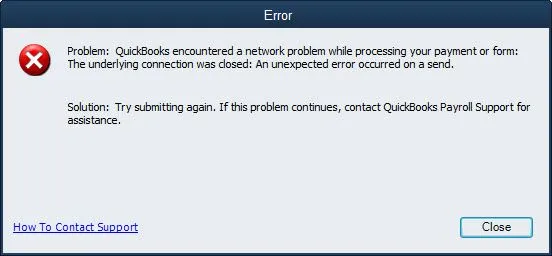
In cases of QuickBooks Online Payroll not working properly, you might often find yourself staring at a frozen screen, seeing a ‘Payroll Service Server Error’ message, or realizing that your paychecks aren’t being submitted.
It’s frustrating, especially as the pay date approaches. However, most of these problems stem from a few possible causes, and you can fix almost all of them directly in your browser.
Since QuickBooks Online Payroll operates entirely in the cloud, the solutions described here differ from those you would use with a desktop version. You won’t need to reinstall any local software or repair a configuration file. All processes run through your browser and Intuit’s servers, which reduces the risk of problems.
The guide will specify exactly which checks to run first, explain why payroll halts at the beginning, and provide a complete series of step-by-step solutions, arranged from easiest to most difficult. It will also explain how to determine whether Intuit is causing the problem or if it lies on your side, how to avoid the same disruption during your next pay run, and what to do if none of the remedies get you back on track in time.
The following table provides a condensed overview of what this article covers about QuickBooks Online Payroll not working.
| Issue | QuickBooks Online Payroll not processing, submitting, or loading |
| Common triggers | Intuit outage, browser cache/extensions, stuck paycheck drafts, billing issue, incomplete employee profile, outdated tax tables |
| First thing to check | Intuit Service Status page |
| Usual fix time | 5–20 minutes for most causes |
| When to call for help | Fixes don’t resolve it, or a pay date is at risk |
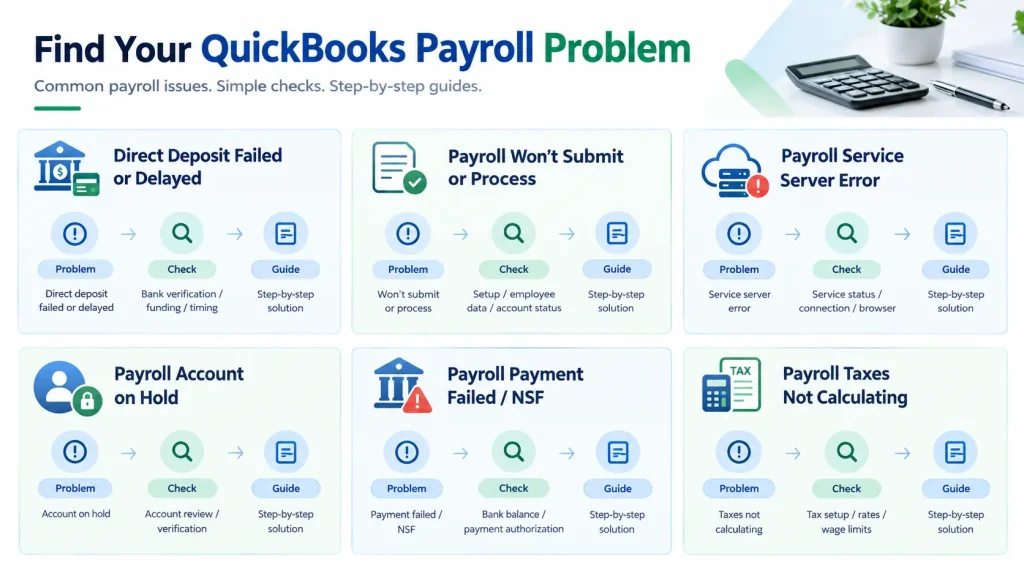
With the help of the table below, you will be able to instantly find dedicated resources for your QB Payroll issue.
| What you see | What to check | Detailed guide |
| Direct deposit failed or is delayed | Bank verification, funding, account status, submission timing | Direct Deposit Not Working |
| Payroll won’t submit/process | Setup tasks, employee data, account status, browser, error message | Payroll Won’t Submit / Won’t Process |
| Payroll Service Server Error | Service status, connection, browser/system settings | Payroll Service Server Error |
| Payroll account is on hold | QuickBooks notification and requested account review/verification | Payroll Account on Hold |
| Payroll payment failed / NSF | Bank balance, payment authorization, returned payment details | NSF / Failed Payroll Payment |
| Payroll taxes are wrong/not calculating | Employee tax setup, rates, wage limits, YTD amounts | Payroll Taxes Not Calculating Correctly |
Before changing any settings, rule out the simplest explanation first: Intuit’s servers. If there is a widespread service issue with QuickBooks Online Payroll, clearing your cache won’t solve it; you’ll just have to wait it out.
If you run payroll regularly, bookmarking the status page is a useful habit. It only takes 15 seconds to check, and it can prevent you from troubleshooting a problem that isn’t your responsibility.
In most cases, QuickBooks Online Payroll problems stem from a relatively small set of causes, and the explanations are quite ordinary once you know what to look for. It is much quicker to apply the fix when you know the cause, since you can go straight to the right step instead of working through every possibility in sequence.
If Intuit performs scheduled maintenance or experiences an unexpected service interruption, all users will be affected, not just those using your account, and no local troubleshooting can resolve the problem until the issue is resolved.
Unverified accounts, insufficient funds, or a failed payment can stop or delay payroll and direct deposit.
QuickBooks might restrict payroll until it completes a review or verification. Check if this is the case.
Incorrect federal/state tax setup or employee payroll information can cause wrong or missing tax calculations. (Replaces “Outdated payroll tax tables.”)
Pages might freeze, buttons might stop responding, or submissions might fail without you noticing because of stored browser data or an extension interfering with how scripts load.
Your computer’s DNS cache might be storing outdated or corrupted routing information for Intuit’s servers, causing pages to load slowly, inconsistently, or not at all.
An earlier payroll process that was interrupted—whether by a browser crash, a lost connection, or accidentally navigating away—left a draft behind, which prevents the next attempt from starting properly.
A billing issue will suspend your payroll service until you resolve it, usually without a clear warning on the screen you are using.
If one or more of an employee’s records lack a Social Security number, an address, or tax withholding information, that paycheck will be blocked even though all other paychecks proceed without problems.
An incorrect local clock can cause QuickBooks Online to reject or mis-time a submission, especially near pay dates and tax filing deadlines.
Tax tables that haven’t been updated in a while might cause problems calculating your paycheck and, in some cases, will prevent submission until the tables are updated.
If you’re using QuickBooks Desktop and the payroll update itself is failing, see our guide to QuickBooks Payroll Update Not Working for Desktop payroll-update troubleshooting.
A short prep pass before you start working through fixes for QuickBooks Online Payroll not working will save you from repeating steps later:
Once that’s settled, follow the steps below in order, from the fastest and most common to the more complex ones.
In this section, we’ll show you what to do if you find QuickBooks Online Payroll not working. Go through them and carry them out as instructed.
Before making any changes on your side, confirm the issue is due to Intuit and not something on your end.

You won’t be able to resolve the issue. Please subscribe to the updates on that page and just wait.
The issue is likely due to your account, your browser, or its configuration. Proceed to the next steps.
The first thing the Intuit support team checks when QuickBooks Online Payroll doesn’t work is the Setup Tasks checklist, and it’s easy to miss. Even if you think the Setup Tasks section on your Payroll Overview page is complete, please check it again. Sometimes a task appears incomplete after an employee makes an edit or due to an issue during bank verification.
That flags missing information blocking that employee’s paycheck specifically.
If payroll won’t submit, or gets stuck before processing, start with what you just checked: incomplete Setup Tasks and flagged employee information are the most common blockers. Then check your subscription or account status, rule out browser issues (covered in the next steps), and read any warning or error message on the screen. The exact wording often points to the cause.
Avoid re-entering and resubmitting the same payroll repeatedly until you’ve checked its status; this can create duplicates or additional drafts. For a full walkthrough, see our guide to QuickBooks Online Payroll Won’t Submit/Won’t Process.
This will determine whether the problem lies with your usual browser profile, specifically, its cache, cookies, or an extension.
Log in and try the payroll function again; it works in that browser but not in your usual one because the issue is specific to that browser profile.
Delete the cached data and cookies for QuickBooks Online, then completely quit and reopen the browser (in some cases, the cached data won’t be cleared unless the app is closed, not just the tab). Log back in and try again.
Go back in and log into QuickBooks Online, then try the payroll action again.
If that doesn’t fix the problem and QuickBooks Online Payroll still isn’t working, turn off your browser extensions one at a time. Ad blockers and privacy and security extensions are usually to blame, since they can block the scripts Payroll depends on to submit information. After disabling each one, try the process again. Once you identify the extension causing the issue, either turn it off while Payroll is running or add QuickBooks Online to its allowed sites list.
Ensure you are using a browser version Intuit supports, since an outdated browser can cause loading and rendering issues.
If you see a “Payroll Service Server Error” or another payroll connection error, and the browser steps above didn’t help, the issue is usually one of four things: QuickBooks service availability, your connection or network conditions, browser or system settings, or a problem while payroll is processing. Check the Intuit status page again, try a different network or device, and note the exact error message and time.
If security software or Windows Firewall is blocking QuickBooks from connecting to payroll services, see our guide on Windows Firewall Blocking QuickBooks for steps to check and configure the connection.
If a previous run is interrupted (for example, by a crash, a lost connection, or by leaving the page too early), a draft will remain and prevent the next attempt.
Note: This tab is limited to administrators. If you don’t see it, ask your primary or company admin (or your accountant, if they manage billing).
An expired card or outstanding balance can halt payroll processing without an obvious on-screen indication. Check your billing settings to confirm your subscription status, current payment method, and any flagged balance. If necessary, update them and then try again.
If your payroll subscription has already expired or you see a resubscribe option, see our guide on QuickBooks subscription has lapsed for additional steps to restore access.
Note: Access to this tab is restricted to administrators. If you don’t see it, you are not logged in as either the primary administrator or the company administrator. Ask the person with that role to check it, or ask your accountant if they handle billing.
If your payroll payment failed or your QuickBooks billing information needs to be updated, see Intuit’s guide to fixing Fix “my subscription payment failed” issues in QuickBooks Online for additional steps.
An incomplete employee profile can cause this issue. It is best not to leave it incomplete.
Return to Run Payroll and retry. If you find QuickBooks Online Payroll not working, check your time and date settings.
QuickBooks Online Payroll may seem to work even when a direct deposit is delayed, rejected, or never reaches an employee. Common causes include bank verification, incorrect bank or account information, payroll funding, account status, and submission timing.
Before resubmitting the same payroll, check the payroll and direct deposit status first. Resubmitting can create a duplicate payment. For the full status-checking process, see QuickBooks Online Payroll Direct Deposit Not Working.
Make sure your computer’s time and date settings are correct, since incorrect settings can cause problems when running payroll operations.
To check the date and time on Windows and Mac, follow these steps.
Try again after restarting your browser.
QuickBooks Online Payroll manages tax rates and tax tables for you on its servers. Unlike QuickBooks Desktop, there is no manual tax-table download or “check version” screen, so a tax problem in QBO almost always comes from payroll tax setup, not from outdated tables.
If QuickBooks prompts you about a pending update or missing tax information when you start Payroll > Employees > Run Payroll, follow it. Otherwise, move on to the next section to check setup and calculations directly.
If taxes look wrong, missing, or don’t calculate, review the setup rather than looking for a tax table to update:
If you use QuickBooks Desktop and are having trouble updating payroll tax tables, see our guide to QuickBooks Payroll Tax Table Update for additional troubleshooting steps.
A failed payroll payment, or an NSF-related payroll hold, can be caused by insufficient funds or a problem with the payroll bank account or payment authorization. Review the payment or return information to understand what happened and fix the underlying banking issue. Don’t resubmit the same payroll repeatedly; doing so can trigger more failed attempts or duplicate payments.
An account hold can stop you from creating or processing certain payroll or contractor payments. Look for a QuickBooks notification or account-resolution message, and follow the verification or review steps it requests. Don’t try to work around the hold by rerunning payroll.
For more detail, see QuickBooks Online Payroll Account on Hold.
If QuickBooks Online is also having trouble connecting to the service, see our guide on QuickBooks not connecting to the server for additional connection troubleshooting before flushing your DNS cache.
This is a more technical and less common cause. Try it only after the payroll, account, and payment checks above. To flush the DNS cache on your computer, follow the steps listed below.
Try again by restarting your browser.
Direct deposit cutoffs vary by payroll product and funding option, so there’s no single deadline that applies to everyone. If you submit after your cutoff, payroll usually moves to the next banking cycle rather than failing.
Here is what you can do to avoid late pay:
A few habits go a long way toward keeping QuickBooks Online Payroll from not working on your next pay run:
In some cases, the DIY solutions above won’t get QuickBooks Online Payroll to work, even if your browser is clear, your subscription is active, and payroll still won’t go through, or if you’re right up against a pay date and can’t afford to keep troubleshooting. If you get repeated errors even after a clean setup, it usually points to something specific to your account, which is easier to identify with direct access to your data.
If you’re still having trouble with QuickBooks Online Payroll after those troubleshooting steps, our payroll specialists can review your account and run your payroll directly, ensuring a failed payroll run never results in a missed paycheck. You can call +1-866-513-4656 or ask for a free consultation.
You might find QuickBooks Online Payroll not working, often due to an outage on Intuit’s side, a browser or cache issue, or a billing or subscription issue that gradually prevents the system from functioning. By first checking the status page, you’ll be able to find out within a few seconds whether you’re waiting for Intuit or whether you need to deal with an issue that’s local to your own setup – and from there, the solutions given in this guide will deal with the vast majority of cases without the need to contact anyone.
If you’ve gone through all the steps above and your payroll still isn’t processing, don’t let it result in a missed pay date. Contact BooksMerge QuickBooks Payroll Specialist to have a specialist look at your account directly.

Usually a browser cache issue, a draft left by an interrupted run, or a subscription problem that paused processing. Check the Intuit status page first, then clear the cache, check for drafts, and review billing status. If it still won’t go through, see Payroll Won’t Submit / Won’t Process.
Usually due to an incorrect tax setup on the employee’s profile, incorrect company tax rates or registrations, a reached wage limit, or inaccurate year-to-date amounts. QuickBooks Online updates its tax tables automatically, so start with setup rather than looking for a tax table to update. If it continues after you’ve checked each employee’s details, see Payroll Taxes Not Calculating Correctly.
Common causes of QuickBooks Online direct deposit not working include an unverified bank account, incorrect bank details, insufficient funds, an account hold or status issue, or submitting after the cutoff for your payroll product. Check your bank verification and payroll status before submitting again. See Direct Deposit Not Working.
It’s a connection or service error that can come from QuickBooks availability, network conditions, browser or system settings, or payroll processing. See Payroll Service Server Error.
QuickBooks can place a hold to require a review or verification. Look for the notification or account-resolution message, then follow the requested steps. See Payroll Account on Hold.
Insufficient funds or a problem with the payroll bank account or payment authorization can cause this. Review the payment or return details, fix the banking issue, then resubmit. See Payroll Payment Failed / NSF.
You can record payroll processed outside QuickBooks via journal entries or, depending on your plan, a manual payroll entry option. This is a workaround for recording outside processing, not a fix for a failed run.
On the Payroll tab of your QuickBooks Online dashboard, use the guided setup wizard to go through your company details, employee information, pay schedule, and tax setup step by step. This is a one-off setup task, not a troubleshooting solution; if you’ve never turned on payroll for your account or you are setting it up for a new company file, this should be your starting point rather than any other section of this guide.
This usually results from a timing difference or an issue with the reconciliation process, not from the payroll system breaking down. You might enter paychecks on the pay date, but the cash might take one or two days to clear the bank, or a manual adjustment on one side might not appear on the other. You can catch these minor timing discrepancies before they become bigger differences by reconciling payroll regularly with your bank register, rather than only when a problem arises.
Export and sync issues usually stem from a mapping error between your payroll accounts and your chart of accounts, or a connection that needs refreshing after a settings change. Check your payroll settings’ accounting preferences and confirm each payroll item maps to the correct account before assuming anything more serious.
AI-triaged.
Human-solved.
Instant QuickBooks diagnostics, then a certified ProAdvisor takes over live.
first-call fix
match time
live coverage

