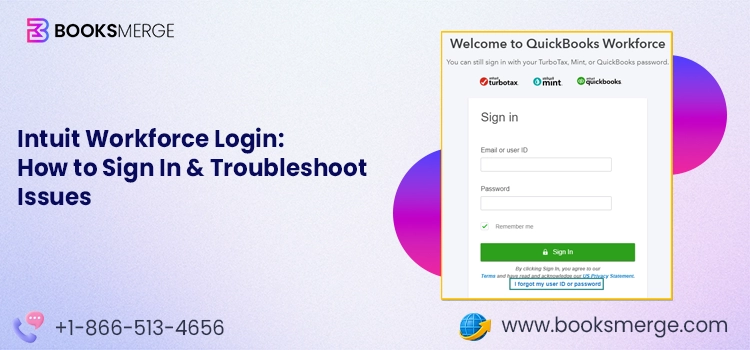
Intuit Workforce login (now called QuickBooks Workforce) is a secure online portal for employees. You can go to workforce.intuit.com, sign in with your Intuit credentials, and access your pay history, tax forms, and personal information. QuickBooks Workforce (or Intuit Workforce) is the free employee self-service portal that your employer set up (it is part of their QuickBooks Payroll or QuickBooks Time subscription). In this article, we will walk you through the exact steps for Intuit Workforce employee login, troubleshooting common login issues, and how to utilize various features.
If you are struggling to log in to your Intuit QuickBooks Workforce account, you can get BooksMerge assistance from an expert at +1-866-513-4656!
The table below provides a condensed overview of what we discuss in this article on QuickBooks Workforce login.
| What is Intuit Workforce? | An employee self-service portal, now known as QuickBooks Workforce, for accessing pay stubs, tax forms, time information, and personal details. |
| First-time login | Accept the invitation from your employer, then create or use an existing Intuit account. |
| Existing-user login | Visit workforce.intuit.com and sign in with your Intuit account credentials. |
| Mobile access | The QuickBooks Workforce app is available for iOS and Android and uses the same Intuit login. |
| Common login issues | Expired invitations, forgotten passwords, account lockouts, duplicate accounts, browser problems, and missing invitation emails. |
| Security | Intuit uses encryption and supports two-factor authentication to help protect employee information. |
| Key features | View pay stubs, W-2s/T4s, time-off balances, timesheets, year-to-date pay, and certain personal or tax details. |
| Workforce vs. QuickBooks Time | Workforce focuses on employee pay and payroll information, while QuickBooks Time focuses primarily on time tracking and scheduling. |
| Access after payroll cancellation | Employees can generally retain Workforce access to existing payroll documents for up to 12 months after their employer cancels the Payroll subscription. |
QuickBooks Workforce is your self-service portal set up and offered to you by your employer. It is free to log in and allows you to view and download pay stubs, track your hours, and access your W-2 and T4. Moreover, you can also update your personal and tax information.

Also called Intuit Workforce, it is part of the payroll or time-tracking system your employer utilizes.
In this section, let us see the exact steps for Intuit Workforce login for the first time or if you are already an existing user, and also on the mobile phone (iOS and Android).
If you haven’t already set up your Workforce employee account, you will need to first accept your employer’s invitation. This requires an activation email.
You might be required to upload additional documents or information as per your employer.
After setting up your account, you will need to log in with the same Intuit account credentials every time you wish to access your account.
If the QuickBooks Workforce account is already set up, it is quite straightforward to log in to it.

QuickBooks Workforce app is available on both iOS and Android, and you can log in using that as well. It is easy and requires the same credentials that you enter when logging into the website. The application makes it more convenient to access your account, view notifications, and view your schedule on the go. Needless to say, the web version doesn’t run as smoothly as the app version.
Note: It is crucial to know that there is a distinction between QuickBooks Workforce and QuickBooks Time, and the two are not the same thing. Think of Workforce as your self-service portal where you find your pay stubs, tax forms, and personal info, and it is mobile-first. QuickBooks Time is another distinct time-tracking system with GPS and geofencing features for employers, enabling them to track where hours were logged.
In case your employer utilizes Workforce for pay documents and QuickBooks Time for scheduling, you might need to use both. The login pages for them are separate.
If you haven’t gotten your time-tracking set up yet, our guide on how to Set Up QuickBooks Time walks you through the full process step by step. Once it’s configured, you can access your account anytime through the QuickBooks Time login page to track hours, manage shifts, and sync data directly with QuickBooks.
If you’ve hit a wall with Intuit Workforce login, you are not alone. This is a common problem, and there are various scenarios. Let us investigate them individually and see what fixes the problem in each case.
The invitation link from your employer is only valid for 30 days, and after that it no longer works.

To address the problem, ask your employer to resend the invitation link from their Payroll menu. When you receive the invitation email, follow the steps given above to accept the invite and set up your Workforce account right away without further delay.
Suppose you cannot remember your password for QuickBooks Workforce employee login anymore, or the reset link is not working. This is an issue concerning your Intuit account.

Intuit temporarily locks accounts after multiple failed sign-in attempts to protect your account from unwanted and unauthorized access.
What you can do is wait for a short while before trying again. Alternatively, you can try the recovery option to reset your password instead of guessing. Repeated failed attempts will only extend the lockout. Therefore, if you are not sure about your Intuit Account credentials, resetting it might be the best option right now.
If, when trying Intuit Workforce login, the system shows “email already in use” or a similar problem culminating in a duplicate account, it means the email your employer used to invite you is already associated with an Intuit account. For instance, it could be from a previous employer or from TurboTax. Therefore, first try signing in with that account. If you’ve had Workforce access from a different employer, you will need to give your current employer an alternate email address to invite.
If the QuickBooks Workforce login page doesn’t load, shows a blank screen, or takes forever to open, the issue lies with either your browser or your network. Try opening a bank or credit card website and check if you can log in to it without a problem to confirm if your network connection is good. To troubleshoot your browser, you can clear the cache and Intuit-specific cookies and update your browser to the latest version.
If you have checked your email thoroughly, including the inbox and spam folder, and yet the activation email for Intuit Workforce login hasn’t arrived, it might mean that either your employer hasn’t sent the invitation or they have got your email wrong.
Speak to your employer and confirm the email address, and ask them to resend the invitation from the Employees section of QB Payroll. Double-check and make sure you are searching the right inbox, especially if you have multiple email profiles signed into your device.
If you still find yourself locked out, you should speak to a professional. You will find them available at TFN during standard operating hours!
It’s natural to be careful about how your personal and Payroll data are protected in an Intuit Workforce account and how safe it is to use, as you also provide your sensitive information like your Social Security number and bank details.
Intuit encrypts the data you submit through Workforce and restricts it, ensuring not everyone can see it. Your employer can access the information that’s needed to run Payroll, but that doesn’t include your login credentials and personal settings. Only you are in control of the latter. Intuit doesn’t share your info beyond what’s needed for Payroll and tax processing.
Two-factor authentication can be turned on to provide an extra level of security to your Intuit Workforce login in addition to your password. In order to do this, you should log into the Intuit Account Manager Portal, move to Sign in & Security, and then select the 2-step verification or Authenticator section. After that, follow the instructions to verify the phone number or to use an authenticator app.
Once the feature has been enabled, you will be required to enter a short code each time you attempt to log in from a new device. This means that it is significantly more difficult for anyone else to gain access to your account, even if they do manage to obtain your password.
Your employer needs to report your wages and withholdings to the IRS, the Social Security Administration, and relevant state agencies. Your SSN is crucial for reporting, and that is what identifies you. The employer requires it because it is a standard part of Payroll and tax compliance rather than something limited to Workforce. You can also connect with a tax advisor and discuss more about how your SSN or tax information plays a role overall.
Once you log into your QuickBooks Workforce employee portal, you can view and download your pay stubs, view and print W-2s, clock in and clock out on the go, check time off and year-to-date pay, and update personal information.
To view your pay stub, log in to QuickBooks Workforce and then go to the Money or Paychecks section. Choose the pay period you wish to review. You will be able to download or print any stub directly from that screen.
Here is how you can view or download your pay stubs in the QuickBooks Workforce application:
To view and download the pay stubs in QuickBooks Workforce web, follow the steps below:
You have the option of receiving push notifications on your phone or on your Workforce email as soon as a pay stub is posted.
The W-2 forms can be viewed by logging into Intuit Workforce through the Taxes or Documents section for the current year and the two previous years. Canadian employees can likewise view their T4 or RL-1 slips in the same way.
If your employer is using Workforce for time tracking, you will be able to clock in and clock out from the Time section of the mobile app and also check your timesheet or submit it, with the timesheet first being approved before it is processed.
Note: You will only be allowed to make these changes if your admin has given you permission to edit unsubmitted time.
Important: Once a timesheet is submitted, you can’t edit it again unless your manager or admin rejects it, and this option only appears if your admin has turned submission on.
After logging in to Intuit Workforce, your dashboard will display your available time-off balance and a dynamic total of what you’ve earned year-to-date. Thus, you don’t need to wait for a pay stub to check either figure.
If you want to update your information, go to the Personal Info section and make the necessary changes to your address, tax withholding, or direct deposit details. That said, you may not be able to edit your Social Security number and a few other fields or switch to a state that your employer has not included in Payroll; in such a case, you should get in touch with your employer.
You and your employer have the option of uploading a profile picture, but only a single picture is stored at any one time, since uploading a new one will replace the previous one. Furthermore, employers can turn the photo-upload feature on or off for their employees, and they should be aware that Intuit does not monitor the content of any photos that are uploaded.
The table below gives a short and concise account of the differences between Intuit Workforce and QuickBooks Time.
| – | QuickBooks Workforce | QuickBooks Time |
| Primary use | Pay stubs, W-2/T4, personal info | Time tracking, scheduling |
| Platform | Mobile-first, also works in the browser | Often used on desktop, with a companion app |
| Key feature | Self-service payroll documents | GPS and geofencing for clocking in |
| Who uses it | Any employee paid through QuickBooks Payroll | Employees whose employer tracks hours through QuickBooks Time |
Some employers utilize both, and in that case, you (the employee) might need two separate logins, one for each system.
You don’t lose access to your QuickBooks Workforce employee account as soon as your employer cancels the Payroll subscription. For 12 months, you will still be able to log in and view your existing Pay stubs and tax documents for 12 months from the cancellation date. The window closes after that, and access will be removed, so it’s important to download and save copies of anything you would need just to be on the safe side, like pay stubs or W-2s, before the time is up.
Intuit Workforce login (now called QuickBooks Workforce) gives you a convenient way to access your pay stubs and other crucial payroll and employment information. This removes the need to contact your employer for every document. Moreover, you can check your time off and year-to-date pay and update personal information with the Intuit Workforce login easily.
If you have problems logging into your Workforce employee portal, you can usually resolve them by resetting your password, verifying your account details with your employer, checking your browser, or requesting a new invitation. To increase the level of protection, you should turn on two-factor authentication since it provides an extra degree of security for your account.
QuickBooks Workforce is free to use for employees, and they do not need to pay any extra cost. It comes as part of the Payroll or Time subscription your employer uses.
The invitation for Intuit Workforce login is valid only for 30 days. Thus, if the time has run out and the invitation has expired, ask your employer to send it again.
QuickBooks Online and Intuit Workforce are distinct software. QuickBooks Online is the accounting software that you utilize to manage your books and Payroll operations. Intuit Workforce, however, is a separate portal for employees where they can view Pay stubs and tax documents.
You can use QuickBooks Workforce with multiple employers, but not with one email. Each employer will need to send the invitation to different email addresses, where you can accept it.
Intuit Workforce needs your Social Security number so your employer can accurately report the wages and taxes to the IRS and other agencies. The information is kept secure by Intuit through encryption.
The Workforce application and the website require the same login credentials and store the same information. However, they differ in the way they operate. The application adds a few extra features. You can clock in and out using the app and also enable push notifications for when a new pay stub is ready.
You can access Workforce for up to 12 months after the day your employer cancels the Payroll subscription. Use this time to download pay stubs and other crucial information before the access ends.
AI-triaged.
Human-solved.
Instant QuickBooks diagnostics, then a certified ProAdvisor takes over live.
first-call fix
match time
live coverage
