
Seeing QuickBooks Error 6000 when opening a company file can be frustrating, especially when you require immediate access to your financial data. This issue may appear for various reasons, like incorrect folder permissions, hosting settings, network connectivity problems, incomplete QuickBooks installation, a damaged transaction log, and a damaged data file. However, this error can happen in both local and network setups.

In this blog, we’ll walk you through the common reasons behind QuickBooks Error Code 6000 and provide step-by-step troubleshooting methods to restore access to your company file.
The QuickBooks Error 6000 series is a group of company-file access errors that mainly appear when QuickBooks Desktop can’t open, restore, or back up a company file. However, each error includes a secondary code such as 77, 83, or 832, which helps identify the specific causes and appropriate troubleshooting method.
You may see the following signs when QuickBooks has trouble accessing your company file. These signs will help you spot the issue and then let you choose the right troubleshooting method to resolve the issue.
Error 6000 in QuickBooks mainly occurs when opening a company file due to network problems, misconfigured hosting settings, or insufficient folder permissions.
The following are the major factors that may contribute to this error.
Before fixing QuickBooks Error Code 6000, you must keep the following things in mind:
In this blog section, we have covered all the 6000 series of QuickBooks errors you may encounter while opening or accessing the company file. We have covered all the possible 6000 series of error, why it causes, along with quick fixes.
| Error Code | Cause | Fix |
| 6176, 0 | Windows Firewall blocks the connection between two computers. | Add firewall port/ program exceptions for QuickBooks. |
| 6000, 107 | Damaged TLG file | Rename the TLG file |
| -6000, -1076 | Your QuickBooks installation is damaged. | Move your company file to your local hard drive/ rename the network data files. |
| -6010, -100
-6138, -105
-6210, 0
-6189, -83
-6190, -83 |
The company file is hosted by a computer that’s not the server. | Hosting is turned on only on the server computer.
Verify that all users are logged into multi-user mode. |
| -6012, -1061
-6144, -82
6000, -82 |
Wrong network setup | Configure correct hosting settings, rename network files. |
| -6129, -101 | Wrong folder permissions or the QB Database Server Manager isn’t working right | Rename your network configuration files, restart the QuickBooks Database Server Manager. |
| -6190, 816
-6190, -85
-6190, -82 |
A user is in single-user mode instead of multi-user while they work in the file.
It can be a mismatch between the transaction log file (.tlg) and the company file (.qbw) |
Rename the .ND and .TLG files. Run the QuickBooks File Doctor tool. |
| -6000, -832 | Hosting is on or the .ND file doesn’t work right | Rename your network data file, run the built-in repair tool. |
| -6144, -304
-6190, 1005
-6189, 1005 |
Something went wrong when you try to open QuickBooks | Run the QuickBooks File Doctor tool; rename your network configuration files. |
| 6000, -305 | Wrong network setup or there’s damage to your company file | Use the QuickBooks File Doctor Tool |
| -6073, -816 | Multiple computers are hosting the file, firewall settings block the connection, or there’s damage to the company file | Restart the host server or main computer, and open the company file in multi-user mode. |
| -6144,-103
6144, 0 |
The .ND file has an incorrect path to your company file, or there’s damage to the QuickBooks Database Manager Windows user account | Rename your configuration files, and run the QuickBooks Tool Hub. |
| -6120, 0 | One of the workstations is hosting the company file, or the firewall port (8019) is blocked | Run the QuickBooks File Doctor tool |
| -6087, 0
-6131, 0 |
File is open locally | Move your company file to the local desktop using QuickBooks Tool Hub. |
| -6147, 0 | Open the company file or restore a company backup (.QBB) | Rename .ND and .TLG files, and run the QuickBooks File Doctor tool. |
After having a deep understanding of QuickBooks Error 6000, let’s take a close look at the troubleshooting methods described below. Here, we have described the solutions to perform while opening the company file locally or over a network.
Are you struggling with QuickBooks Company File errors while opening the file locally? If yes, then you must perform the troubleshooting methods listed below to address the issue.
Ensure that you are working on the latest QuickBooks Desktop version. If you’re unsure how to check for and install the latest updates, follow our guide on updating QuickBooks Desktop. An outdated version of the QuickBooks program may restrict you from accessing the latest version of the company file. As a result, it may lead to QuickBooks 6000 series errors and affect your ongoing business tasks.

Even after updating the QuickBooks program, if you can’t resolve the QuickBooks 6XXX series of errors, then try running the QuickBooks File Doctor tool. It repairs the damaged or corrupted file that’s restricting you from accessing the company file.

Network Data and Transaction Log are the configuration files that play a crucial role in accessing a data file in a network or multi-user environment. If these files are damaged, you might face issues while opening the file. Renaming these files will help you resolve the damaged files and fix the company file errors.

Opening a sample company file will help you test whether the issue lies with your company file or QuickBooks itself. If you fail to open the sample company file and you get an error, it indicates that your QuickBooks installation is damaged. In that case, you need to repair the installation. Perform the steps written below to open a sample company file.
When you copy the company file to your desktop and open it, you can test whether the issue is with your file location.
Outcomes:
Steps to copy the QB file to your desktop
To find out whether the problem lies with your current company file (.QBW), you need torestore a backup copy of your company file.
If you encounter issues while restoring the backup, perform these steps;
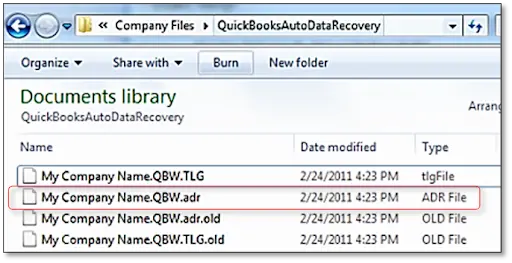
If you see that the company file is damaged, you must recover the lost data with the QuickBooks Auto Data Recovery tool.
Steps to restore recent transactions using .TLG file with .QBW.adr file


Perform the following troubleshooting methods when you fail to open the file over the network or in multi-user mode. If QuickBooks Desktop shows a different multi-user or network-related message while accessing the company file, you may also encounter QuickBooks Error H202. This error is commonly associated with problems connecting QuickBooks to the company file over a network. See our guide on QuickBooks Error H202 for additional troubleshooting steps.
If QuickBooks cannot connect to the company file because of an incorrect hosting configuration, you may also encounter QuickBooks Error H505, which is associated with multi-user hosting and network access.
It is suggested that you use one computer or server to host the company files.
If QuickBooks still cannot communicate with the company file after checking the Database Server Manager, see our guide on QuickBooks not connecting to the server for additional network troubleshooting steps.
QuickBooks Database Server Manager is a service that allows QuickBooks to access the company file in multi-user mode. If this service isn’t configured or not running properly, you won’t be able to access the data file in multi-user mode. However, to fix the issue, ensure that you run QBDBMgrN on your computer properly;
If you’re unfamiliar with the tools included in Tool Hub, see our guide to QuickBooks Tool Hub to learn what each utility does and when to use it.
Sometimes, you fail to access the company file due to the interference of background-running QuickBooks tasks. Therefore, to address the issue, you need to shut down the background tasks. Here’s how to do it;
The QuickBooks Error 6000 series can also occur when Windows Firewall blocks QuickBooks from accessing the company file or communicating across the network. Before manually configuring firewall ports, review our guide on Windows Firewall blocking QuickBooks for additional troubleshooting steps. To fix the issue, configure your firewall ports and then set up an exception in your antivirus software.
Repeat the steps above to create outbound rules. Follow all the same steps, except click Outbound Rules in step 4.
Create Windows Firewall exceptions for QuickBooks programs
QuickBooks uses executable files (.exe) to perform numerous tasks.
Perform the steps instructed below to create exceptions for each executable in the table:
To avoid the occurrence of QuickBooks Error 6000, you must consider the following points;
Even after performing the above troubleshooting methods, if you are still receiving QuickBooks Error 6000, then it’s time to get professional help. This may especially happen when the same error keeps appearing even when you have confirmed that the local company file and network connections are working properly.
Still seeing QuickBooks Error Code 6000 after trying these fixes? You can connect with our QuickBooks specialists, and they will help you resolve the issue, so a blocked file doesn’t turn into lost work.
QuickBooks Error 6000 is a company file access issue and prevents you from accessing important business data. Thus, it causes delays in ongoing business tasks, which puts the entire work at a halt. However, we ensure that by performing the troubleshooting methods listed above, you can fix the error. Furthermore, if the error continues, you are free to consult with our QB professionals and get answers to your query.

QuickBooks Error 6000 is a company file access error that appears due to various reasons such as file damage, incorrect hosting, network problems, or firewall settings.
To fix QuickBooks Error Code 6000, try running the QuickBooks File Doctor tool. If the issue continues, verify the .ND and .TLG files, hosting settings, folder permissions, and firewall configuration.
Both QuickBooks Error 6000, 77 and 6000, 83 belong to the 6000 series of errors. This mainly occurs due to incorrect file location, misconfigured hosting settings, or issues with network configuration.
No, this error doesn’t cause any damage to company file data. But it is suggested to create a company file backup before making any major changes.
Yes, interference from a firewall or network security settings might interrupt QuickBooks from accessing the company file. However, VPN configurations can also affect network connectivity.
You first need to perform the troubleshooting methods to resolve Error 6000 in QuickBooks. If the error continues and the file appears damaged, you must connect with a QuickBooks expert or a specialized expert for help.
AI-triaged.
Human-solved.
Instant QuickBooks diagnostics, then a certified ProAdvisor takes over live.
first-call fix
match time
live coverage

