The best QuickBooks alternatives in 2026 include Xero, Wave, FreshBooks, Zoho Books, and Sage 50; each built for a different business type and workflow. Before switching, it’s worth understanding whether your frustration with QuickBooks is a big problem, because the answer changes the decision entirely.
Before switching, it is important to understand what you actually need—your business size, industry fit, and workflow requirements. Use this guide to compare options and find the one that works best for you step by step.
Switching accounting software is a significant business decision that goes beyond comparing subscription prices or feature lists. While a new platform may promise lower costs, better automation, or improved reporting, the value of switching depends on your organisation’s specific needs and challenges.
Before making a change, evaluate whether your current frustrations are temporary issues that can be resolved through better configuration, training, or process improvements:
Businesses consider leaving QuickBooks for many reasons, but a few common challenges tend to drive the decision-making process.
As businesses grow, subscription fees, add-on services, and user licenses can become more expensive than initially expected. Some organisations begin exploring alternatives when software costs start exceeding their perceived value.
Companies experiencing rapid growth may find that their accounting requirements become more complex over time. Multi-entity management, advanced reporting, and industry-specific needs can prompt businesses to evaluate other solutions.
When teams rely heavily on spreadsheets, duplicate data entry, or custom workarounds, productivity can suffer. Businesses often look for platforms that offer stronger automation and streamlined workflows.
As technology stacks expand, seamless connections between accounting software and other business systems become increasingly important. Difficulties with integrations can create inefficiencies and reduce visibility across operations.
Decision-makers often require deeper financial insights than standard reports provide. Businesses seeking more advanced analytics, forecasting, or customisation may begin researching alternative platforms.
Businesses evaluating alternatives should first consider which version of QuickBooks they currently use, as the challenges associated with each product can vary widely:
QuickBooks Desktop is often preferred by organisations that require extensive customization, local data storage, or established workflows built over many years. However, businesses may face challenges related to remote access, collaboration, software maintenance, and evolving support options.
QuickBooks Online offers cloud-based accessibility, automatic updates, and easier collaboration across teams. At the same time, some users find that certain desktop features, customisation options, or advanced workflows are more limited in the online environment.
Because these products serve different business needs, the ideal alternative for a QuickBooks Desktop user may not be the best fit for a QuickBooks Online customer.
The price of a new accounting platform is usually only part of the equation. While competitors often highlight lower subscription fees or promotional discounts, the full cost of switching can include migration work, employee training, process adjustments, and temporary productivity losses.
Before making a move, it’s important to look beyond the monthly software fee and consider the resources required to successfully transition your financial data, workflows, and team to a new system:
Historical financial records often need to be reviewed, cleaned, and transferred before they can be imported into a new platform. Depending on the volume and complexity of your data, this process may require internal resources or outside consulting support.
Even user-friendly software comes with a learning curve. Teams need time to learn new navigation, reporting tools, and workflows, which can temporarily affect productivity.
Many accounting platforms charge additional fees for onboarding, configuration, integrations, or custom setup. These costs can exceed the advertised subscription price.
Established processes built around QuickBooks may need to be redesigned. During the transition period, businesses often experience slower approvals, reporting delays, or additional administrative work.
Existing connections with payroll, CRM, inventory, payment processing, or reporting tools may need to be rebuilt or replaced, potentially adding both costs and complexity.

The total cost of switching accounting systems varies widely based on company size, data complexity, and implementation requirements. For smaller businesses, expenses may be limited to subscription changes and a few hours of setup and training. Larger organisations, however, often invest significantly more in migration services, integration work, employee onboarding, and process redesign.
Beyond direct costs, businesses should also account for the value of employee time spent on implementation activities. Evaluating these factors upfront can help create a more accurate picture of the investment required and prevent unexpected expenses after the transition begins.
The best alternative depends on what you’re trying to solve. Small businesses may prioritise ease of use and low costs, while growing organizations often look for stronger reporting, automation, inventory management, or multi-entity support.
Comparing the leading options side by side can help narrow your choices and identify the platform that best fits your requirements:
| Software | Best For | Key Strengths | Potential considerations |
| Wave | Freelancers and very small businesses | Free accounting tools, invoicing, simple setup | Fewer advanced accounting and reporting features |
| FreshBooks | Service-based businesses and consultants | User-friendly invoicing, time tracking, project management | Less suited for complex accounting needs |
| Zoho Books | Small and growing businesses | Strong automation, extensive integrations, competitive pricing | Some advanced features may require higher-tier plans |
| Sage 50 | Established businesses with complex accounting needs | Robust accounting controls, inventory management, and detailed reporting | Steeper learning curve and higher implementation effort |
| Xero | Small to mid-sized businesses seeking cloud flexibility | Modern interface, strong ecosystem, multi-user collaboration | Certain advanced functions may require add-ons or integrations |
Each platform offers a different balance of functionality, usability, and cost. Before making a decision, consider your current accounting processes, future growth plans, integration requirements, and the resources available for implementation and training.
Choosing the right accounting software depends on your business size, budget, and accounting needs. While QuickBooks Online is widely used, many businesses now prefer simpler, cheaper, or more industry-specific tools. The best quickbooks alternatives in 2026 include Wave, Zoho Books, FreshBooks, Xero, and Sage 50.
If you’re paying $50–$200/month for QuickBooks Online but only use basic features like invoicing and expense tracking, switching can reduce costs and simplify your workflow.
WHO IT IS FOR: Small businesses spending $50–$200/month on QB Online whose needs are basic — invoicing, expense tracking, bank reconciliation, simple P&L and balance sheet.
Zoho Books is a good choice for small businesses and startups that want a simple accounting system with room to grow. It offers a free plan for businesses under $50,000 annual revenue and covers most basic accounting needs.
Key features:
WHO IT IS FOR: Consultants, agencies, contractors, freelancers, and service businesses whose primary need is professional invoicing, time tracking, and client management — not complex accounting.
FreshBooks is best for service-based businesses like freelancers, consultants, and agencies that need simple invoicing and time tracking. It is designed to make client billing fast and easy, without the complexity of full accounting systems.
Key features:
WHO IT IS FOR: Product-based businesses, retailers, and manufacturers that need inventory tracking and full cloud accounting.
Xero is a strong QuickBooks alternative for growing businesses that need accounting plus inventory and integrations in one system. It works well for eCommerce, retail, and service businesses that want a clean cloud-based setup with multiple users.
Key features:
WHO IT IS FOR: Businesses that prefer desktop accounting or need advanced inventory and job costing features.
Sage 50 is best for businesses that prefer desktop accounting and need stronger control over inventory, job costing, and detailed financial reporting.
Key features:
Who Is IT For: Wave is best for freelancers, sole proprietors, and very small service-based businesses that need simple accounting without monthly software costs.
Wave works well if your finances are straightforward and you mainly need invoicing, expense tracking, and basic reporting. It is especially useful for businesses with no employees or very small teams, where payroll, inventory, and advanced reporting are not required.
CONSTRUCTION/CONTRACTORS: Buildertrend or Knowify work better than QuickBooks for job costing, subcontractor management, and AIA billing, where QuickBooks often feels limited.
NONPROFITS: Aplos or Sage Intacct Nonprofit are better for fund accounting, donor tracking, and Form 990 reporting, especially since QuickBooks Premier Nonprofit is no longer a strong standalone option.
ECOMMERCE/RETAIL: Xero combined with A2X works well for Shopify and Amazon reconciliation, though QuickBooks Online is still a strong option and may not need replacing.
RESTAURANTS/HOSPITALITY: MarketMan handles food costing and inventory more effectively, while QuickBooks or Xero can be kept for core accounting instead of fully replacing it.

PROFESSIONAL SERVICES (agencies, consultants): FreshBooks or Harvest are better for time tracking and billing workflows, or many firms simply continue using QuickBooks Online Plus.
HEALTHCARE: Xero with Kareo integration or QuickBooks Online both work well, with QuickBooks Online still being a strong and widely used option for healthcare practices.
Migrating from QuickBooks to a new accounting system requires careful planning to ensure your financial data remains accurate, complete, and accessible. Use this checklist to help make the transition as smooth as possible and minimize disruptions to your business operations.

Before you begin using your new accounting software, make sure you have securely backed up and exported all relevant data from QuickBooks.
Having a complete copy of your records will help preserve historical information, support compliance requirements, and provide a reliable reference during and after the migration process.
Before switching to a new system, create a backup of your QuickBooks data and save a copy in a secure location. Having your records readily available ensures you can access important information at any time and provides an extra layer of protection during the migration process.
QuickBooks Desktop allows you to export and save your business data in several formats, making it easier to transfer information to a new accounting system. Depending on your needs, you can export data using Microsoft Excel, CSV files, IIF files, form templates, bank transaction files, or accountant transfer files.
For most migrations, exporting your records as CSV files is a straightforward option. You can use CSV exports to save customer and supplier lists, inventory items, and financial reports for review and import into your new software.
You can export your QuickBooks data as CSV files if you don’t use Microsoft Excel or if you’d like to view and edit your information in a different file format. CSV files are easy to access and compatible with most spreadsheet applications.
Customers and Suppliers
Items
Reports
Next, generate a detailed Chart of Accounts report along with key transaction reports.
These reports will help you accurately rebuild your financial structure and set up your new accounting software. For more guidance, refer to the instructions on how to create a Chart of Accounts and run reports in QuickBooks Desktop.
In your new accounting system, set up your opening balances in the Chart of Accounts and import your customer and supplier lists. After that, recreate any open invoices, bills, and other outstanding transactions, making sure all balances are adjusted correctly.
If you need additional help with moving from QuickBooks Desktop, you can contact our support team for assistance.
Once your data has been exported and backed up, take time to review and clean your records before importing them into the new system. This helps reduce errors and ensures a more accurate migration.
Check your customer and supplier lists for duplicate entries, outdated information, or inactive records. Update contact details where necessary and remove any unnecessary records.
Review your chart of accounts and remove any accounts that are no longer in use. Ensure account names are clear, consistent, and organized according to your business requirements.
Review all open invoices, bills, purchase orders, and sales orders. Confirm that outstanding balances are accurate and resolve any discrepancies before migration.
Complete all pending bank and credit card reconciliations to ensure your account balances match your financial records. This will provide a clean starting point in your new accounting system.
Run key financial reports, such as the Profit and Loss Statement, Balance Sheet, and Accounts Receivable and Accounts Payable Aging Reports. Review the reports for unusual balances, missing transactions, or data inconsistencies and make any necessary corrections
After importing your data into the new accounting software, run both systems in parallel for 30–60 days. During this period, compare key financial reports, account balances, customer and supplier records, and day-to-day transactions to ensure the data has been transferred accurately. Running both systems simultaneously allows you to identify and resolve any discrepancies before fully transitioning to the new platform and discontinuing the use of QuickBooks Desktop.
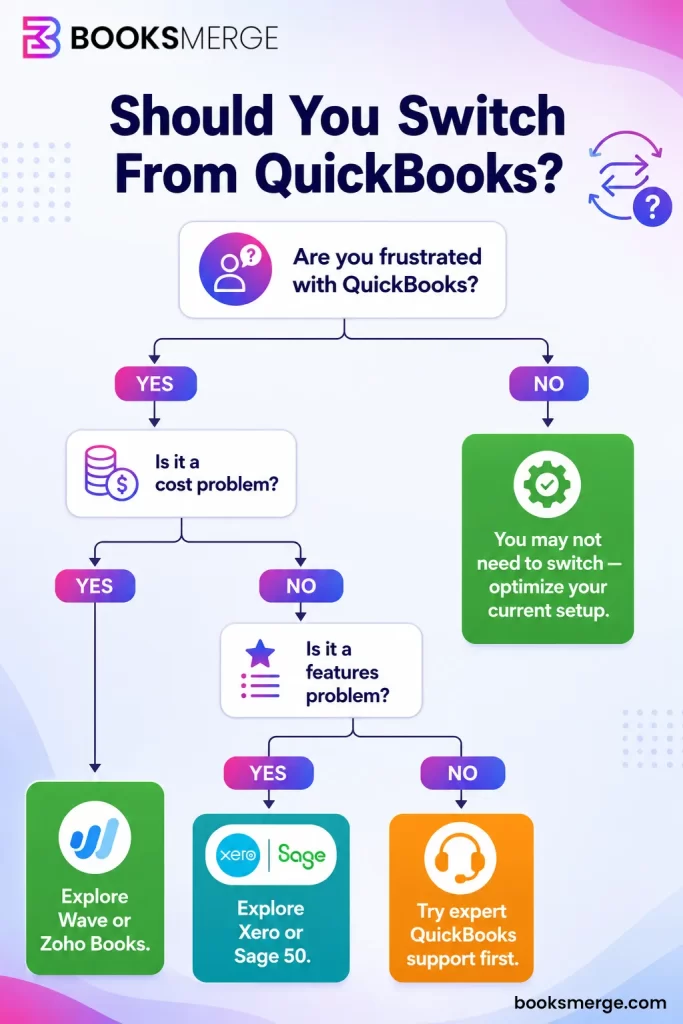
Before investing time and resources into a migration, it’s worth evaluating whether your current challenges can be resolved within your existing QuickBooks environment.
For some businesses, optimizing what they already have can deliver the improvements they’re looking for without the disruption that comes with adopting a new platform.
If QuickBooks effectively handles invoicing, expense tracking, payroll, reporting, and day-to-day accounting operations, a switch may offer limited practical benefits.
Many frustrations stem from employees not fully understanding available features or best practices. Additional training can often improve efficiency and reduce common errors.
Businesses with mature accounting processes may face significant disruption when moving to a new platform. If your workflows are functioning well, the costs of change may outweigh the benefits.
If QuickBooks connects successfully with your payroll, CRM, inventory, and payment processing systems, replacing those integrations can add unnecessary complexity and expense.
QuickBooks remains a suitable solution for many small and mid-sized businesses. If your company isn’t facing major scalability limitations, there may be little reason to migrate.
Before switching to another accounting platform, it’s worth checking whether expert help can fix the issues you’re facing. Most businesses don’t use QuickBooks to its full potential, and small setup or workflow changes can often make a big difference.
With the right support, you can usually improve reporting, clean up processes, and reduce errors without the disruption of moving to a new system. In many cases, that’s faster, cheaper, and less risky than a full migration.
There is no single best alternative to QuickBooks, as it depends on your business size, budget, and the features you need.
For growing businesses, Zoho Books offers a balanced mix of cost and features, while Xero is ideal for inventory-heavy and scaling companies. Sage 50 works best for businesses that prefer desktop accounting and deeper control. If QuickBooks is still meeting most of your needs, switching is not always necessary.
Still unsure what fits your business? Compare your options side by side and pick the one that saves you time, or connect with a BooksMerge certified professional at +1-866-513-4656 to do the daunting work for you!

The best all-around alternative to QuickBooks for small businesses is Xero, starting at $29 per month. It provides unmatched value, real-time bank reconciliation, and unlimited users.
Yes, Wave Accounting is the best completely free alternative to QuickBooks for small businesses and freelancers. It offers unlimited invoicing, expense tracking, and receipt scanning with no monthly subscription fees, making it an ideal cost-effective solution for solopreneurs.
Wave Accounting, Zoho Books, and FreshBooks are all significantly cheaper than QuickBooks Online. QuickBooks Online plans typically start around $35 to $45 per month, while these alternatives offer free tiers or lower-priced entry packages.
Yes, you can switch from QuickBooks to Xero, and the process is relatively straightforward. Xero even provides free data conversion services in many regions through partners like Movemybooks to automatically migrate your historical transactions.
For freelancers and service businesses, FreshBooks is widely considered the easiest alternative to learn due to its highly intuitive, client-focused invoicing dashboard.
Accountants recommend Xero as the best overall QuickBooks alternative for established small businesses and Zoho Books for budget-friendly automation. Meanwhile, Sage Accounting provides excellent inventory tracking for growing firms.
No, QuickBooks as a whole is not being discontinued, but specific localized and offline desktop versions are being phased out. Intuit is aggressively shifting its focus toward its cloud-based ecosystem, QuickBooks Online, which remains fully active and supported.
Xero paired with construction add-ons is the overall best QuickBooks alternative for small-to-midsize contractors, while Sage 100 Contractor is the premier choice for growing construction firms requiring native, built-in job costing.
AI-triaged.
Human-solved.
Instant QuickBooks diagnostics, then a certified ProAdvisor takes over live.
first-call fix
match time
live coverage