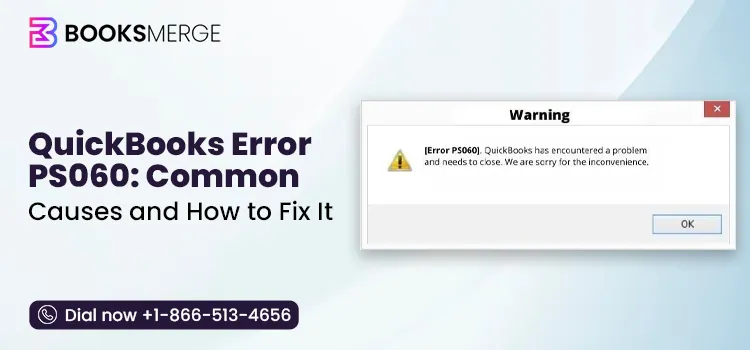
If you’re in the process of carrying out a payroll update and the QuickBooks error PS060 has just stopped you, you’re probably looking at a message which says “Current Enhanced Payroll Service is Unavailable”. It can be very annoying, particularly when you have a deadline to process your payroll, but the good point is that this error is generally solved without the need for any sophisticated technical intervention.
The following guide will show you what causes PS060, explain how to fix it step by step, and tell you how to prevent it from occurring again.
It’s helpful beforehand to know what this error really means. In most instances, PS060 does not indicate that there’s a problem inside your company file; rather, it’s QuickBooks letting you know that it was unable to verify that your Enhanced Payroll service is active and accessible, which suggests the issue lies with the subscription, the billing, or the connectivity rather than with data corruption.
The fact that this distinction exists is important since it affects the area you should investigate first; should you suppose that the problem lies with a damaged file and immediately proceed with reinstallation of QuickBooks or reconstructing the folders, you could end up spending an hour on procedures that would never have been able to resolve a billing or connectivity problem to begin with.
The guide has been arranged in such a way that you examine the more probable causes before moving on to the more time-consuming ones, and this should enable the majority of users to get back to running their payroll without having to carry out a lot of trial and error.
The following table gives a condensed summary of payroll error PS060 in QuickBooks Desktop.
| Error message | Current Enhanced Payroll Service is Unavailable |
| Error type | Payroll subscription / service-verification error |
| When it occurs | While downloading a payroll update or processing payroll |
| Most common causes | Inactive subscription, outdated billing information, Intuit server outage, connectivity issues |
| Less common causes | Damaged CPS folder, multiple QuickBooks installations, firewall/antivirus interference |
| Usual fix time | A few minutes to 30 minutes, depending on the cause |
| Affects | QuickBooks Desktop with Enhanced Payroll |
| Related errors | PS032, PS033, PS036, PS058 |
The PS060 error in QuickBooks occurs when QBDT is unable to check or access your Enhanced Payroll subscription, and this situation arises when you are downloading a payroll update or when you are attempting to process your payroll.
“Current Enhanced Payroll Service is Unavailable”
The error is most commonly caused by an inactive subscription, out-of-date billing details, a temporary fault on Intuit’s servers, or a connectivity issue, not by damage to your company file.
You’ll notice one or more of the following when this error shows up:
They occur when you are working in QuickBooks, during a planned payroll process, when you are checking for updates, or immediately after you have opened the program if it is set to check for updates automatically. Since the error appears halfway through a task, it may seem more disruptive than it really is; yet in most cases the solution takes just a few minutes once you have determined which cause applies to your situation.
If what you’re seeing is a message such as one indicating a failed download or an incomplete installation rather than one about an unavailable service, you could be encountering a related but separate problem. In the case where the error is concerning a failed update download rather than an unavailable service, refer instead to our PS058 guide since the solutions for that error are different.
PS060 appears at its root when QuickBooks is unable to verify that your payroll service is both active and accessible. There are a number of possible causes for this problem, and it’s important to go through them all before you begin troubleshooting, since the solution will depend on which one applies to your particular case.
Here are some common causes for QuickBooks error PS060:
It isn’t the case that all the causes listed will be relevant to your particular situation, which is the reason why the troubleshooting section that follows begins with the fastest checks. For example, a server outage can be ruled out in just a few seconds and involves no action on your part, whereas with a billing problem it may take a couple of minutes to resolve once you know where to look. Generally, going through the list in approximately the order of how likely each cause is to be the issue, rather than immediately trying the most technical solution, usually gets your payroll running again more quickly.
It is worth taking a moment to note that last point regarding the CPS folder. Although some troubleshooting resources regard a damaged CPS folder as the main cause of PS060, the more common and better documented cause is actually a problem with the subscription, billing, or server availability.
Even so, renaming the CPS folder remains a valid solution (and is dealt with later in this guide), but it is usually not the first thing to look at. Only when you have verified that your subscription and billing information are correct and the error still persists should you consider the CPS folder as a likely cause.
PS060 is part of a group of payroll error codes that have the “PS” prefix but which do not all have the same underlying cause. As a quick reference, here it is if you’re uncertain about whether PS060 is actually the error you’re facing:
| Error Codes | What It Usually Means |
| PS032 | Payroll subscription not recognized, often after a recent renewal |
| PS033 | Corrupted payroll tax table file blocking the update |
| PS036 | QuickBooks can’t verify the payroll subscription, often tied to billing or service-key issues |
| PS058 | Payroll update download or install failure, often a company file or connectivity issue |
| PS077 / PS107 | Damaged QuickBooks installation files affecting payroll downloads |
If you want to see a more comprehensive look at how these errors are related to one another, refer to our full guide on QuickBooks payroll update errors.
A few quick checks before you start working through fixes for QuickBooks Payroll error PS060 can save you time:
Once you’ve dealt with the ones mentioned above, you can carry out the fixes listed below. They are arranged in order from the quickest and least invasive to the more complicated ones, so begin with the first one and only proceed to the next if the previous step didn’t cure the error.
In the section below, we shall show you the detailed troubleshooting methods for resolving QuickBooks error PS060. Make sure to go through each of these steps carefully and carry them out according to the instructions.
Make sure that the problem is not caused by an ongoing Intuit server outage before making any changes to QuickBooks or your computer. Should Intuit’s payroll authentication servers be unavailable due to planned maintenance or an unexpected service disruption, QuickBooks will be unable to verify your payroll subscription and will instead display error code PS060.
Follow these steps to check for a server outage:
If no outage is reported and error PS060 still persists, then move on to the following method.
Error PS060 in QuickBooks is usually caused by having an inactive, expired, or suspended payroll subscription; so make sure that your payroll subscription is active before carrying out any further troubleshooting.
Renew or reactivate your subscription if it is inactive before downloading the payroll updates; if the subscription is active but the error still persists, then proceed to the next method.
A QuickBooks subscription might still be prevented from being verified with Intuit even if your payroll subscription shows as active due to outdated payment details.
Download the payroll updates again; if the PS060 error still shows up, proceed to the steps below.
Before QuickBooks can successfully verify your subscription, it has to be activated and fully updated.
Complete the activation by following the prompts.
If QuickBooks error PS060 persists, proceed to the next method.
A damaged or incorrect payroll service key can prevent QuickBooks from validating payroll.
Make sure that the service name is correct and that the status shows as Active.
Download payroll updates again.
The payroll update components are stored in the CPS folder and, if the folder is damaged, QuickBooks will be unable to authenticate the payroll subscriptions.
Download the payroll updates once more, and QuickBooks will then automatically create a new CPS folder.
QuickBooks uses your default browser to authenticate payroll services. Corrupted Intuit cookies might interfere with the verification process.
Clear the cache and then restart QuickBooks before downloading the payroll updates again.
A stale DNS cache can stop QuickBooks from getting to Intuit’s servers.
Restart QuickBooks and download the payroll updates once more.
Wrong Windows network settings can affect QuickBooks’ ability to connect to payroll servers.
Launch QuickBooks and get the payroll updates.
Program damage may stop QuickBooks from processing payroll updates properly, so let us use QB Tool Hub to repair the program.
Restart the computer and make sure QuickBooks is up to date by downloading the payroll updates.
Windows Firewall or third-party antivirus software may block QuickBooks from accessing Intuit’s payroll servers.
If the issue persists, verify that:
If firewall configuration is required, follow your dedicated firewall setup guide for creating QuickBooks port and executable exceptions.
If you’ve gone through all the methods mentioned above and the error is still there, then it’s worth considering carrying out a complete uninstall and reinstall of QuickBooks Desktop as a last resort. Yet in this particular case, it is seldom necessary when compared to the other errors in the same group.
Give the following QuickBooks folders a new name by adding .old to the end of each folder name:
After you reinstall, check if QuickBooks error PS060 is fixed.
A little routine maintenance goes a long way toward avoiding this QuickBooks error code PS060 in the future:
It’s a good idea to get into the habit of checking your billing information every time your card is about to expire or when your bank issues you a new one, since this is one of the most common and simplest reasons for PS060 to be overlooked. If you set up a recurring reminder a few weeks before your subscription is due to renew, you’ll be able to spot any billing problem before it leads to an error message.
Just as you should if you use QuickBooks on more than one computer, ensuring that all of those computers have the same software version will reduce the chance of a version mismatch causing payroll errors in the future.
In most cases, the steps mentioned above do indeed resolve PS060, but there are some exceptions. If you’re still getting the error even after having carried out all of the methods listed, you may have a billing conflict on your account, be impacted by a current Intuit server problem, or have a subscription issue which will need to be dealt with by account-level assistance. The real cost when a payroll update is blocked isn’t the error message but the fact that the payroll run is now at risk of being delayed.
Once you have tried all of the above remedies and are still receiving the PS060 error, BooksMerge’s payroll specialists will be able to check your subscription status directly and get your payroll going again, so that a blocked update won’t cause you to miss a paycheck.
If you’d like to find out how BooksMerge handles QuickBooks Assisted Payroll, or if you’re facing a more general payroll update problem, our detailed troubleshooting guide for the payroll update not working examines a number of related situations more thoroughly.
QuickBooks error PS060 is usually caused by a problem with your subscription, billing, or connectivity, not by a corrupted file, which is good news since these kinds of issues can usually be fixed in just a few minutes. Firstly, verify if there is an Intuit server outage, and then ensure that your subscription and billing information are correct.
Just carrying out these two steps deals with the majority of PS060 errors. If the error remains after that, try the other solutions in turn, beginning with updating QuickBooks and then checking your firewall and antivirus settings. If you’ve carried out all of these steps and your payroll is still stuck, it is reasonable to seek direct assistance at this stage rather than put it off.
It means QuickBooks Desktop couldn’t confirm that your Enhanced Payroll subscription is active and reachable at that moment. This is usually related to subscription status, billing details, or a temporary server issue rather than damage to your company file. In most cases, it clears up once the underlying subscription, billing, or connectivity issue is resolved.
The most common causes of error code PS060 in QuickBooks are an inactive or expired payroll subscription, outdated billing or credit card information, a temporary Intuit server outage, or a connectivity issue. Less commonly, it can stem from a damaged CPS folder, a firewall blocking QuickBooks, or conflicts from multiple QuickBooks installations on the same computer. Working through these possibilities in order, starting with the most common, is usually the fastest way to identify which one applies to you.
Not always, but it’s one of the most frequent causes. Billing issues, server outages, and connectivity problems can trigger the same error even when your subscription is technically active, which is why it’s worth checking each possibility rather than assuming it’s the subscription alone. Verifying your subscription status directly through your Intuit account is the quickest way to rule this cause in or out.
PS058 is usually an update-download or installation failure, while PS060 is a service-availability or subscription-verification error. They can look similar because both interrupt a payroll update, but the underlying causes and fixes are different, so it’s worth confirming which error message you’re actually seeing. See our PS058 troubleshooting guide for that error specifically.
It depends on what’s causing the error. If your subscription and billing details are current and the issue is a temporary server outage or connectivity problem, you may be able to process payroll again once that clears on its own. If the subscription itself is inactive or your billing information is out of date, payroll processing will stay blocked until that’s corrected.
Most cases resolve within a few minutes, especially when the cause is a server outage, an outdated billing detail, or a lapsed subscription. Fixes involving the CPS folder, firewall settings, or a QuickBooks reinstall can take longer, sometimes up to 30 minutes. If you’ve worked through the methods in this guide and the error persists beyond that, it’s a good sign to reach out for direct assistance.
AI-triaged.
Human-solved.
Instant QuickBooks diagnostics, then a certified ProAdvisor takes over live.
first-call fix
match time
live coverage
